Hospitality operations manual

Start here
Browse by role

Filter the manual by team responsibility

Use these quick filters to focus on the screens most relevant to cashiers, hosts, supervisors, managers, inventory teams, payroll, and finance users.

Purpose of this manual

Single source of truth for front-office service and backoffice management

This documentation combines the live service workflows used by cashiers, hosts, and kitchen teams with the backoffice controls used by supervisors, managers, accountants, and inventory administrators. It explains what each screen does, when to use it, and what operational result to expect.

Audience

Cashiers, supervisors, front-of-house staff, managers, purchasing teams, accountants, payroll operators, and kitchen/expo staff.

Primary goal

Help end users understand what each screen does, how it supports day-to-day operations, and how front-office actions connect to reporting and administration.

Best for

Hospitality venues running counter service, dine-in, reservations, web ordering, delivery dispatch, loyalty, stock control, and management reporting.

Why this guide matters

It reduces training time, improves operational consistency, and gives managers one place to document both service and administrative workflows.

Operating principles

  • Create and review orders in the main POS before tendering payment.
  • Use Quick Actions for exceptions such as refunds, held carts, reprints, and promotional controls.
  • Attach customers, tables, and reservation context early so reporting and service history remain accurate.
  • Use backoffice dashboards and reports to validate what happened at POS, not to guess.
  • Keep catalog, pricing, stock, and supplier records current so the front office sees reliable data.
  • Restrict financial, payroll, and integration settings to authorized roles.

How to use this page

  • Use the left sidebar to jump to any front-office or backoffice module.
  • Use search to filter the navigation by keyword, for example refund, inventory, or payslip.
  • Click any screenshot to enlarge it in the lightbox.
  • Use this page as a training guide, a reference manual, or a handover document between teams.
Front office · Core sales

1. Main POS Home Screen

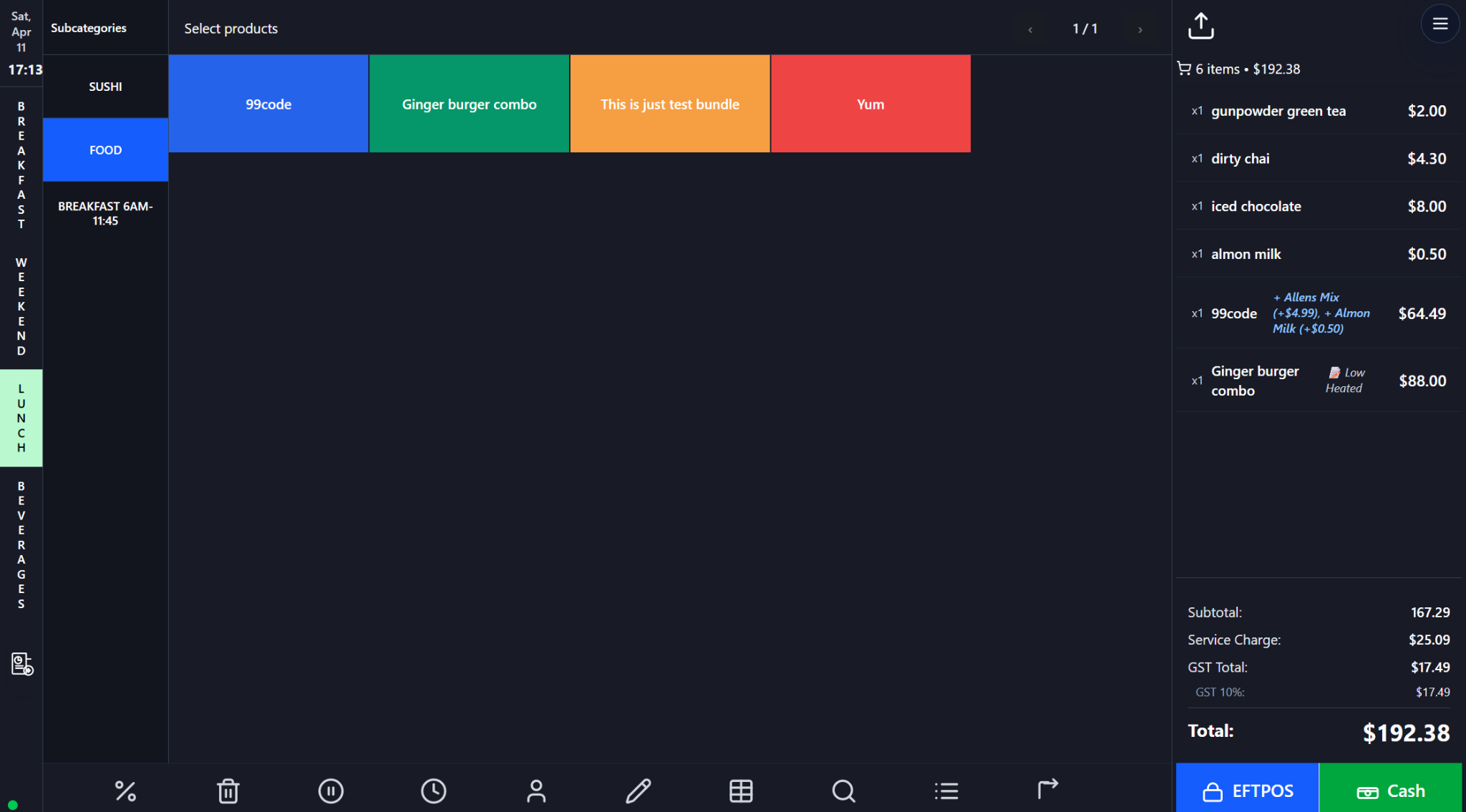
The main POS screen is the operational workspace used by cashiers and front-of-house teams to create orders, browse menus, review carts, and launch payment without leaving the service flow. It is optimized for speed, visibility, and minimal tap count during peak trading.

Front office • Live selling • Cashier

Screen walkthrough

Primary screens used in this workflow. Click any screenshot to enlarge and review the UI details more closely.
Main POS Home Screen screenshot
Main Pos

Functions and controls

Area / controlDetailed function
Day-part railSwitches between major service windows such as Breakfast, Lunch, and Beverages so the active menu matches the trading period.
Subcategory panelNarrows the active menu into smaller product groups, reducing clutter and speeding up item selection.
Touch product gridLarge color-coded tiles allow rapid product entry on tablets, touch monitors, and iPads.
Live cart summaryShows selected items, quantities, modifiers, and prices before checkout.
Totals panelDisplays subtotal, service charge, GST, discounts, and final total, acting as the final validation point before payment.
Bottom action barProvides shortcuts for discounting, editing, hold, customer assignment, search, notes, and other exception workflows.

Typical use cases

  • Fast dine-in and takeaway order entry.
  • High-volume counter service where staff must stay on one screen.
  • Training new staff on menu flow and checkout sequencing.

Operational guidance

  • Confirm the correct order type, table, or day-part before adding items.
  • Review the totals panel before opening the payment window.
  • Use dedicated edit and split tools for corrections instead of trying to mentally track changes.
Front office · Core sales

2. Quick Actions Menu

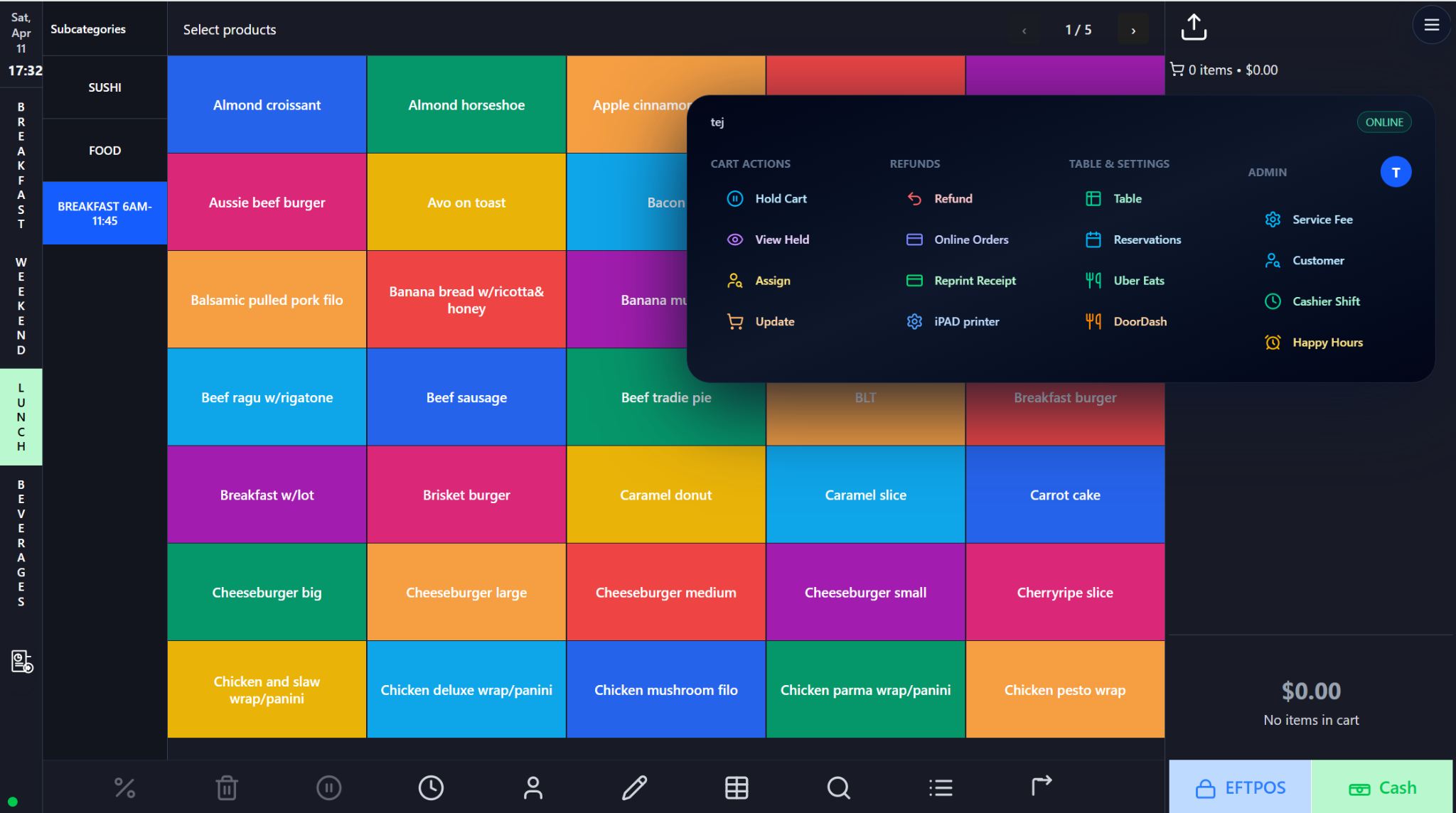
Quick Actions is the operational switchboard for tasks that sit next to active selling. It lets staff jump into refunds, held carts, table tools, delivery integrations, receipt reprints, service fee controls, and customer management without navigating away from the POS shell.

Front office • Exceptions • Supervisor

Screen walkthrough

Primary screens used in this workflow. Click any screenshot to enlarge and review the UI details more closely.
Quick Actions Menu screenshot
Quick Actions

Functions and controls

Area / controlDetailed function
Cart actionsHold, View Held, Assign, and Update keep active sales flexible while the cart is still open.
Refund toolsExpose refund processing, online order review, receipt reprints, and printer utilities for completed transactions.
Table & settingsGive dine-in venues access to tables, reservations, and delivery creation flows.
Admin actionsProvide permission-controlled functions such as service charge, cashier shift, customer maintenance, and Happy Hours.
Online indicatorHelps staff understand whether the device or session is currently online before attempting sync-dependent actions.

Typical use cases

  • Handling exceptions without losing the active sale context.
  • Supervisor access to promotional or configuration tools.
  • Launching secondary workflows during busy service.

Operational guidance

  • Reserve refund and promotional controls for authorized roles.
  • Use notes when a workflow will be resumed by another operator.
  • Confirm the correct record before entering any monetary adjustment flow.
Front office · Payments & refunds

3. Payments, Refunds, Reprints, and Split Bills

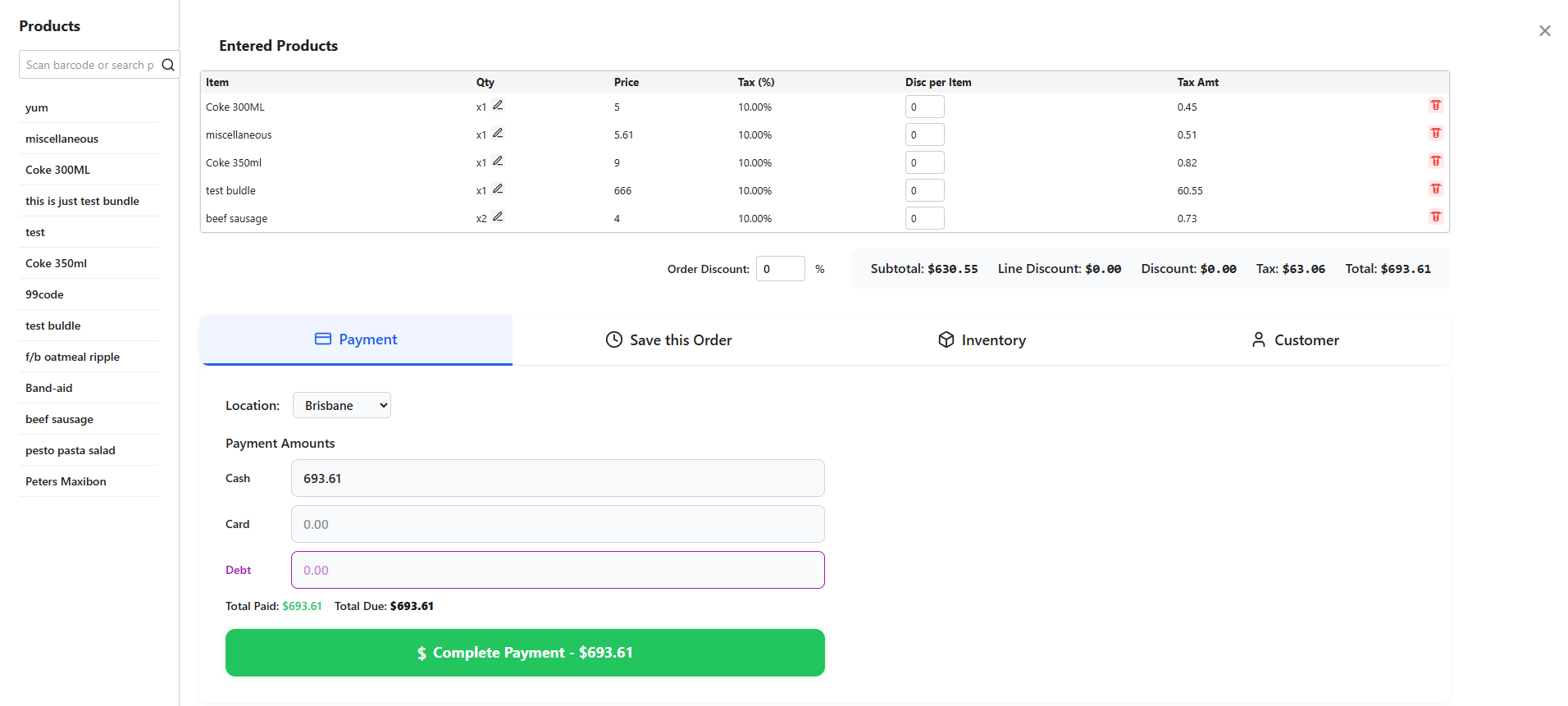
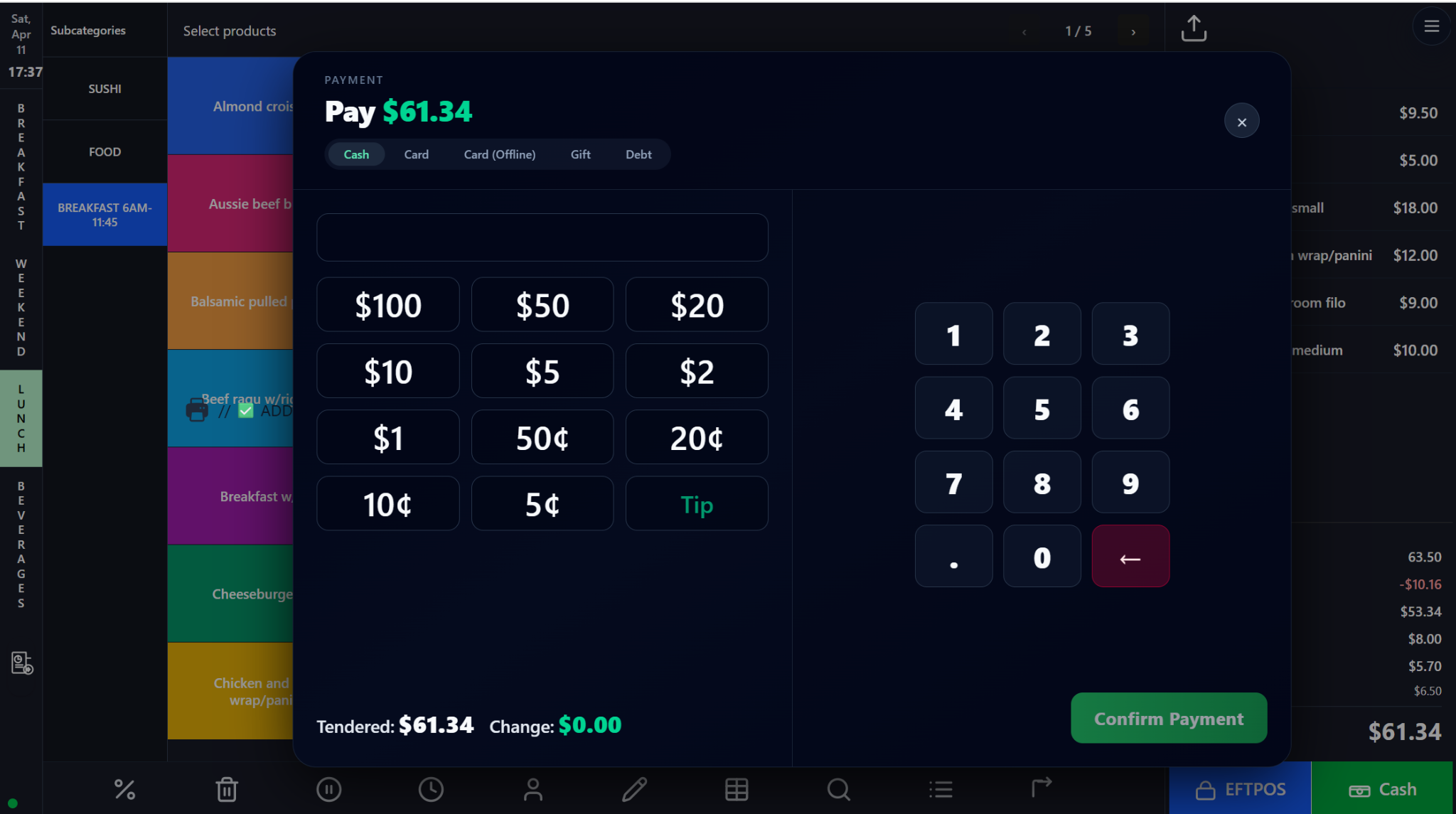
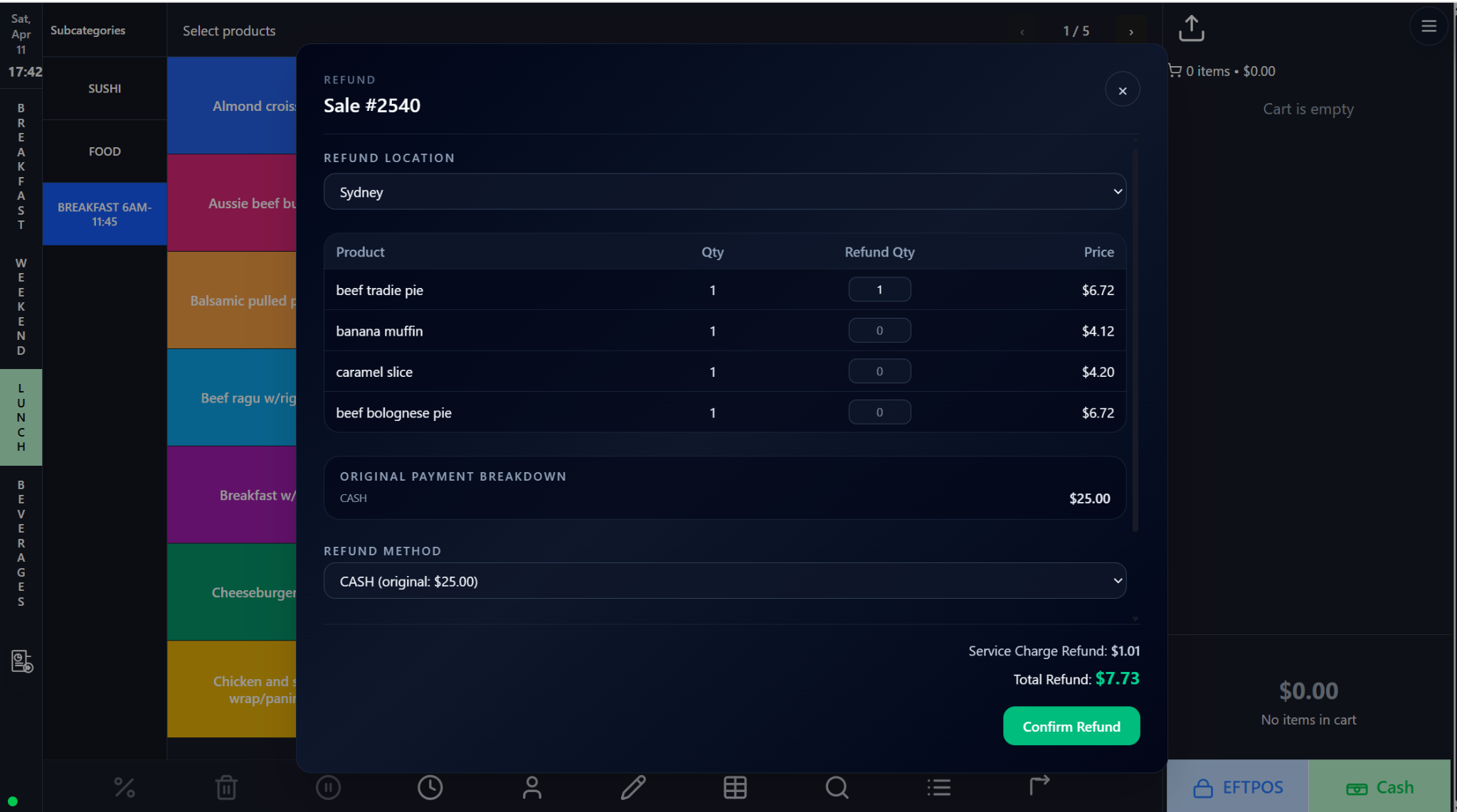
These payment and recovery screens manage both the completion of a sale and the controlled correction of transactions after checkout. They are essential for accurate cash handling, customer service recovery, and end-of-shift reconciliation.

Payments • Refunds • Reconciliation

Screen walkthrough

Primary screens used in this workflow. Click any screenshot to enlarge and review the UI details more closely.
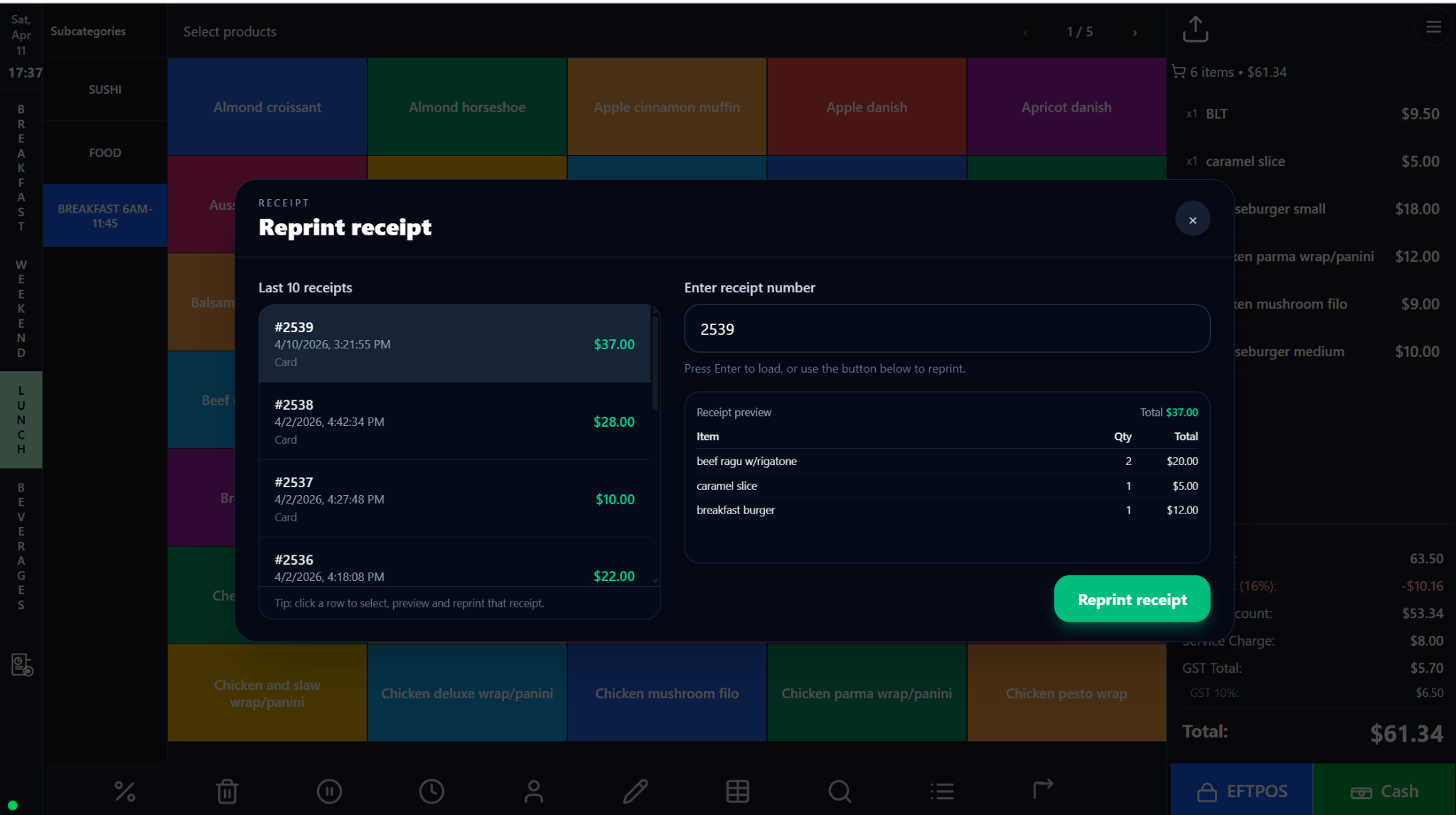
Payments, Refunds, Reprints, and Split Bills screenshot
Payment
More screens
Payments, Refunds, Reprints, and Split Bills screenshot
Refund
Payments, Refunds, Reprints, and Split Bills screenshot
Reprint
Payments, Refunds, Reprints, and Split Bills screenshot
Split Payment

Functions and controls

Area / controlDetailed function
Payment tabsSupport Cash, Card, Card (Offline), Gift, and Debt according to venue policy.
Tender input and keypadAllow exact amount entry and fast denomination-based cash tendering.
Refund quantity gridSupports full or partial refunds against an existing sale while preserving payment context.
Receipt previewLets staff verify the receipt before sending it back to the printer.
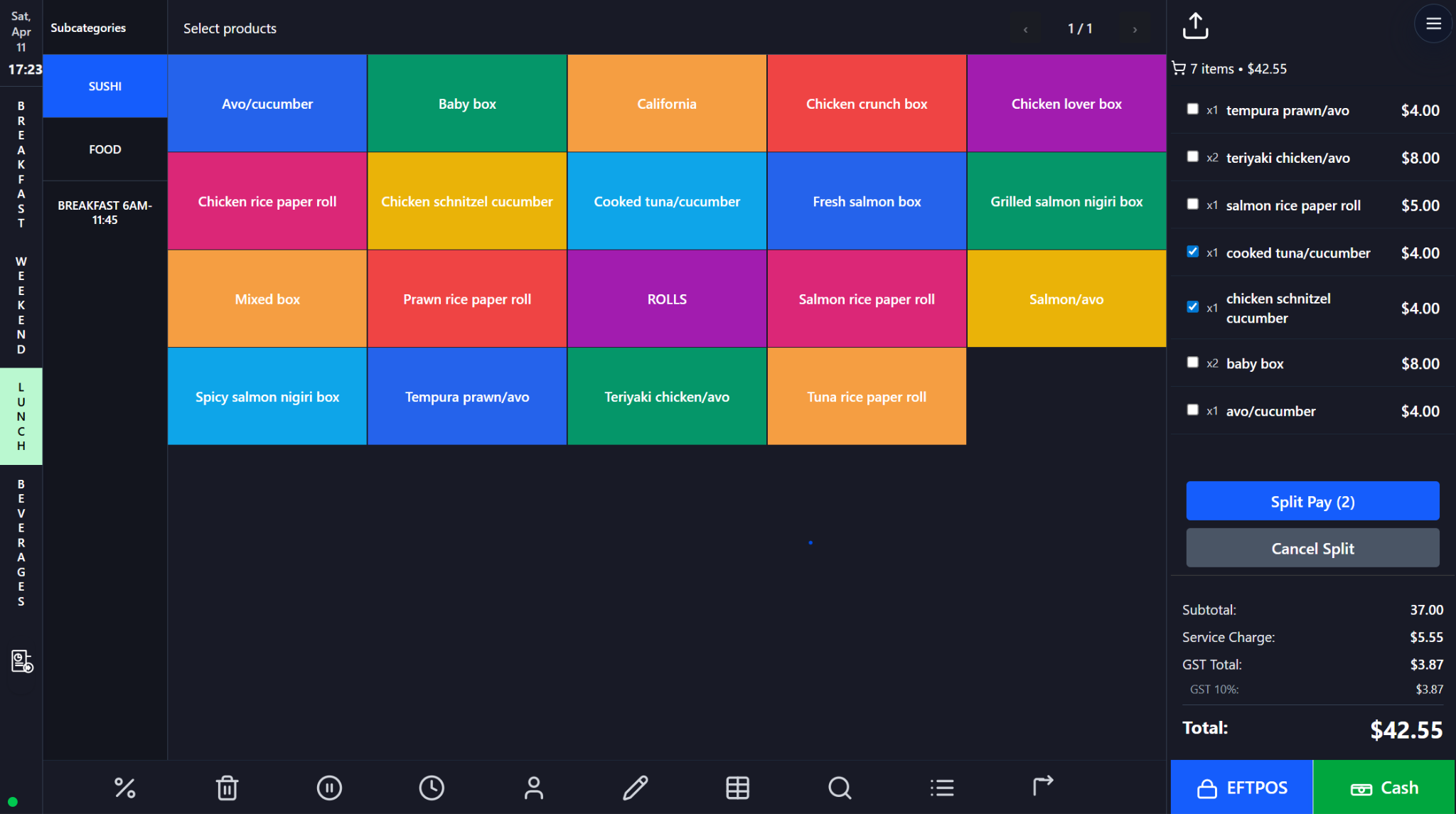
Split selection modeAllows line-by-line bill splitting so only selected items are paid first.
Change / refund summariesCalculate live values before staff commit money-moving actions.

Typical use cases

  • Standard checkout and change calculation.
  • Partial or full refunds on prior receipts.
  • Reprinting lost receipts and splitting shared bills by item.

Operational guidance

  • Read totals aloud when customers query payment amounts.
  • Match refund method to policy and original tender where required.
  • Use split selection rather than manual math to reduce mistakes.
Front office · Catalog & pricing

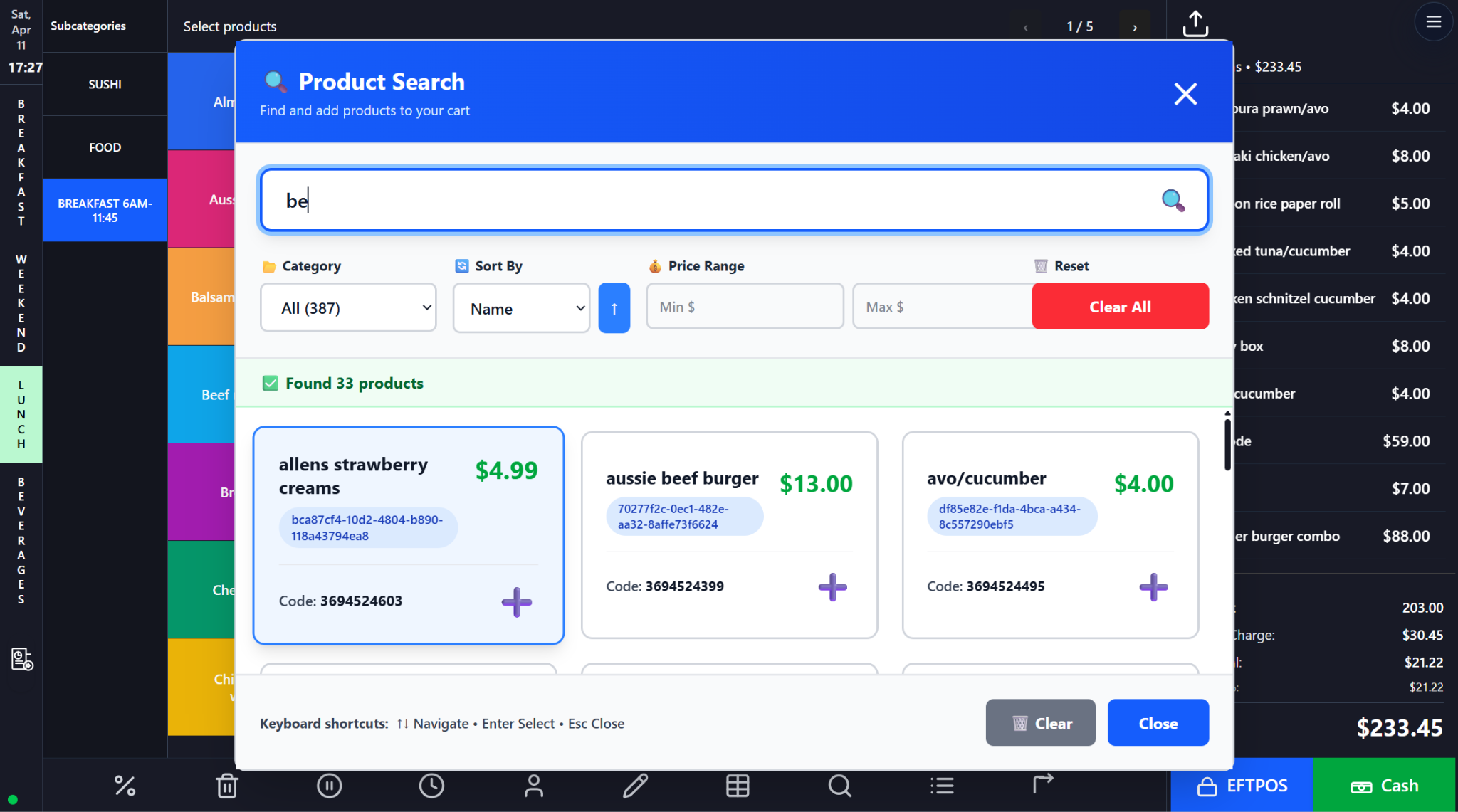
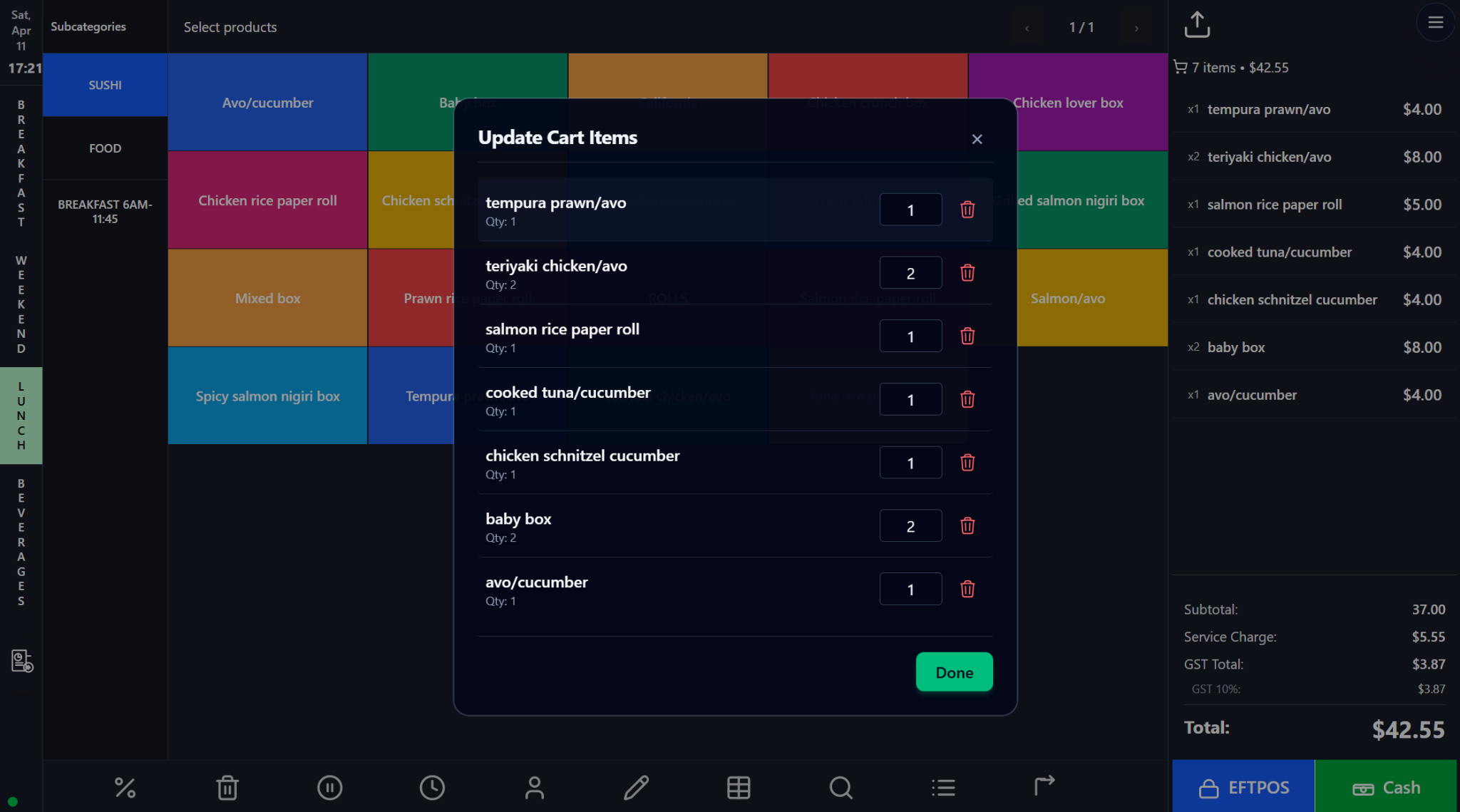
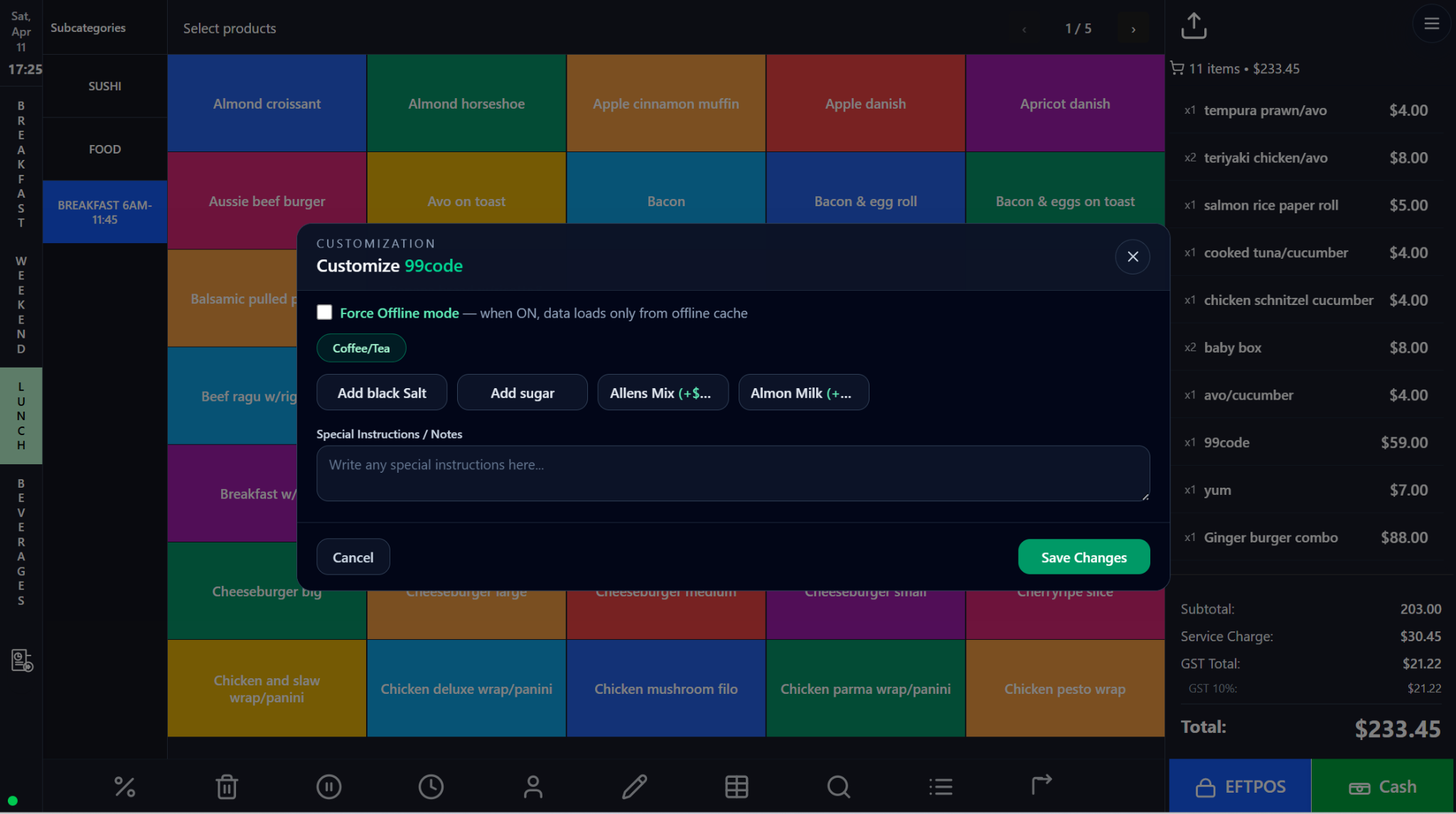
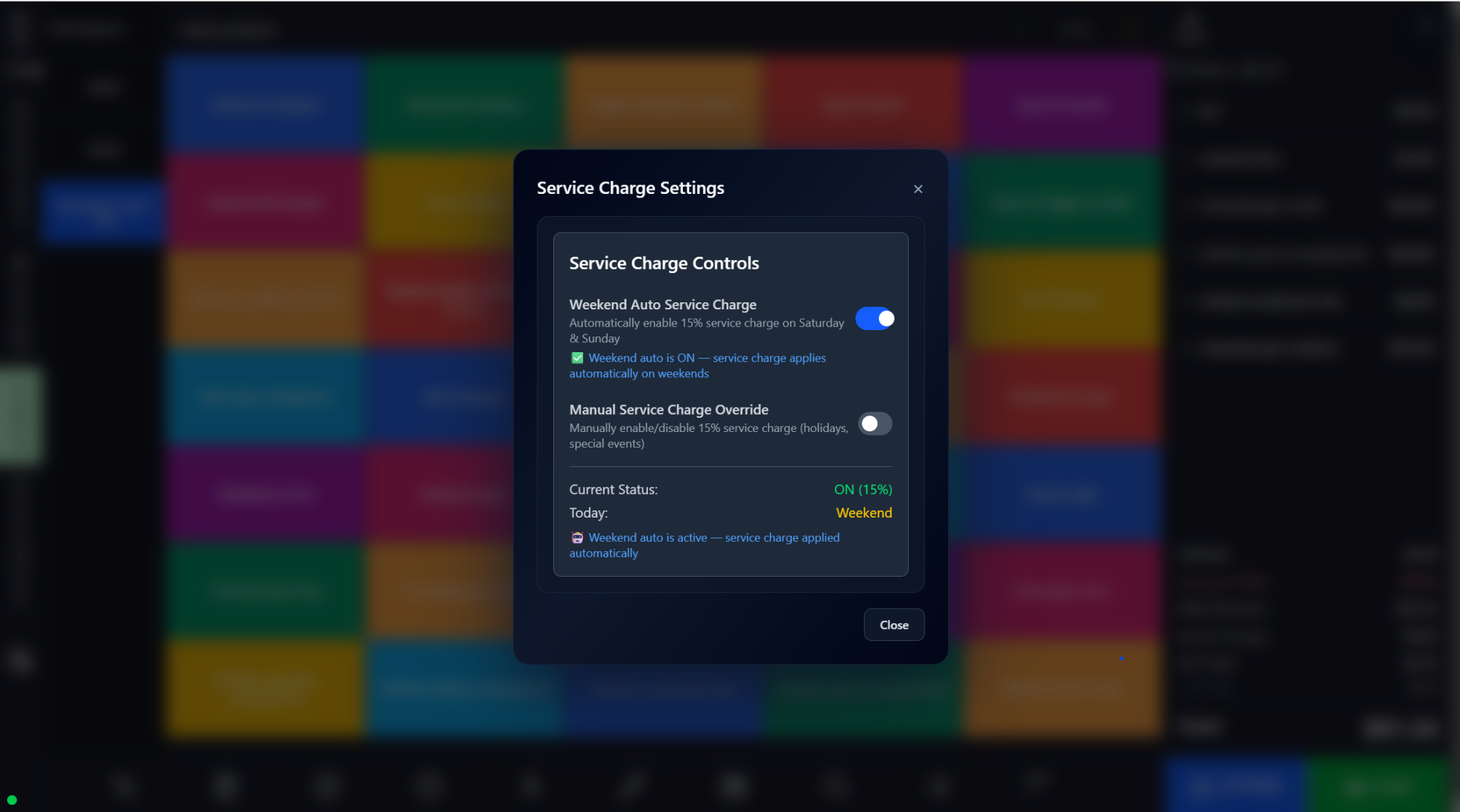
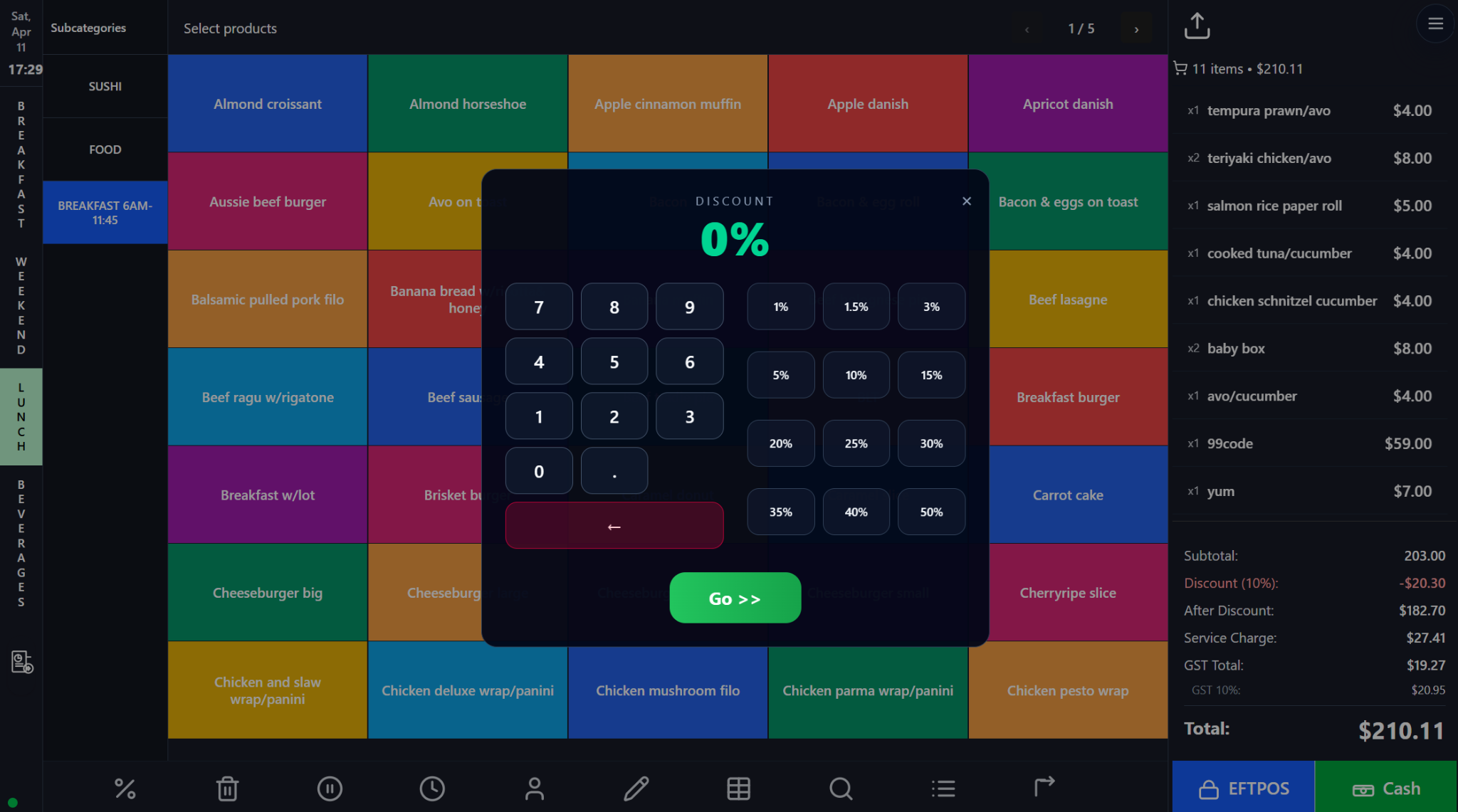
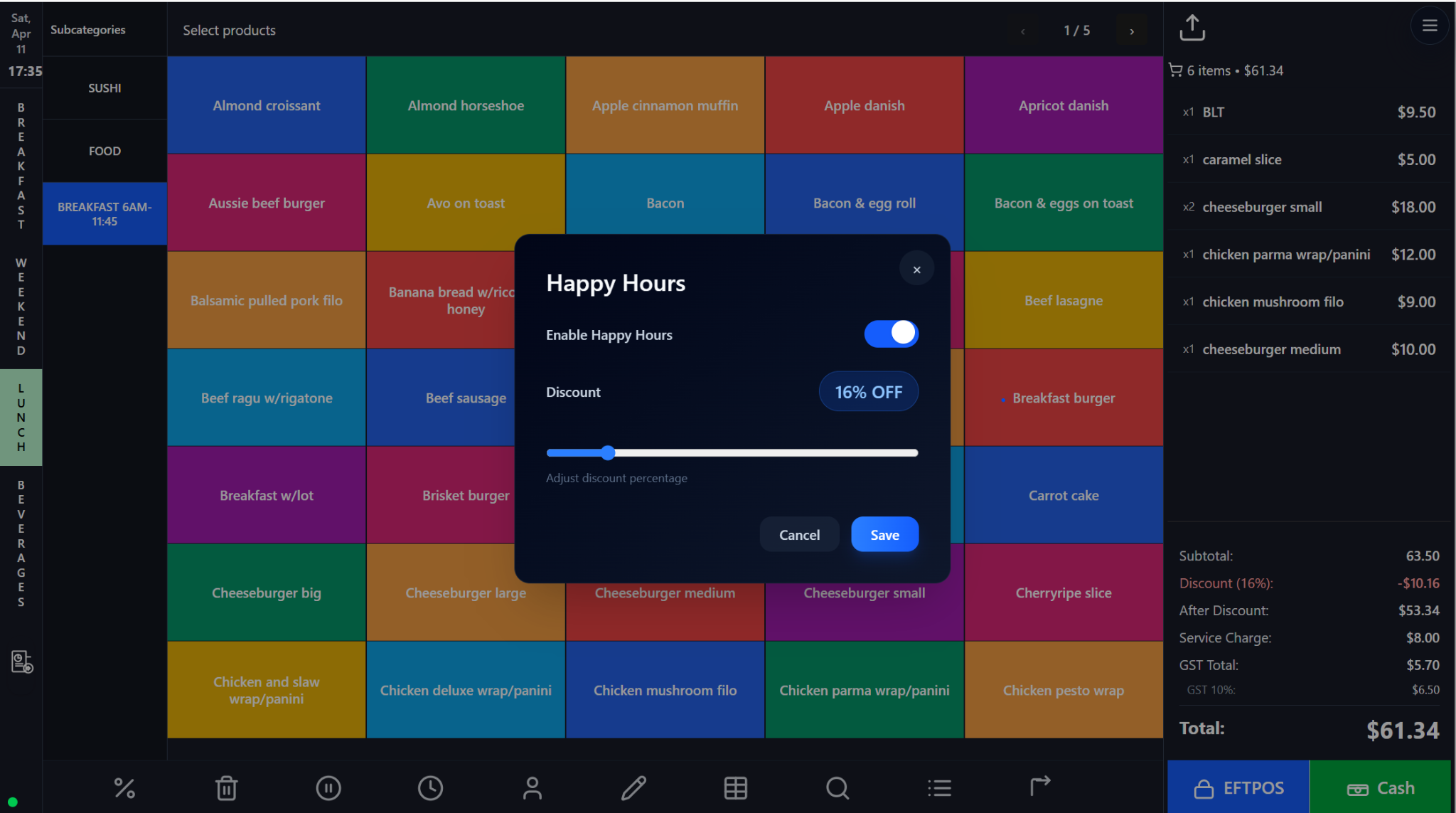
4. Product Search, Cart Editing, Customization, Service Charge, Discounts, and Happy Hours

This group of screens controls how products are located, modified, priced, and promoted during live service. Together they support accurate order entry, kitchen-ready customization, and manager-controlled pricing adjustments.

Catalog • Pricing • Promotions

Screen walkthrough

Primary screens used in this workflow. Click any screenshot to enlarge and review the UI details more closely.
Product Search, Cart Editing, Customization, Service Charge, Discounts, and Happy Hours screenshot
Product Search
More screens
Product Search, Cart Editing, Customization, Service Charge, Discounts, and Happy Hours screenshot
Update Cart
Product Search, Cart Editing, Customization, Service Charge, Discounts, and Happy Hours screenshot
Product Customization
Product Search, Cart Editing, Customization, Service Charge, Discounts, and Happy Hours screenshot
Service Charge
Product Search, Cart Editing, Customization, Service Charge, Discounts, and Happy Hours screenshot
Discount Entry
Product Search, Cart Editing, Customization, Service Charge, Discounts, and Happy Hours screenshot
Happy Hours

Functions and controls

Area / controlDetailed function
Product SearchFinds products by keyword, category, sort order, or price band when browsing is too slow.
Update Cart ItemsProvides a clean list-based view for quantity edits and line deletions.
Customization dialogApplies add-ons, substitutions, and kitchen notes to a specific product line.
Service charge controlsManage automatic weekend surcharges and supervisor overrides.
Discount entryApplies percentage discounts through keypad input or preset buttons.
Happy HoursEnables short-term promotional discounting without editing every product record.

Typical use cases

  • Large menus with many products or hidden subcategories.
  • Hospitality items that require milk, add-on, or preparation choices.
  • Manager-controlled promotional periods and surcharge compliance.

Operational guidance

  • Confirm that paid modifiers appear in the cart before checkout.
  • Lock discount and surcharge controls behind permissions.
  • Use clear kitchen notes and avoid using notes for internal chatter.
Front office · Tables & reservations

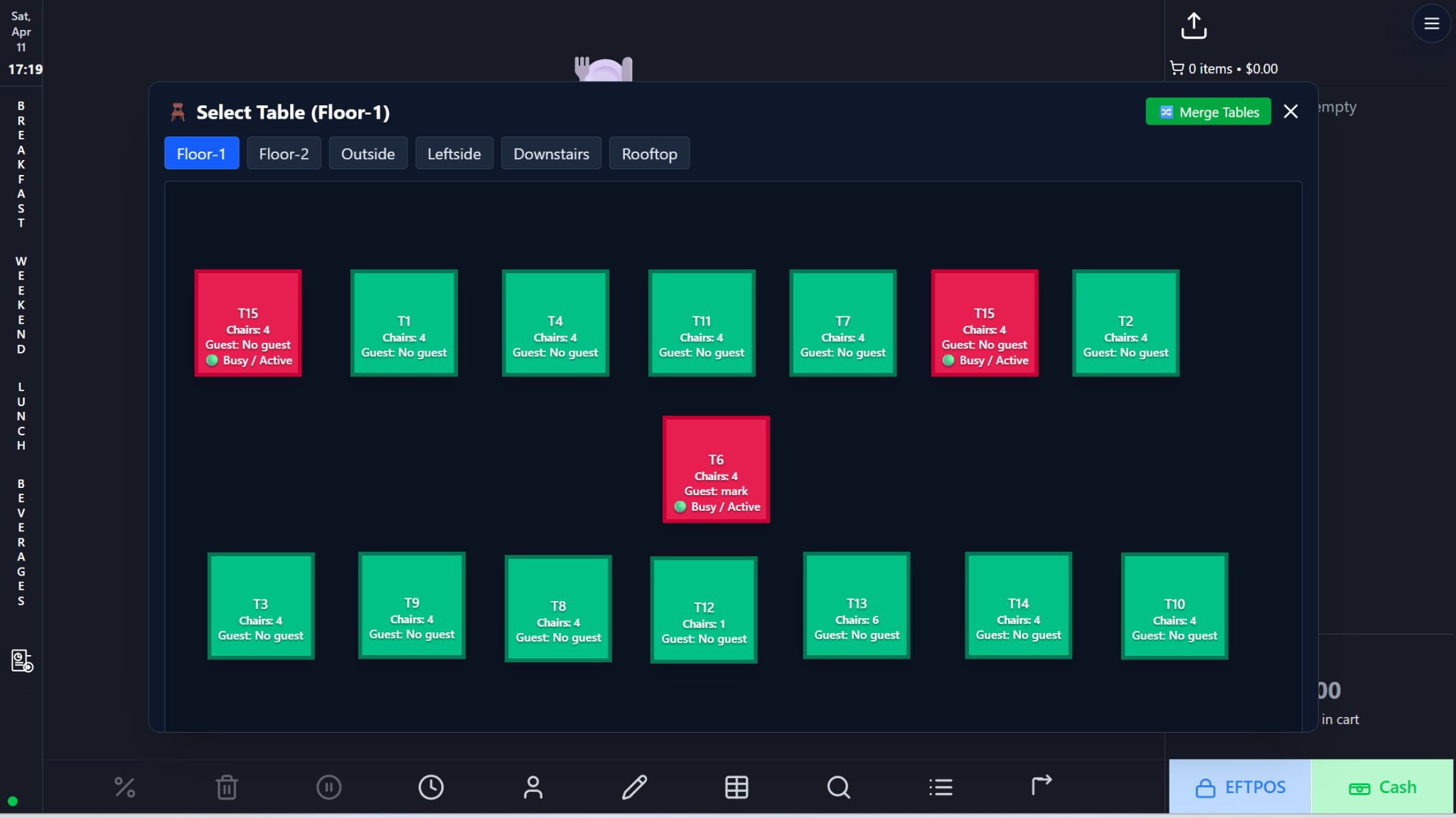
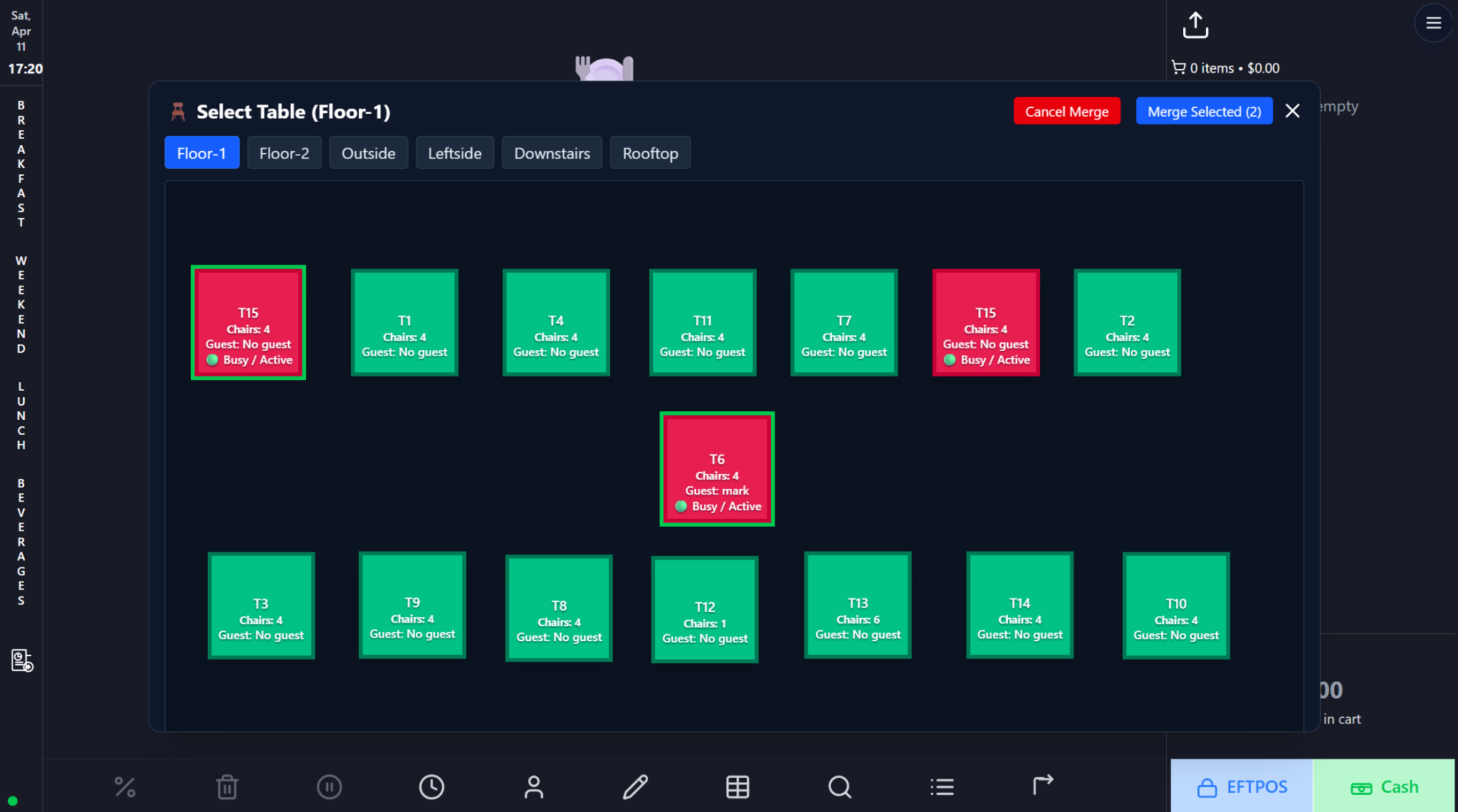
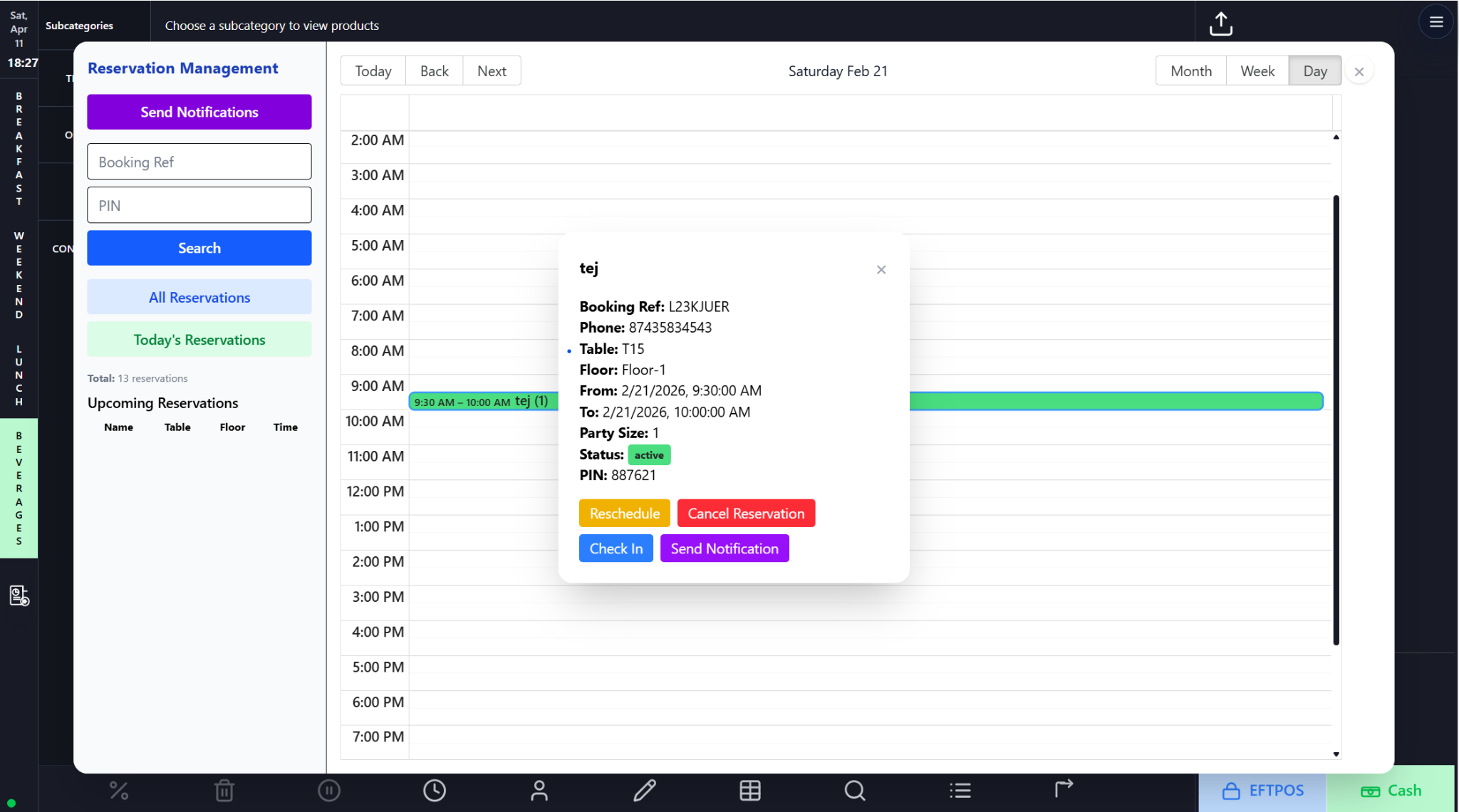
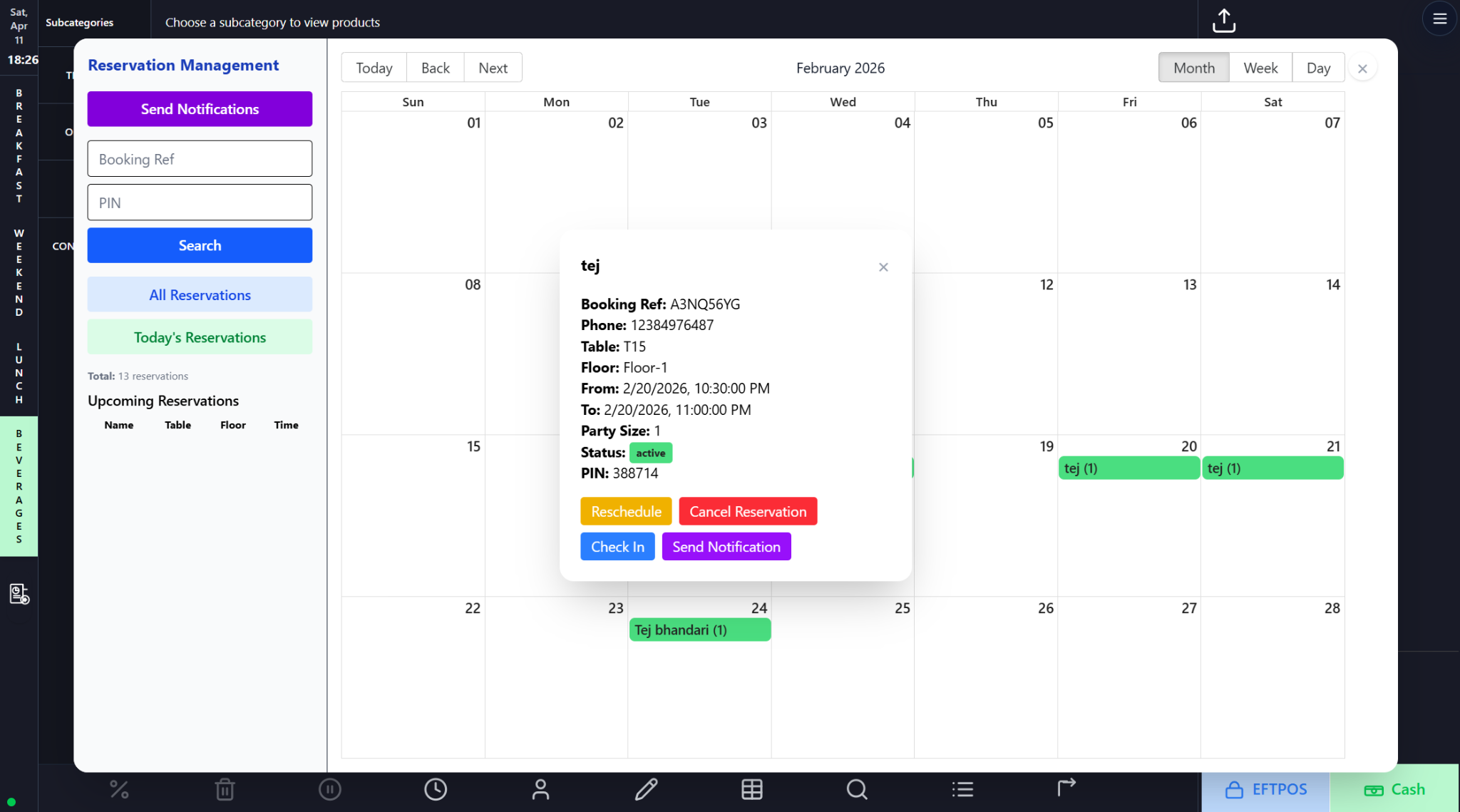
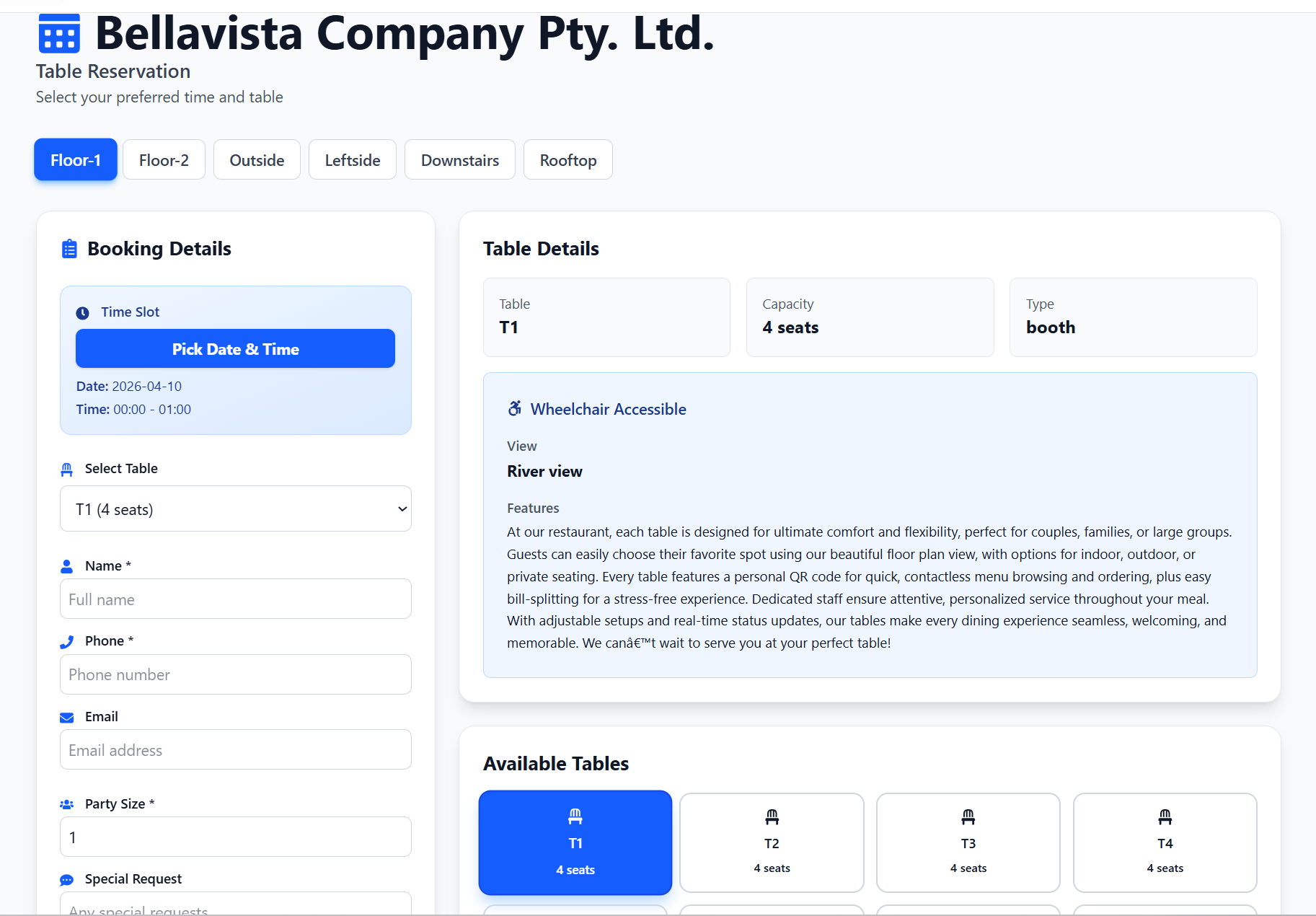
5. Tables, Merged Tables, Reservations, and Online Table Booking

These screens manage dine-in seating from both the staff side and the guest side. They help venues coordinate table allocation, reduce overbooking, and provide a controlled booking flow for customers and hosts.

Tables • Reservations • Front desk

Screen walkthrough

Primary screens used in this workflow. Click any screenshot to enlarge and review the UI details more closely.
Tables, Merged Tables, Reservations, and Online Table Booking screenshot
Table View
More screens
Tables, Merged Tables, Reservations, and Online Table Booking screenshot
Table Merge
Tables, Merged Tables, Reservations, and Online Table Booking screenshot
Reservation Day
Tables, Merged Tables, Reservations, and Online Table Booking screenshot
Reservation Calendar
Tables, Merged Tables, Reservations, and Online Table Booking screenshot
Table Booking

Functions and controls

Area / controlDetailed function
Floor tabsSeparate seating areas such as Floor-1, Outside, or Rooftop for easier venue navigation.
Table status tilesShow table number, chair count, guest name, and active/busy status at a glance.
Merge tables modeCombines multiple tables into one service context for large parties.
Reservation timeline and calendarAllow day-level and month-level booking review, check-in, cancellation, and rescheduling.
Guest-facing booking formCollects booking date, table, contact details, party size, and special requests from customers.
Notification actionsSupport outbound reservation messaging where enabled.

Typical use cases

  • Host-stand seating control.
  • Large party seating that spans multiple tables.
  • Online and phone reservation management across day and calendar views.

Operational guidance

  • Always verify the correct floor and table before seating or merging.
  • Use reservation status and check-in consistently to avoid duplicate service.
  • Keep guest contact information accurate for notifications and confirmation.
Front office · Delivery & online

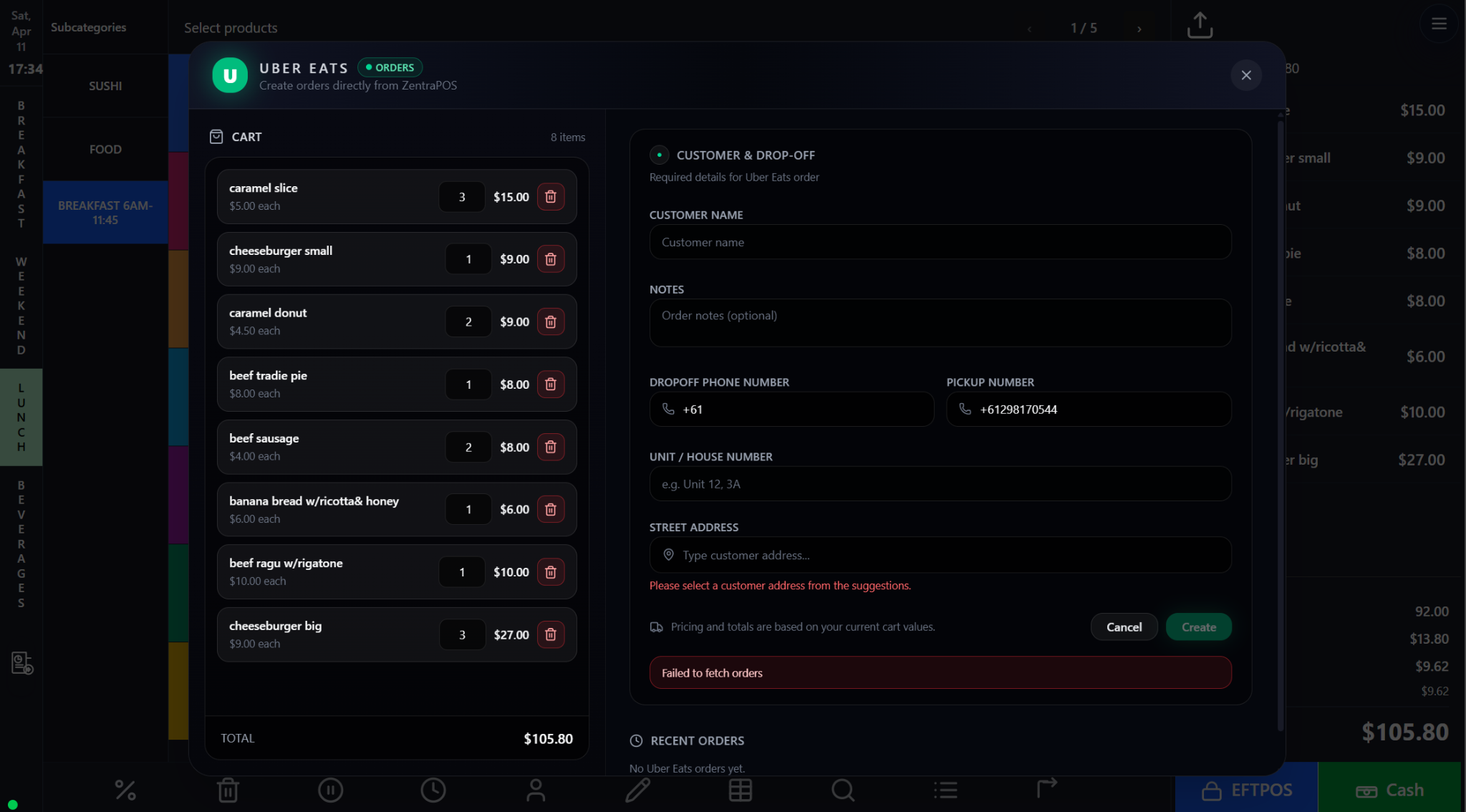
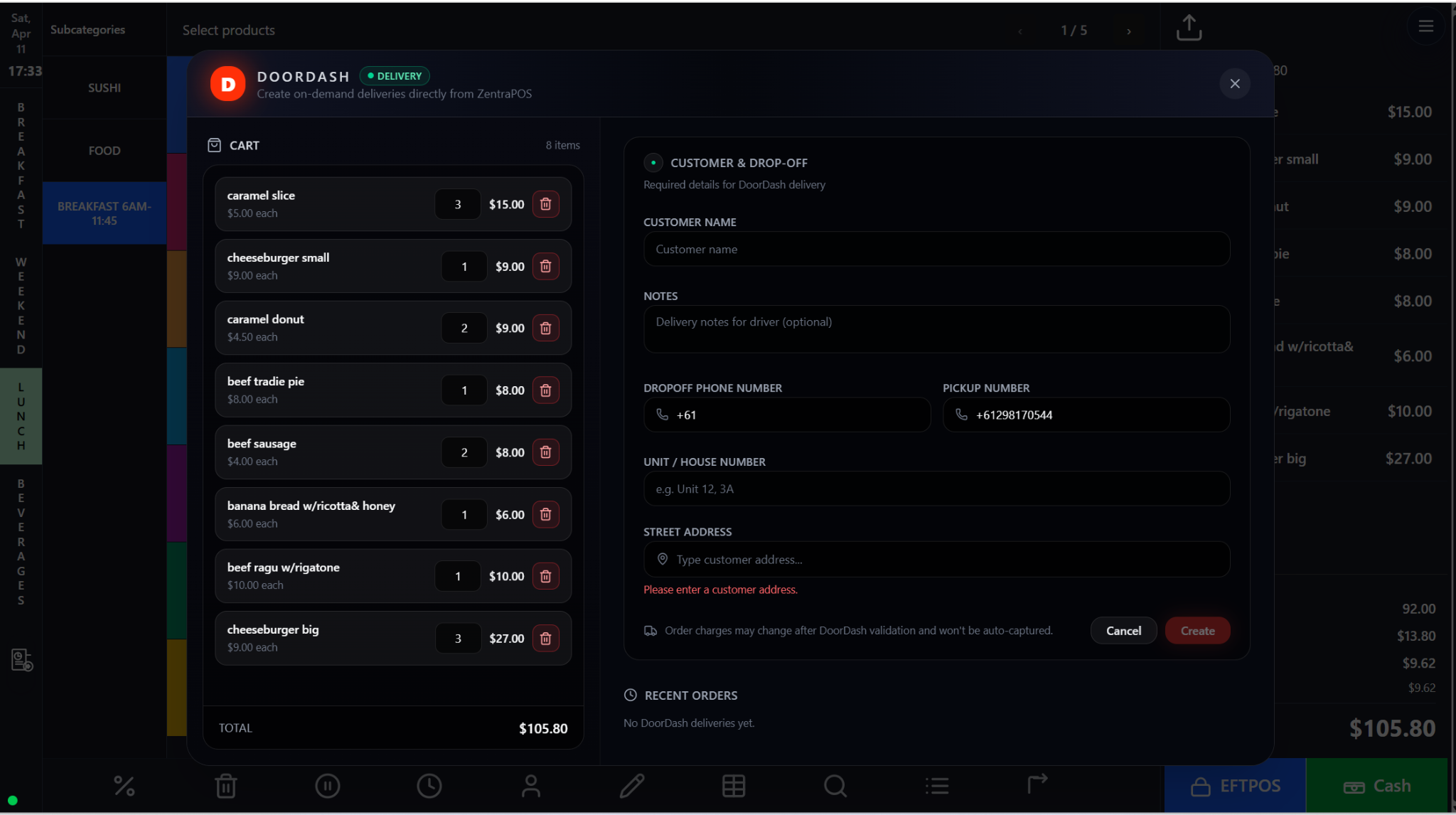
6. Uber Eats, DoorDash, Public Ordering, Online Checkout, and Guest/Web Orders

These digital ordering screens connect in-store operations with web, guest, and delivery-partner workflows. They ensure that online orders, dispatch requests, and customer self-service carts stay linked to the same operational system.

Online orders • Delivery • Web

Screen walkthrough

Primary screens used in this workflow. Click any screenshot to enlarge and review the UI details more closely.
Uber Eats, DoorDash, Public Ordering, Online Checkout, and Guest/Web Orders screenshot
Uber Eats
More screens
Uber Eats, DoorDash, Public Ordering, Online Checkout, and Guest/Web Orders screenshot
Doordash
Uber Eats, DoorDash, Public Ordering, Online Checkout, and Guest/Web Orders screenshot
Public Menu
Uber Eats, DoorDash, Public Ordering, Online Checkout, and Guest/Web Orders screenshot
Online Checkout
Uber Eats, DoorDash, Public Ordering, Online Checkout, and Guest/Web Orders screenshot
Online Orders

Functions and controls

Area / controlDetailed function
Partner delivery creationConverts the live POS cart into Uber Eats or DoorDash dispatch requests using delivery-specific customer data.
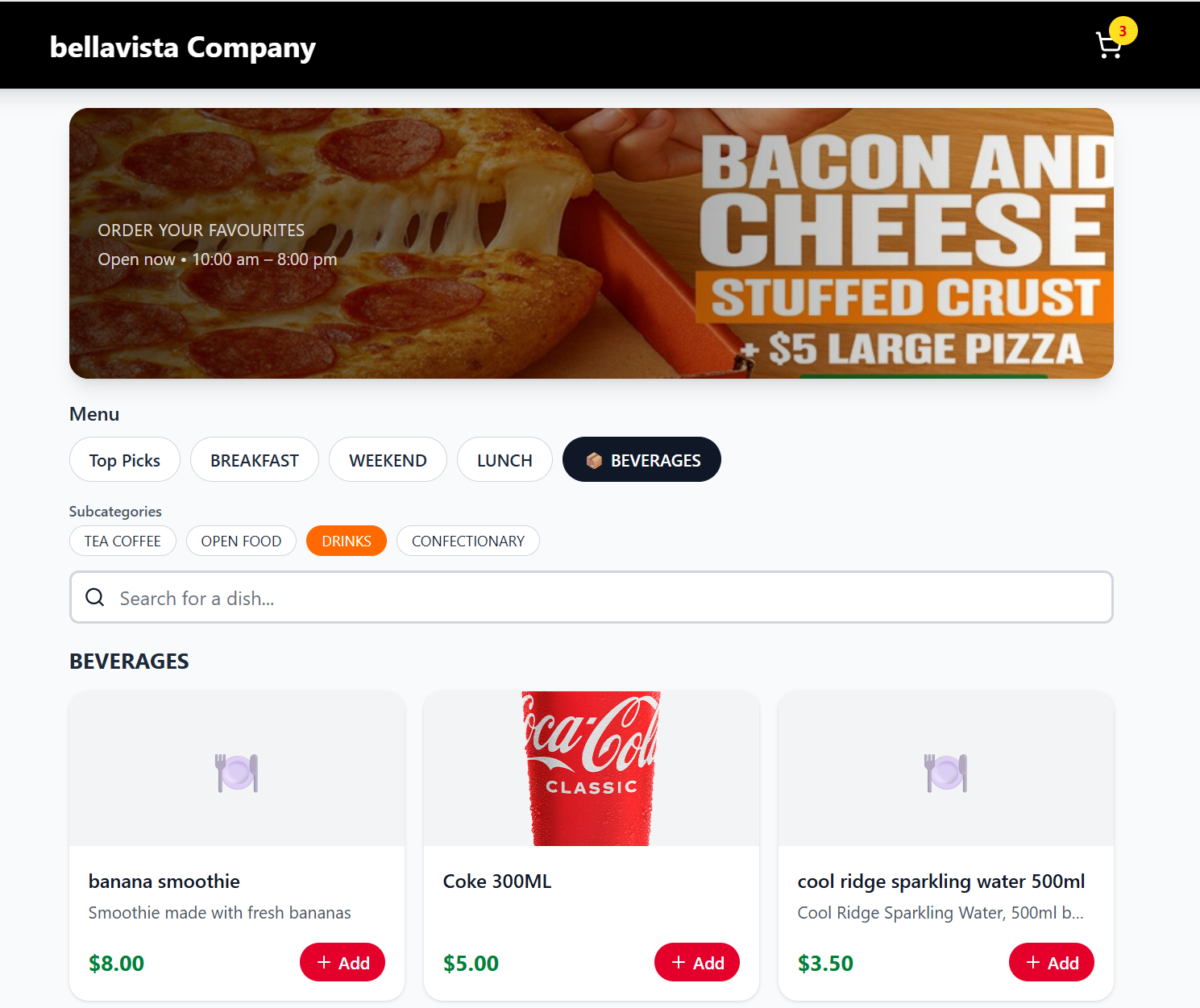
Public menuLets customers browse categories, subcategories, and products from a web-facing menu.
Online checkoutCollects order type, table or delivery context, and final payment confirmation.
Online orders queueDisplays pending and completed guest/web orders, with actions to view items, load to cart, or process.
Customer contact and address fieldsSupport fulfillment, courier coordination, and order verification.

Typical use cases

  • Creating partner deliveries without re-entering items in another app.
  • Customer self-service ordering from web or QR experiences.
  • Loading pending guest orders into POS for final processing.

Operational guidance

  • Validate addresses and phone numbers before creating deliveries.
  • Check order type carefully when loading guest orders into POS.
  • Use recent-order visibility to avoid duplicate dispatches or duplicate processing.
Front office · Customers & kitchen

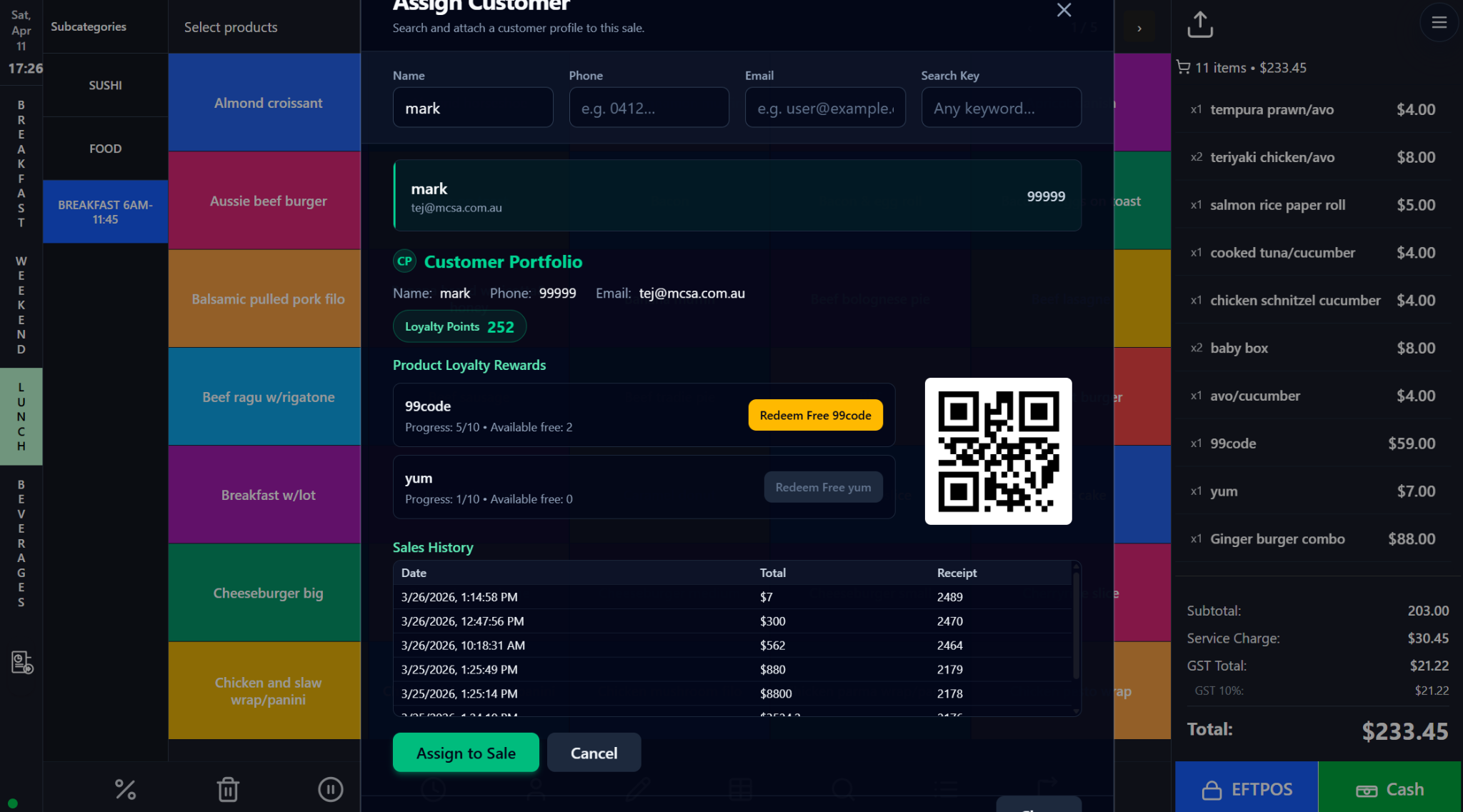
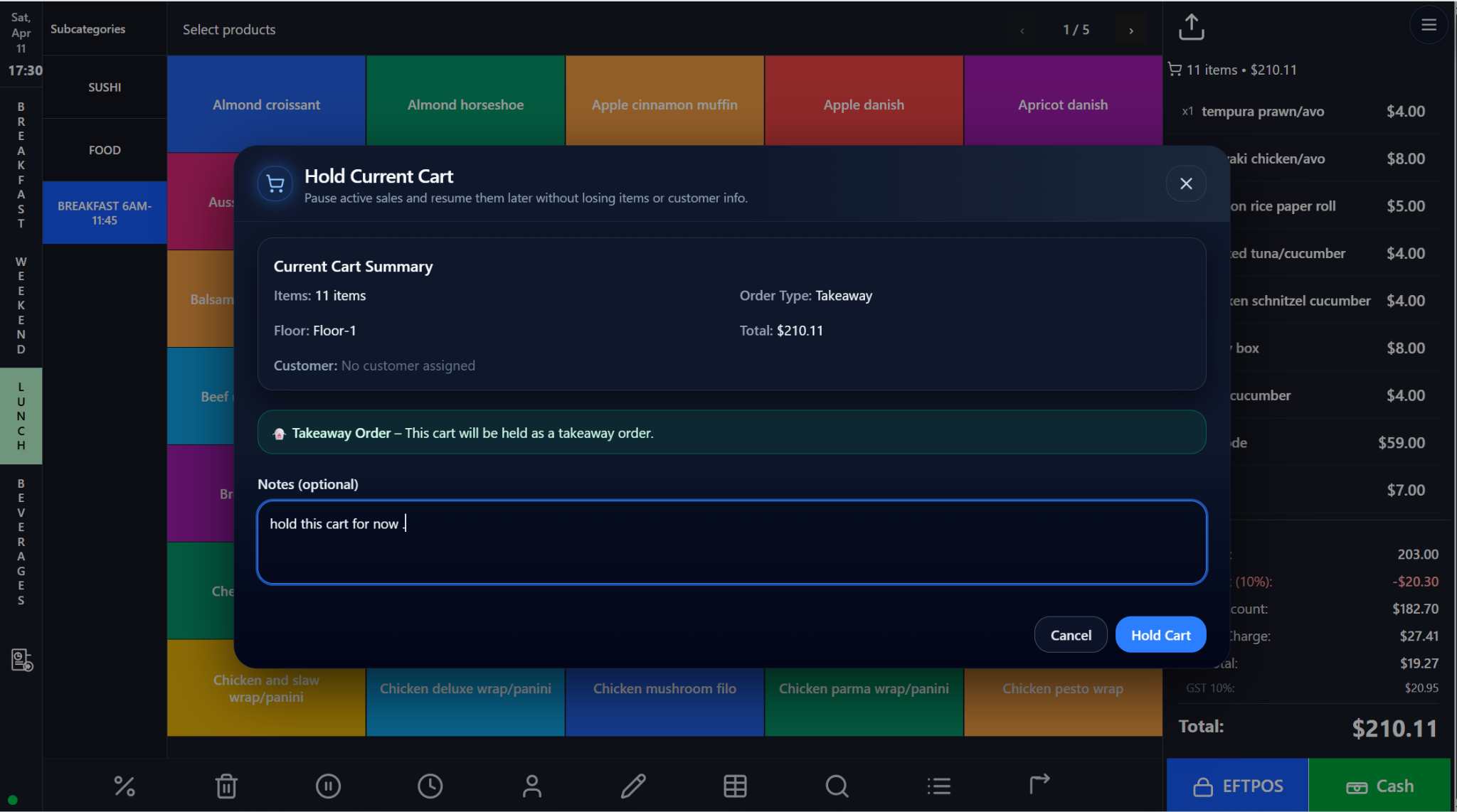
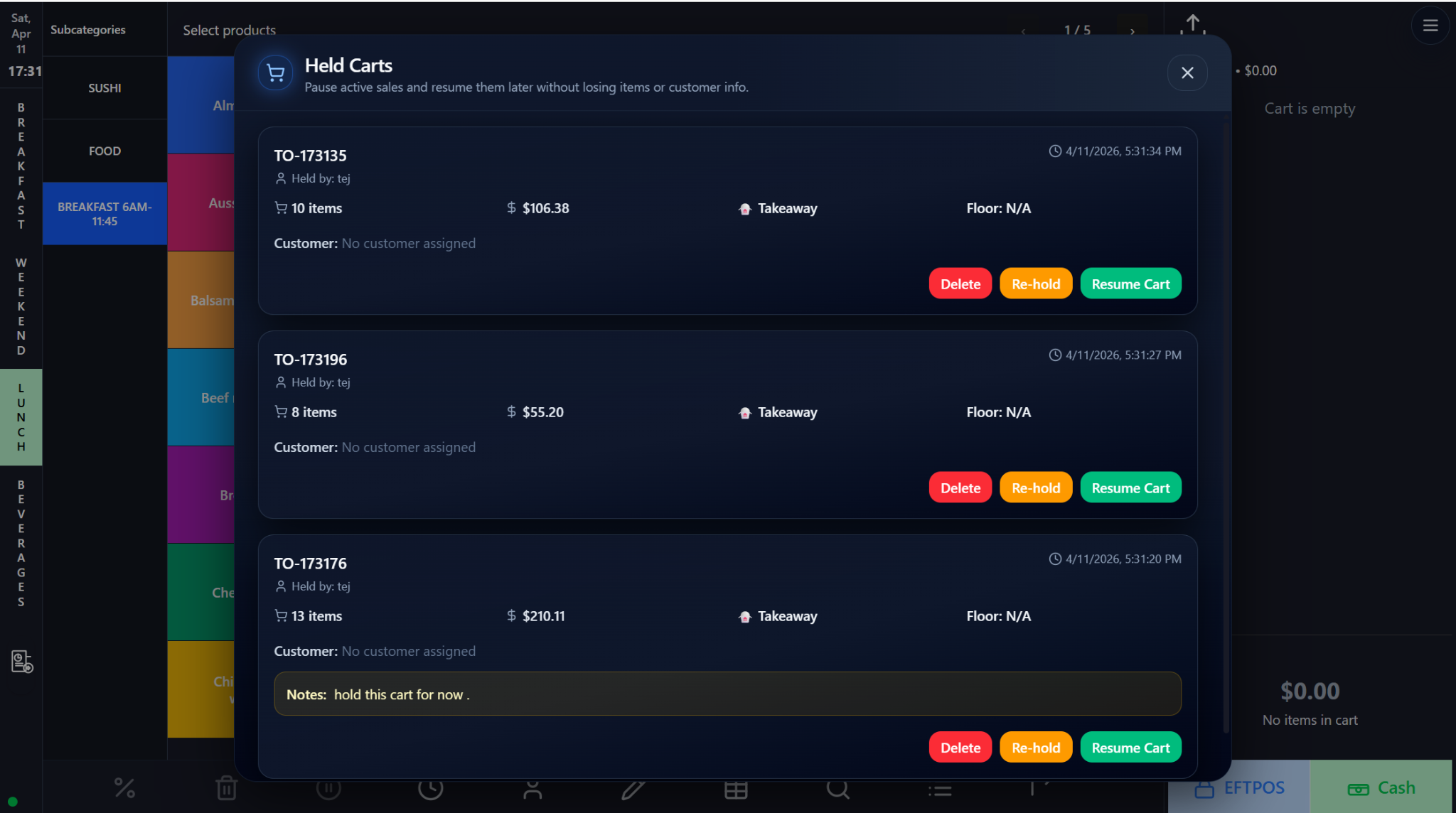
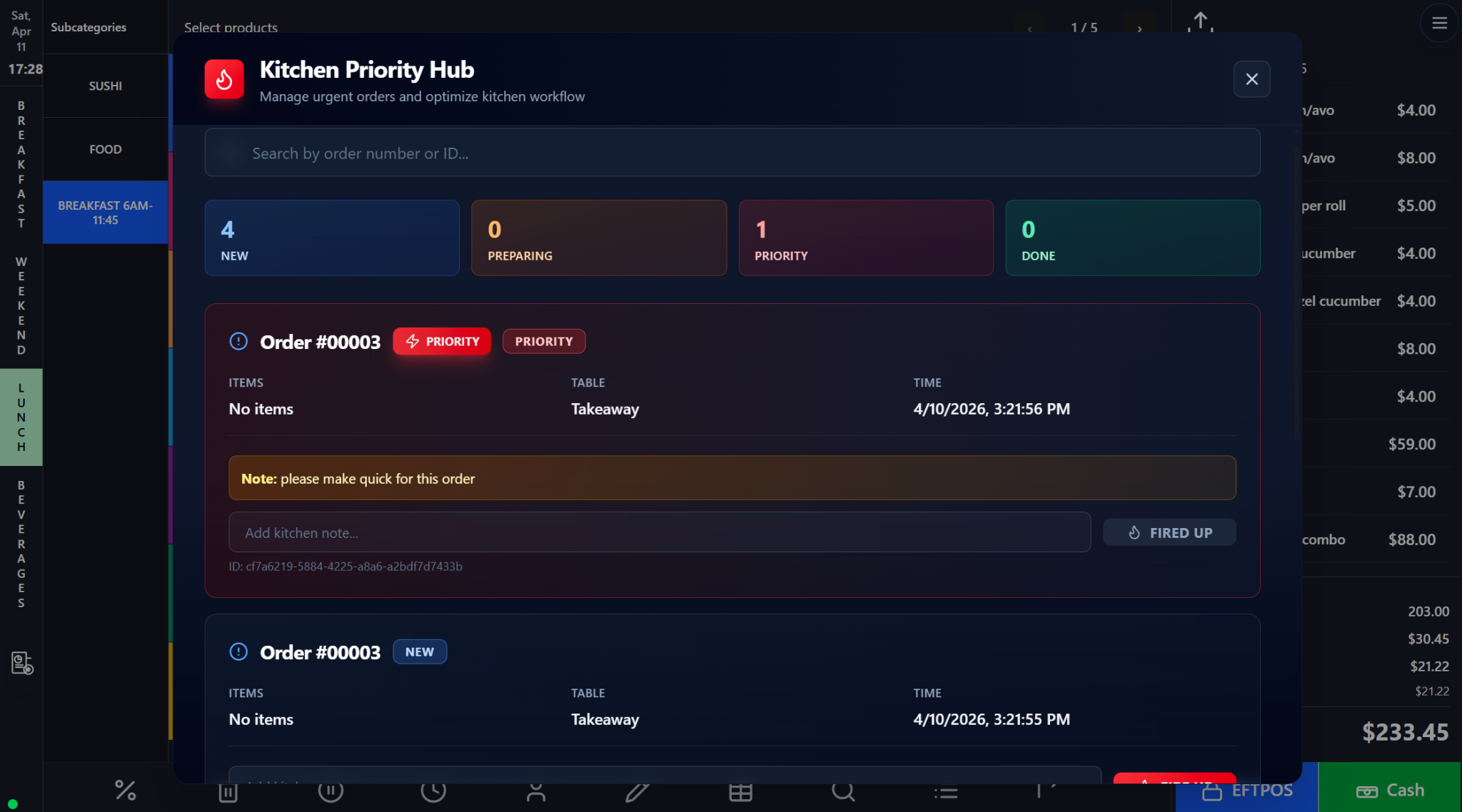
7. Customer Assignment, Customer Profile, Held Carts, and Kitchen Priority

These screens connect customer identity, paused transactions, and kitchen urgency into the service workflow. They help staff keep context, reward loyal guests correctly, and prioritize production when timing matters.

CRM • Loyalty • Kitchen

Screen walkthrough

Primary screens used in this workflow. Click any screenshot to enlarge and review the UI details more closely.
Customer Assignment, Customer Profile, Held Carts, and Kitchen Priority screenshot
Assign Customer
More screens
Customer Assignment, Customer Profile, Held Carts, and Kitchen Priority screenshot
Customer Profile
Customer Assignment, Customer Profile, Held Carts, and Kitchen Priority screenshot
Hold Current Cart
Customer Assignment, Customer Profile, Held Carts, and Kitchen Priority screenshot
Held Carts
Customer Assignment, Customer Profile, Held Carts, and Kitchen Priority screenshot
Kitchen Priority

Functions and controls

Area / controlDetailed function
Customer assignmentLinks the active cart to a known customer profile so loyalty and history follow the sale.
Customer profile viewShows contact info, status, points, discount entitlement, and sales history for service context.
Hold current cartParks an in-progress sale with notes and context for later retrieval.
Held carts listLets staff identify, resume, re-hold, or delete paused orders.
Kitchen Priority HubSurfaces urgent jobs, order states, timestamps, and kitchen notes in one prep-focused queue.

Typical use cases

  • Attaching loyalty and VIP context to live sales.
  • Parking interrupted carts during busy queues.
  • Escalating urgent kitchen items and communicating timing notes.

Operational guidance

  • Verify customer identity before attaching a profile.
  • Use held-cart notes consistently so later staff can understand context.
  • Keep kitchen priority notes short, specific, and action-oriented.
Workflow summary

8. Best-practice workflow checkpoints

Front-office checkpoints

  • Verify order type, table, and customer context before payment.
  • Review discounts, service charge, GST, and modifiers before checkout.
  • Use holds, splits, and refunds through system workflows rather than manual workarounds.
  • Keep kitchen notes concise and operational.

Backoffice checkpoints

  • Reconcile reports after close instead of relying on memory.
  • Keep stock, suppliers, pricing, and promotions updated before service begins.
  • Restrict payroll, finance, and integration settings to managers or administrators.
  • Use data-sync and delivery-provider settings to diagnose system-to-system issues early.
Backoffice · Dashboard & overview

8. Dashboard Overview and Performance Snapshot

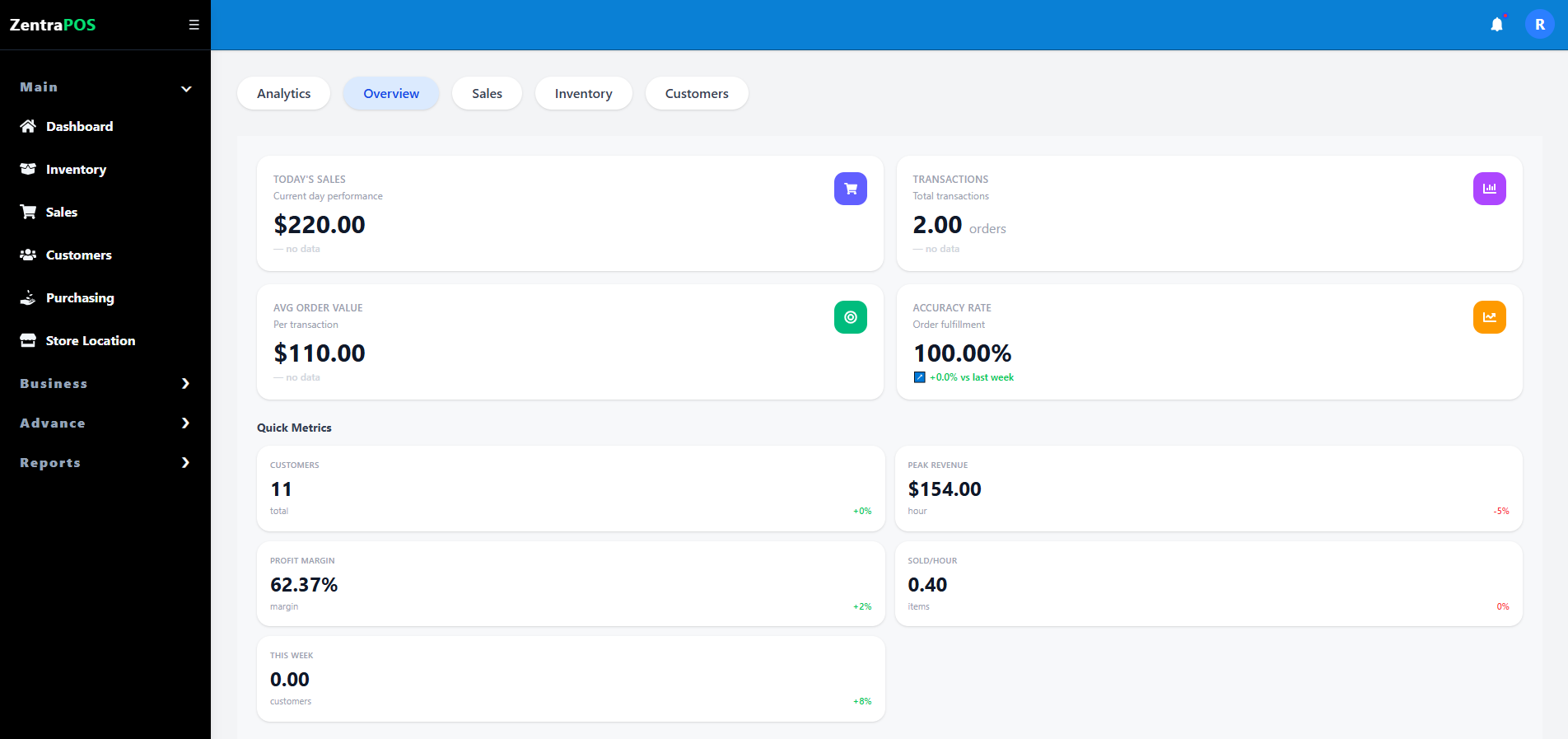
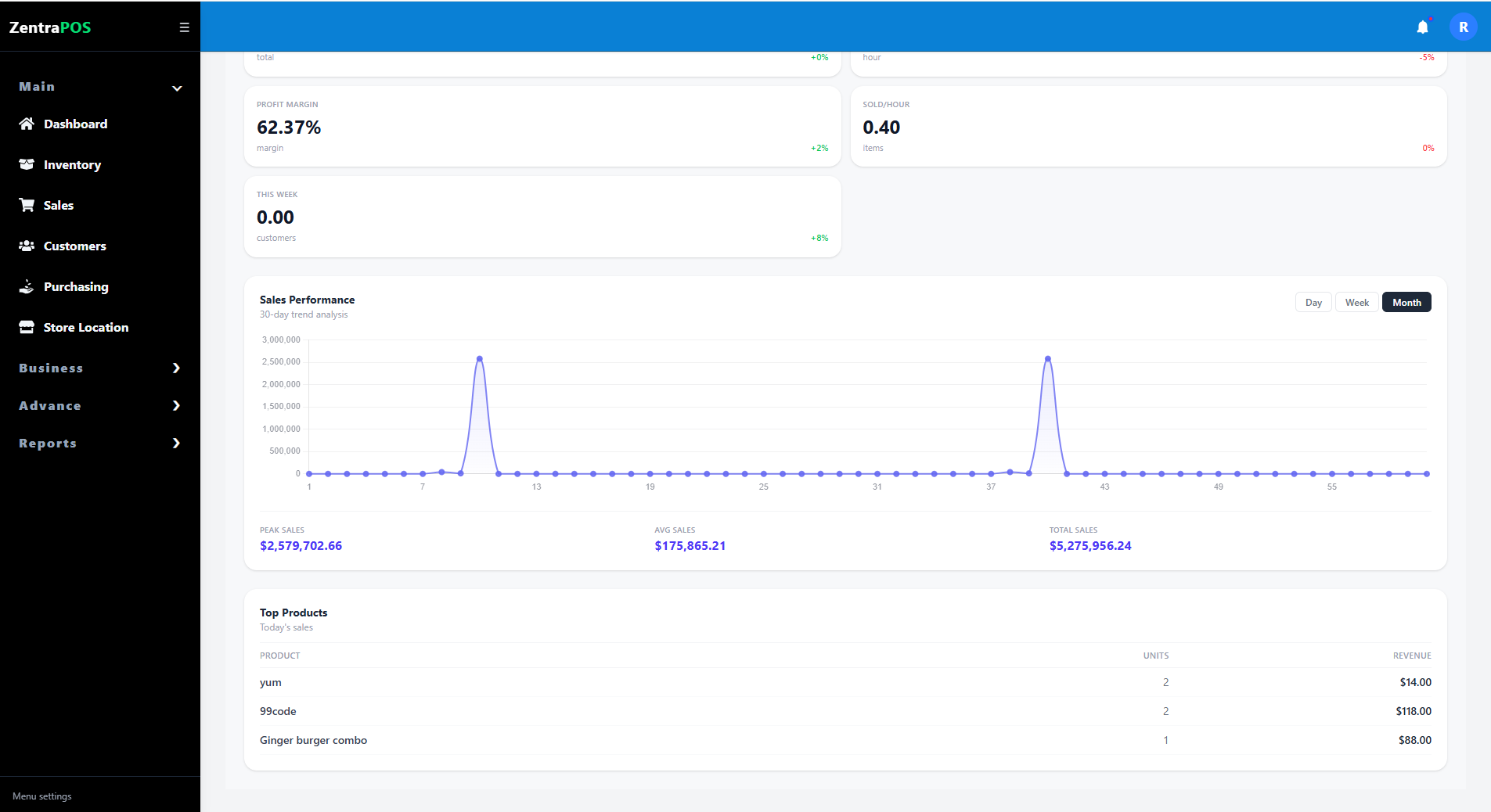
The backoffice dashboard is the management landing area for operational visibility. It combines headline business metrics, current period sales, charts, and summary widgets so supervisors can assess venue health without opening multiple reports.

Backoffice • Dashboard • Manager

Screen walkthrough

Primary screens used in this workflow. Click any screenshot to enlarge and review the UI details more closely.
Dashboard Overview and Performance Snapshot screenshot
Overview
More screens
Dashboard Overview and Performance Snapshot screenshot
Overview Panel
Dashboard Overview and Performance Snapshot screenshot
Sales
Dashboard Overview and Performance Snapshot screenshot
Analytics

Functions and controls

Area / controlDetailed function
Overview cardsSurface daily or current-period KPIs such as sales, orders, low-stock warnings, or open tasks.
Trend chartsVisualize sales direction, performance movement, and operational changes over time.
Summary widgetsCondense key management information into glanceable modules for fast decision-making.
Navigation shellActs as the entry point into reports, inventory, accounting, customer management, and settings.
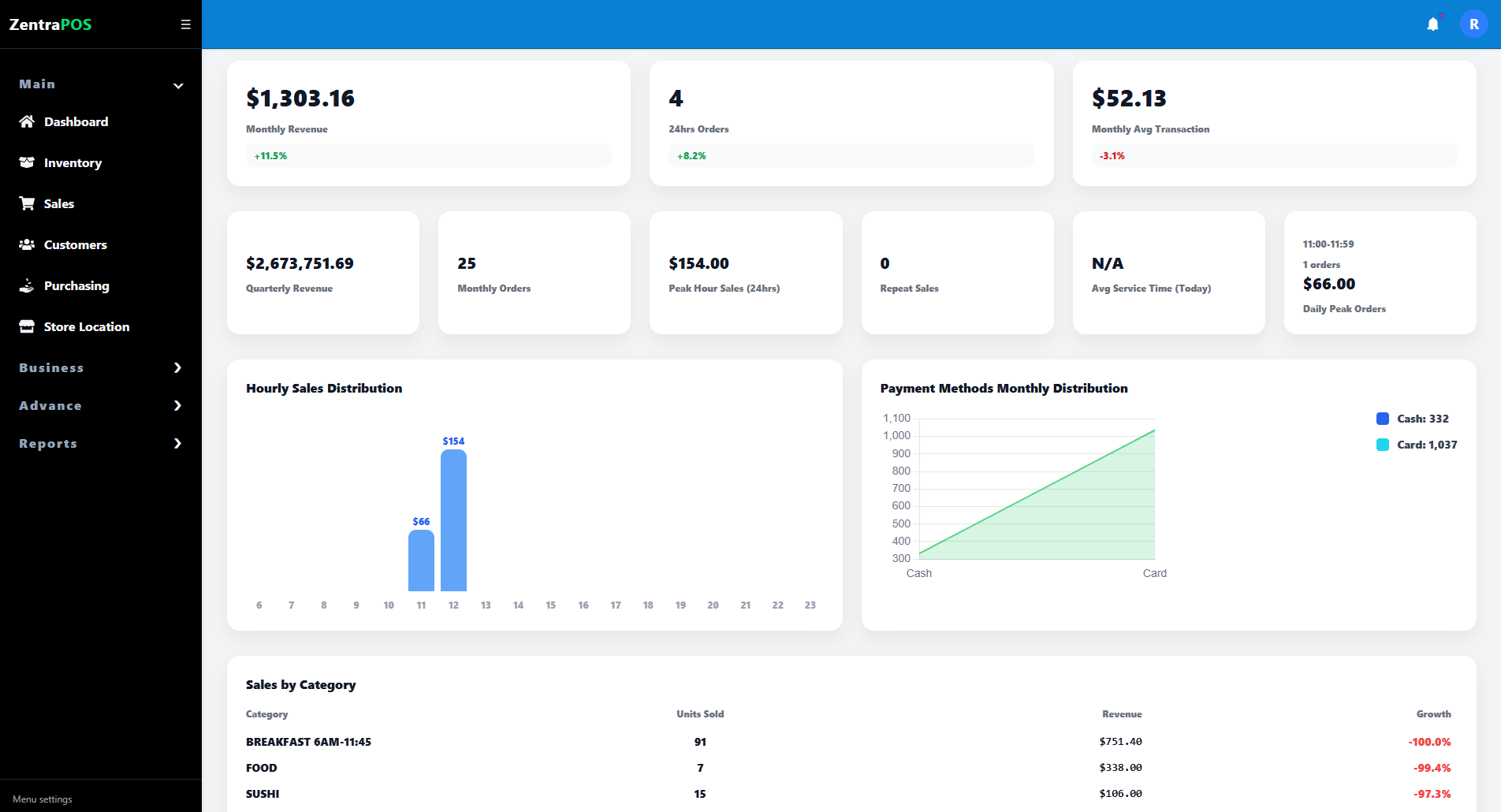
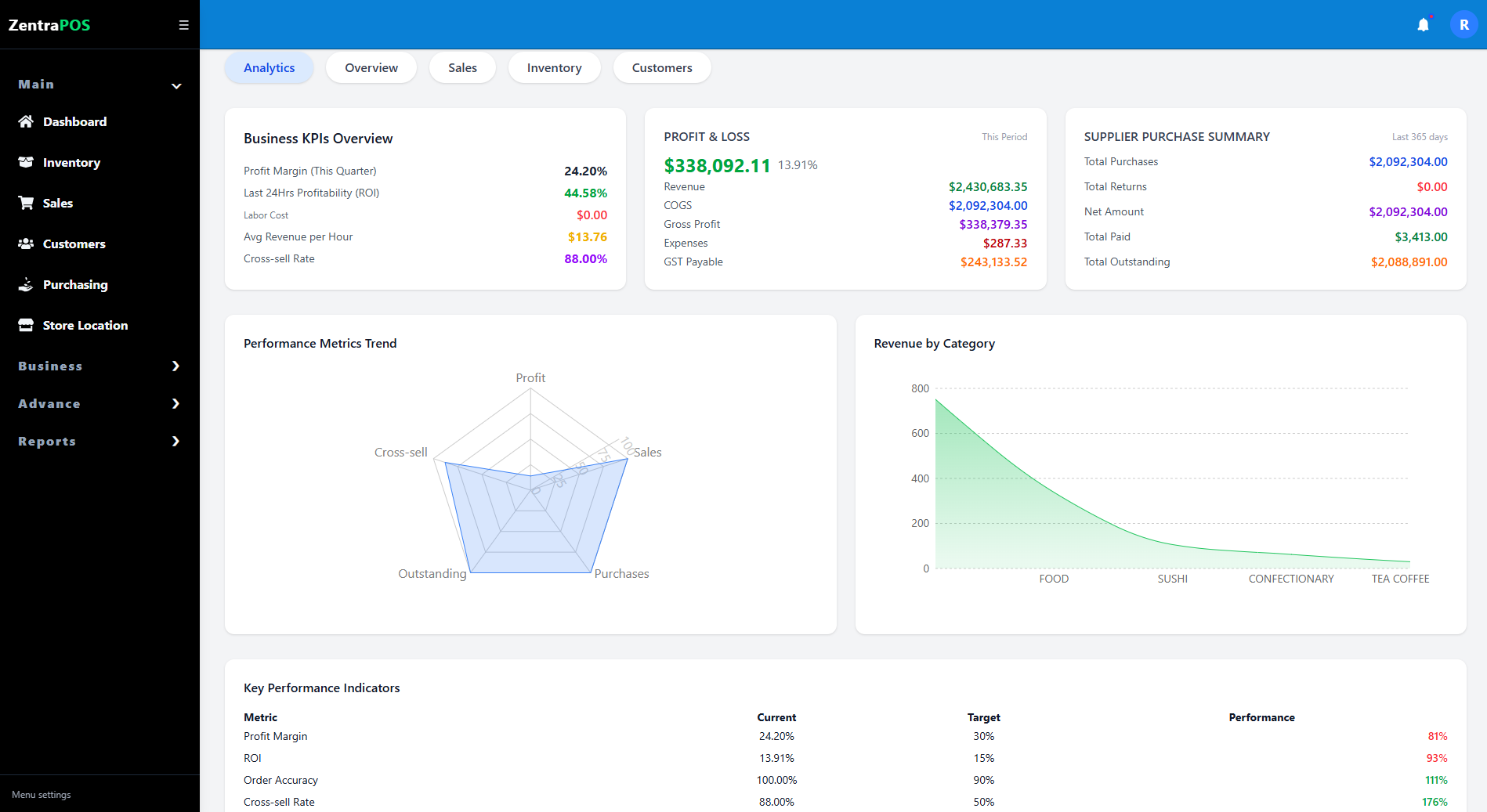
Analytics viewExpands the high-level dashboard into richer charts for performance interpretation.

Typical use cases

  • Manager morning check to understand venue readiness.
  • During-service monitoring of order volume and sales momentum.
  • Owner-level review of performance without opening granular reports.

Operational guidance

  • Treat dashboard values as decision aids, then open the relevant report for root-cause analysis.
  • Compare today against recent trends before changing staffing or promotions.
  • Use analytics views to validate whether a high-level number is an anomaly or part of a larger pattern.
Backoffice · Sales & reporting

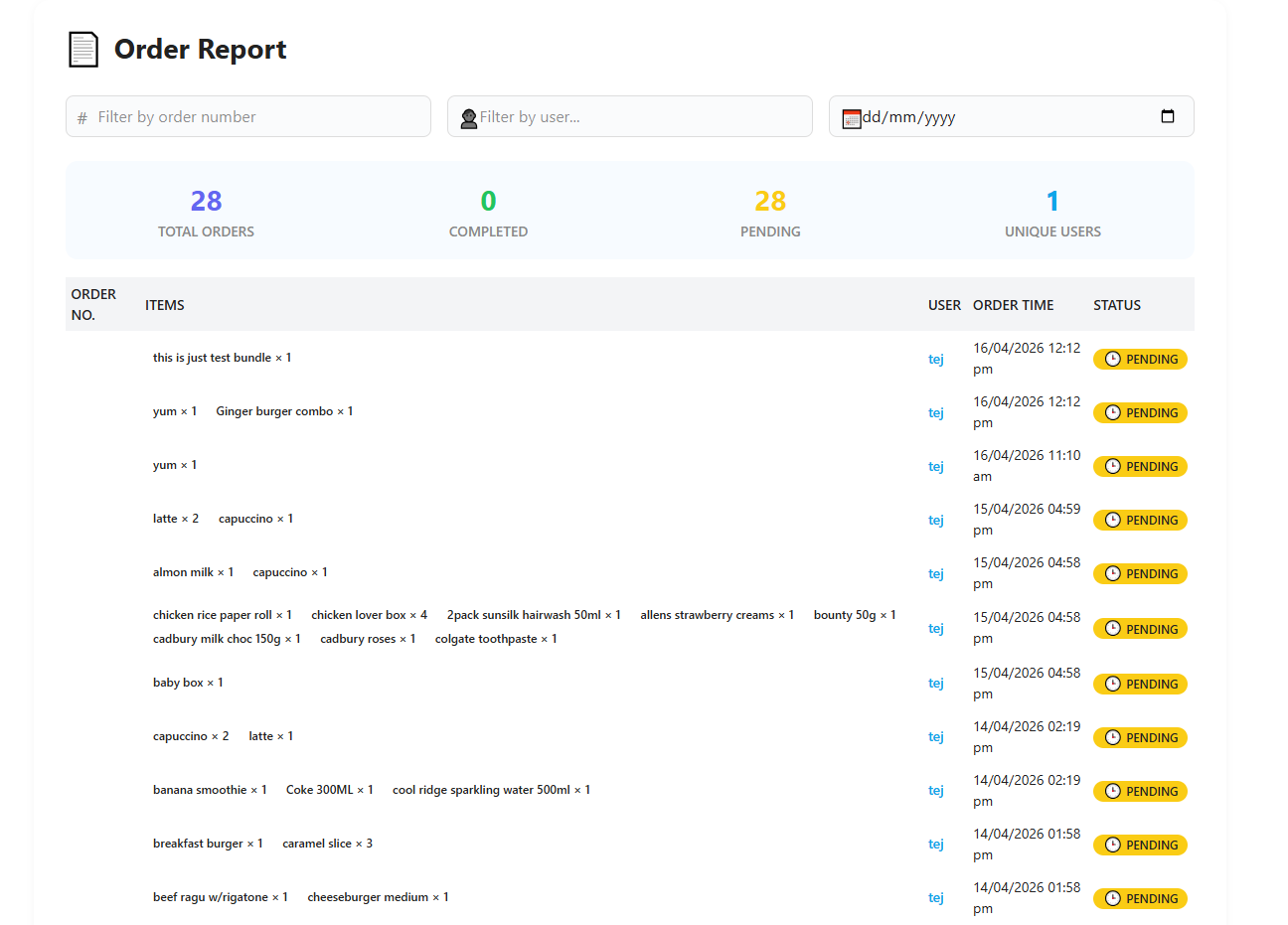
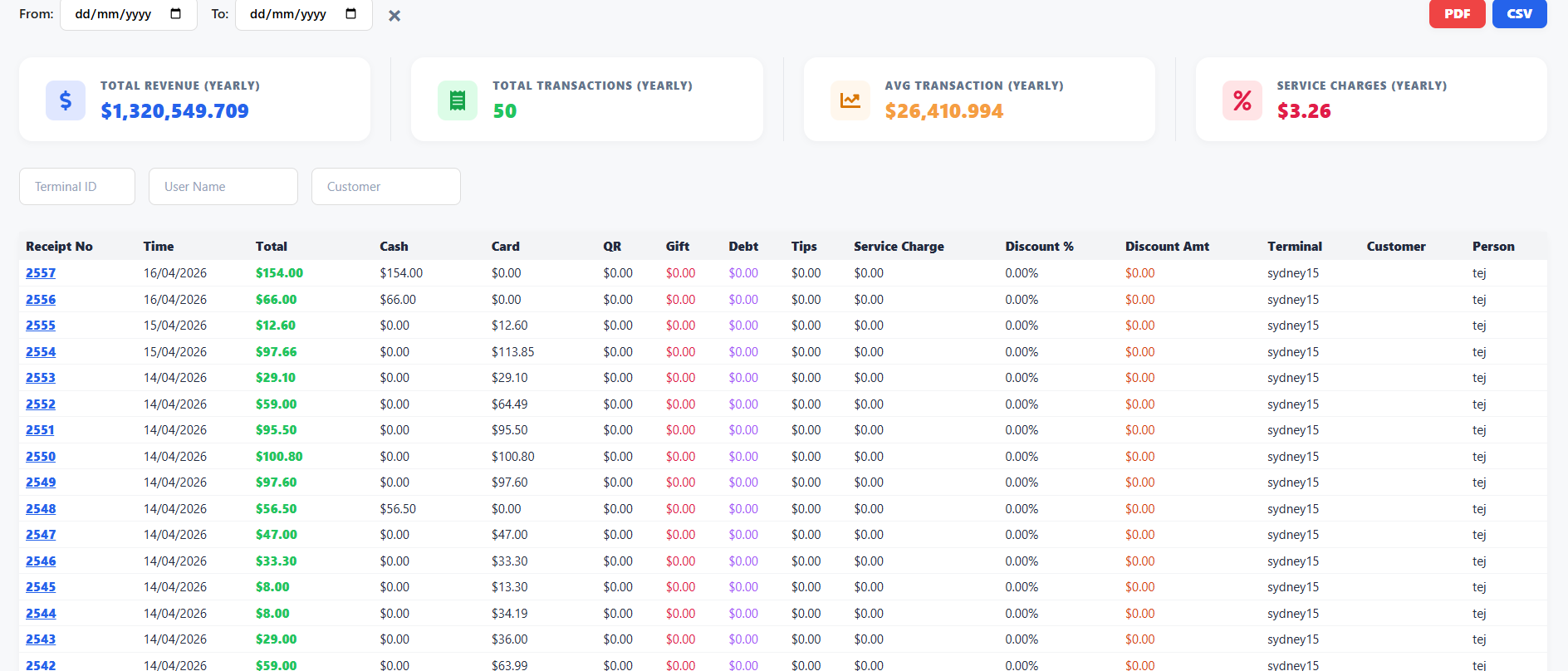
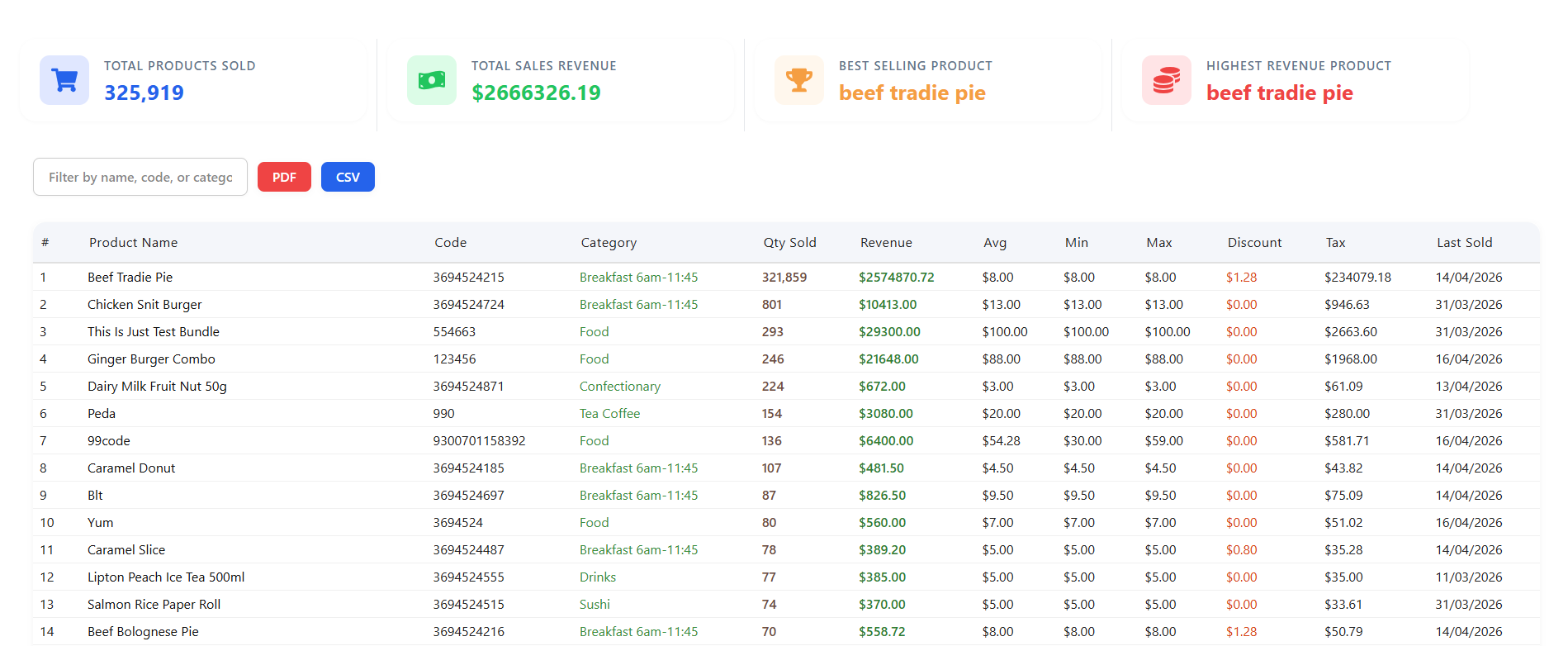
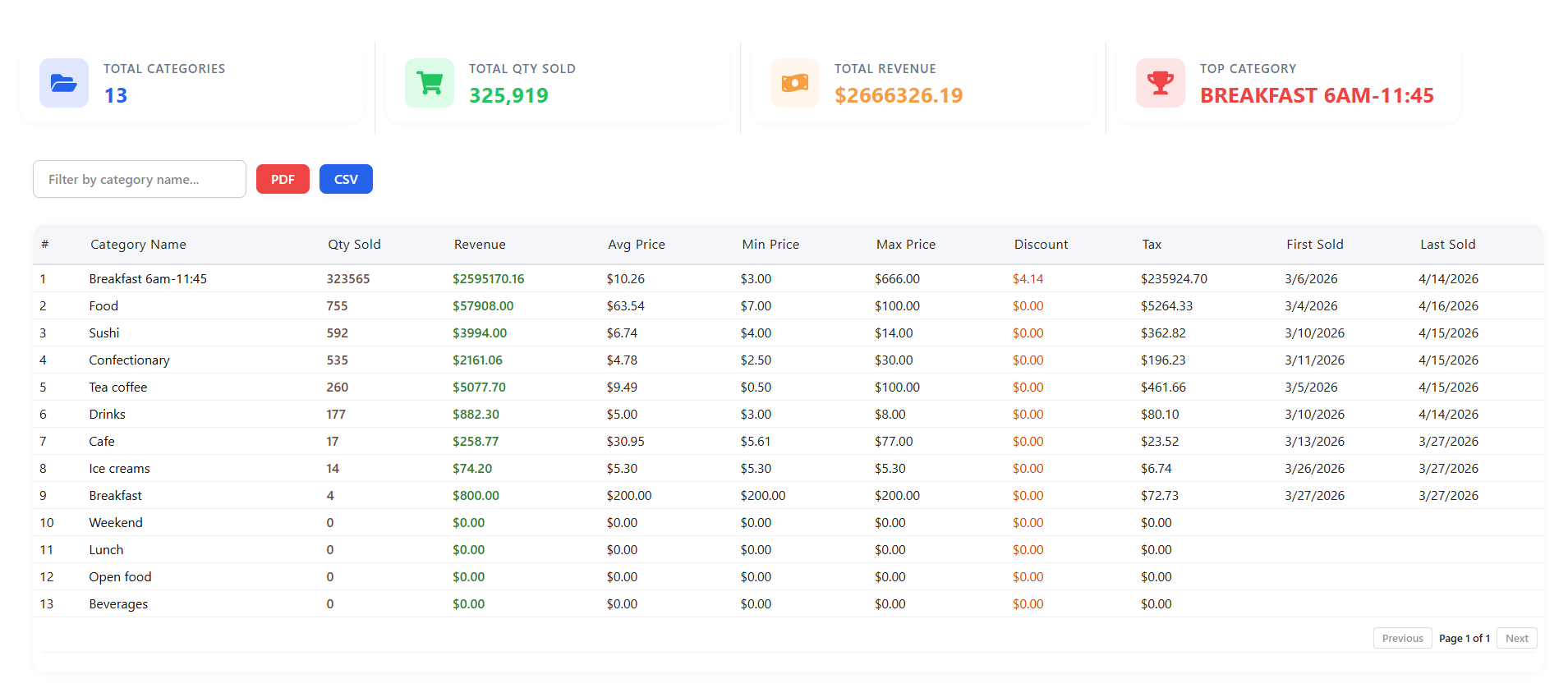
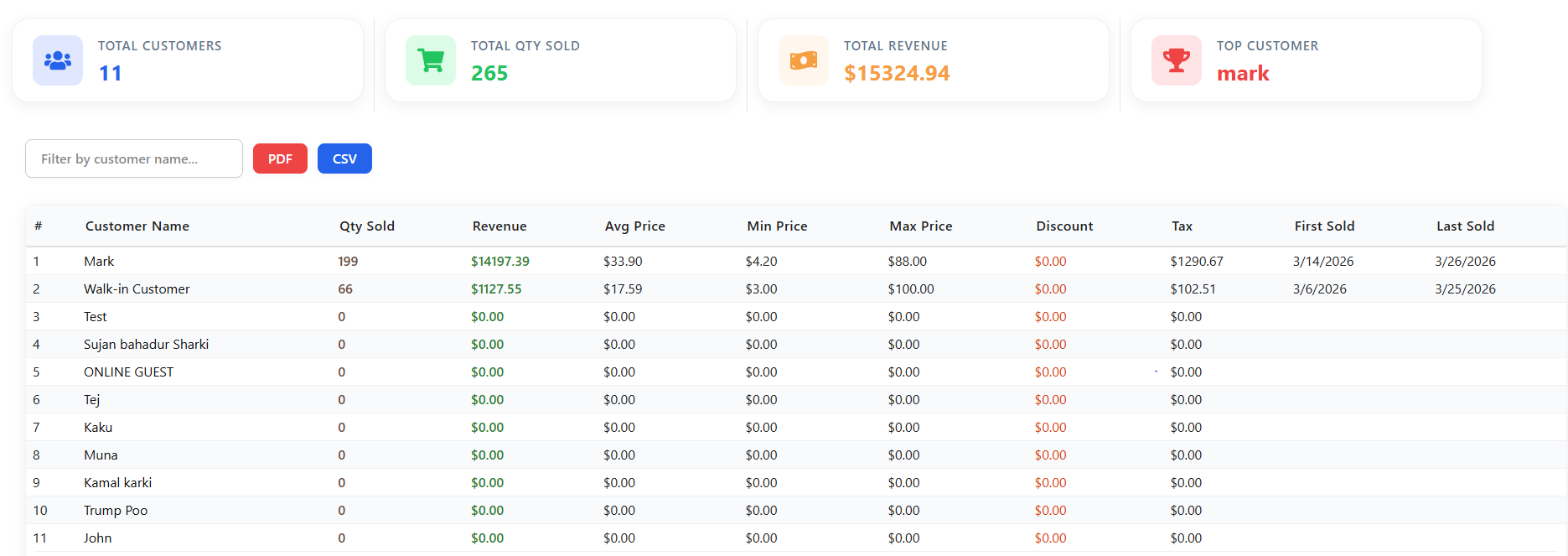
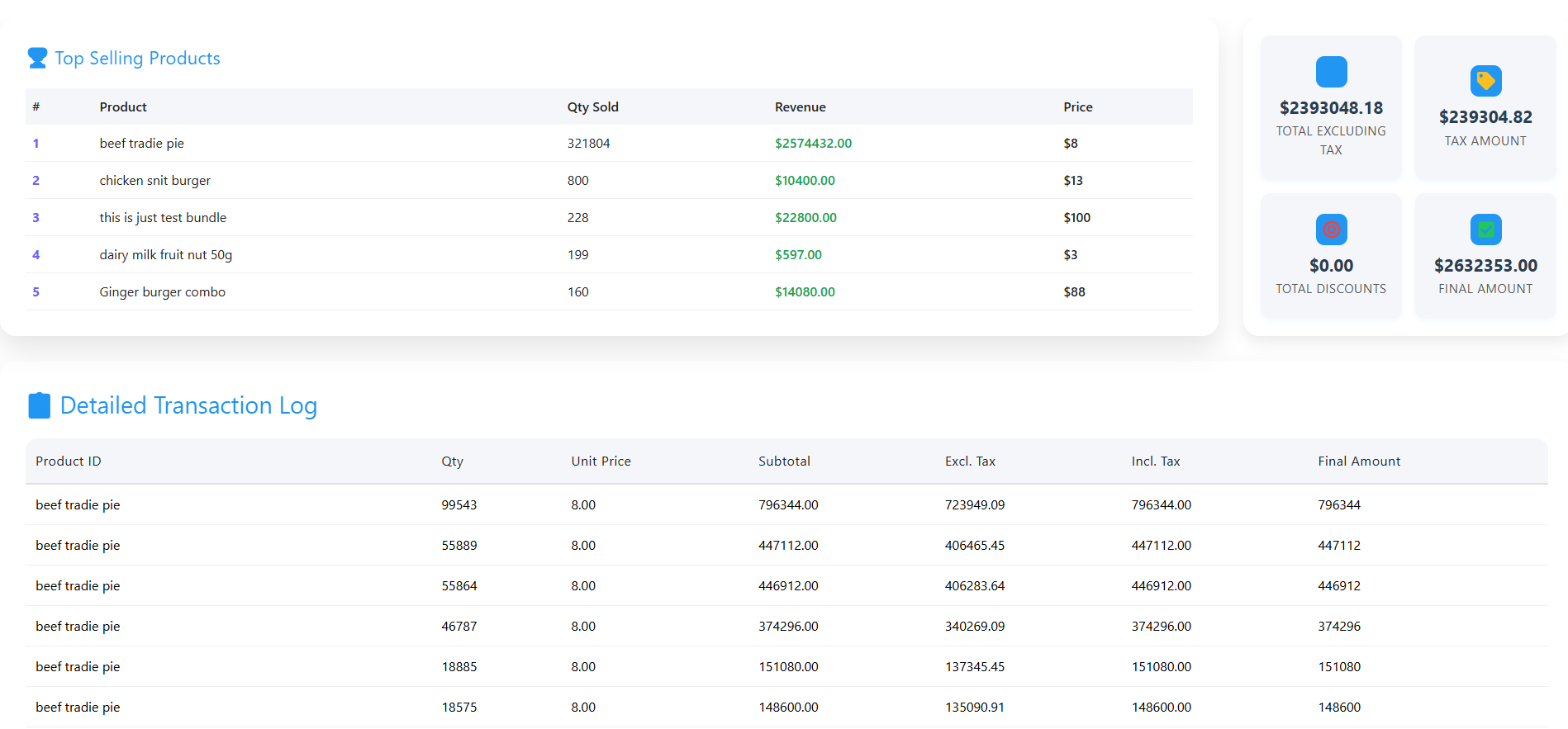
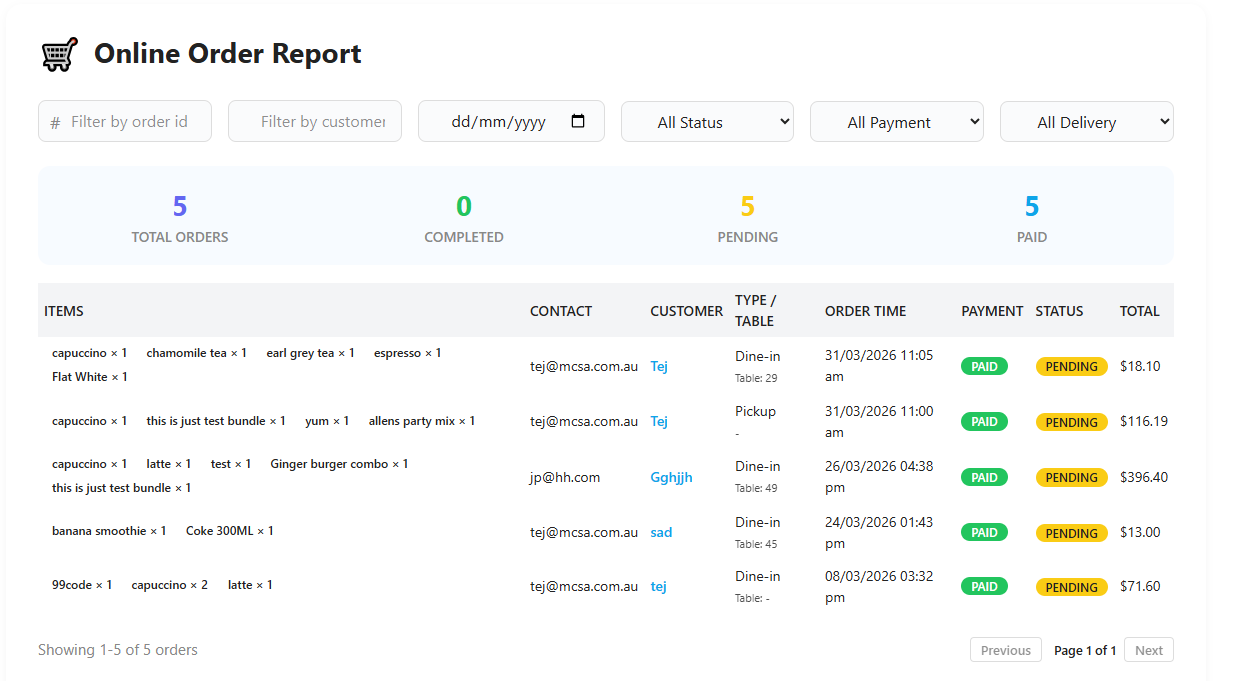
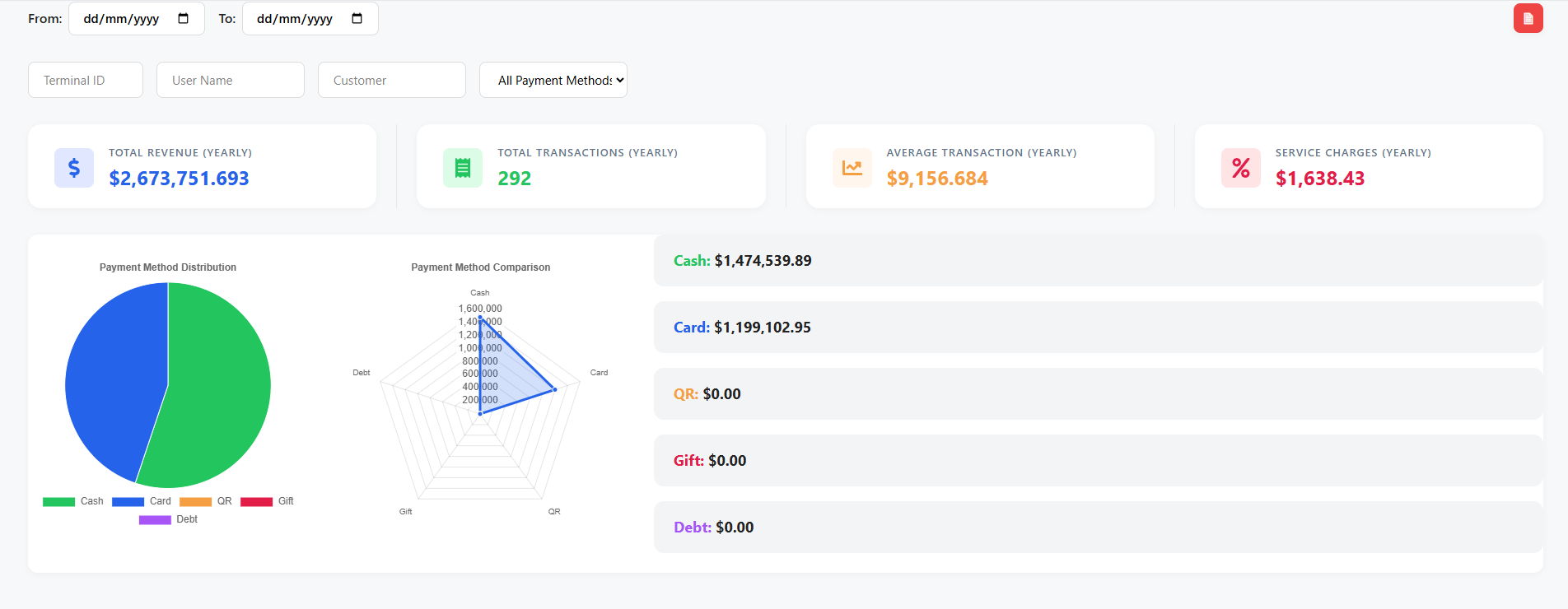
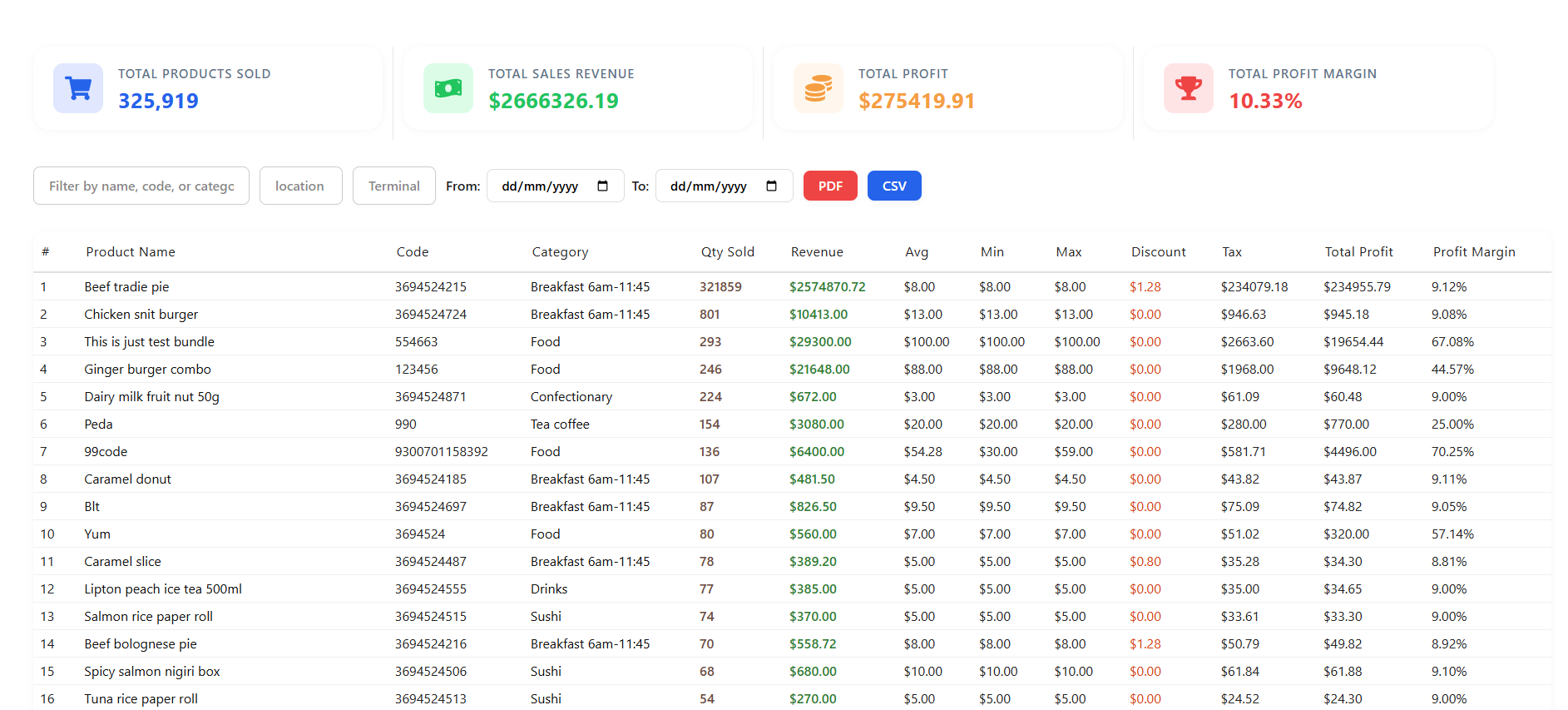
9. Sales, Order, Product, Category, Customer, and Transaction Reports

These backoffice reports provide structured visibility into revenue generation, order behavior, product performance, customer contribution, and transaction detail. They support both operational review and strategic decision-making.

Backoffice • Reports • Management

Screen walkthrough

Primary screens used in this workflow. Click any screenshot to enlarge and review the UI details more closely.
Sales, Order, Product, Category, Customer, and Transaction Reports screenshot
Order Report
More screens
Sales, Order, Product, Category, Customer, and Transaction Reports screenshot
Sale Product
Sales, Order, Product, Category, Customer, and Transaction Reports screenshot
Sale Transaction
Sales, Order, Product, Category, Customer, and Transaction Reports screenshot
Sale By Product
Sales, Order, Product, Category, Customer, and Transaction Reports screenshot
Sale By Category
Sales, Order, Product, Category, Customer, and Transaction Reports screenshot
Sale By Customer
Sales, Order, Product, Category, Customer, and Transaction Reports screenshot
Top Product Sale
Sales, Order, Product, Category, Customer, and Transaction Reports screenshot
Online Order Report

Functions and controls

Area / controlDetailed function
Order reportShows order-level records used for service review, follow-up, and fulfillment analysis.
Sales by productRanks or aggregates product performance to identify best sellers and low performers.
Sales by categoryMeasures which menu categories drive revenue and volume.
Sales by customerHighlights repeat customers, VIP activity, and high-spend relationships.
Sales transactionsShows tender-level and transaction-level detail for reconciliation and audit.
Online order reportSeparates guest/web order activity from in-store sales for channel analysis.
Top product sale reportIdentifies flagship items and demand concentration.
Sales summary panelsProvide at-a-glance totals before drilling into detail rows.

Typical use cases

  • End-of-day and end-of-week performance reviews.
  • Checking whether discounts or promotions improved actual product movement.
  • Reconciling customer complaints or order disputes using transaction history.

Operational guidance

  • Use date filters consistently before comparing reports to avoid mismatched periods.
  • Compare category and product reports together to understand both broad and specific performance.
  • Keep channel-based reports separate when measuring online versus counter sales.
Backoffice · Finance & accounting

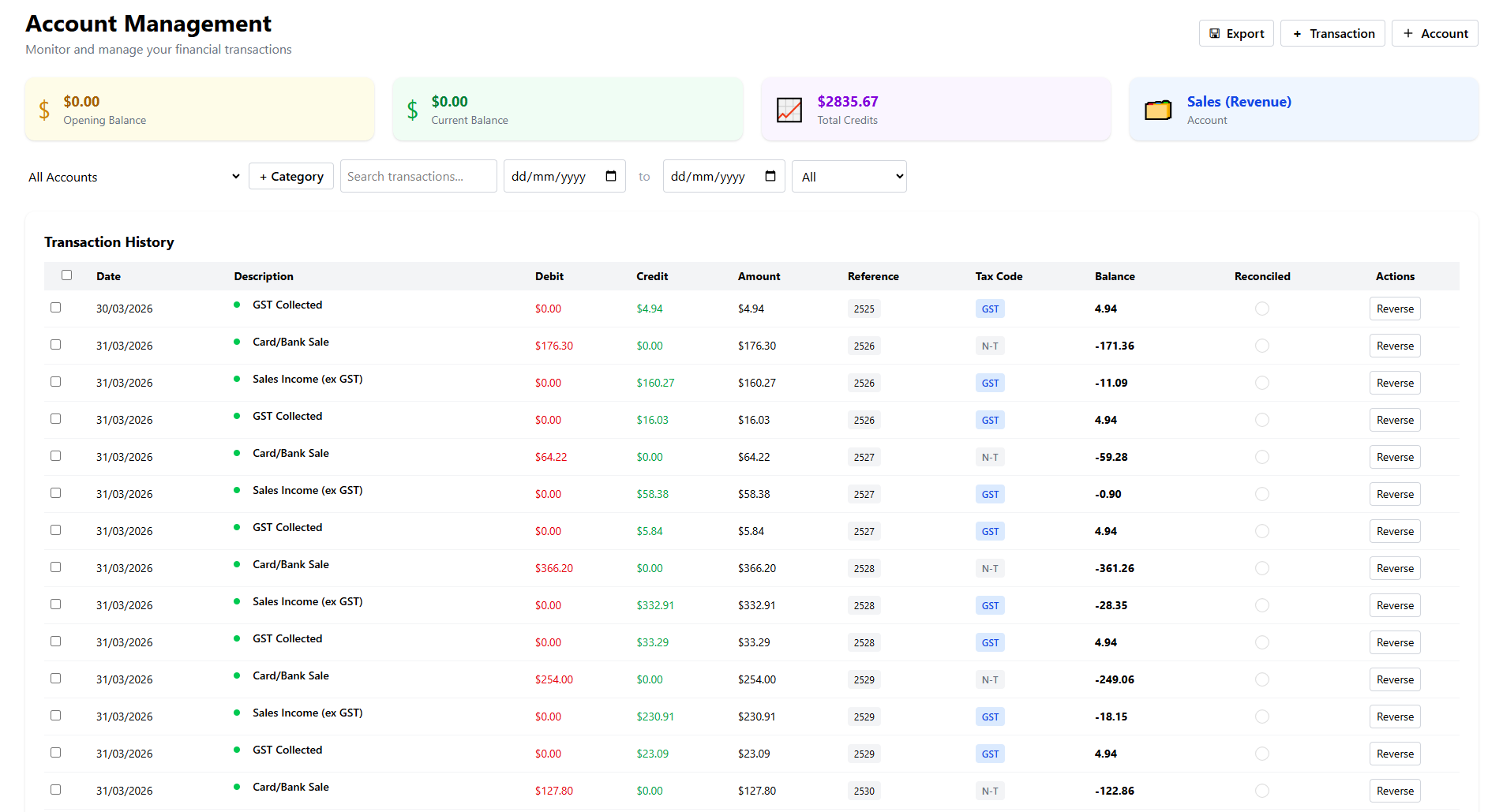
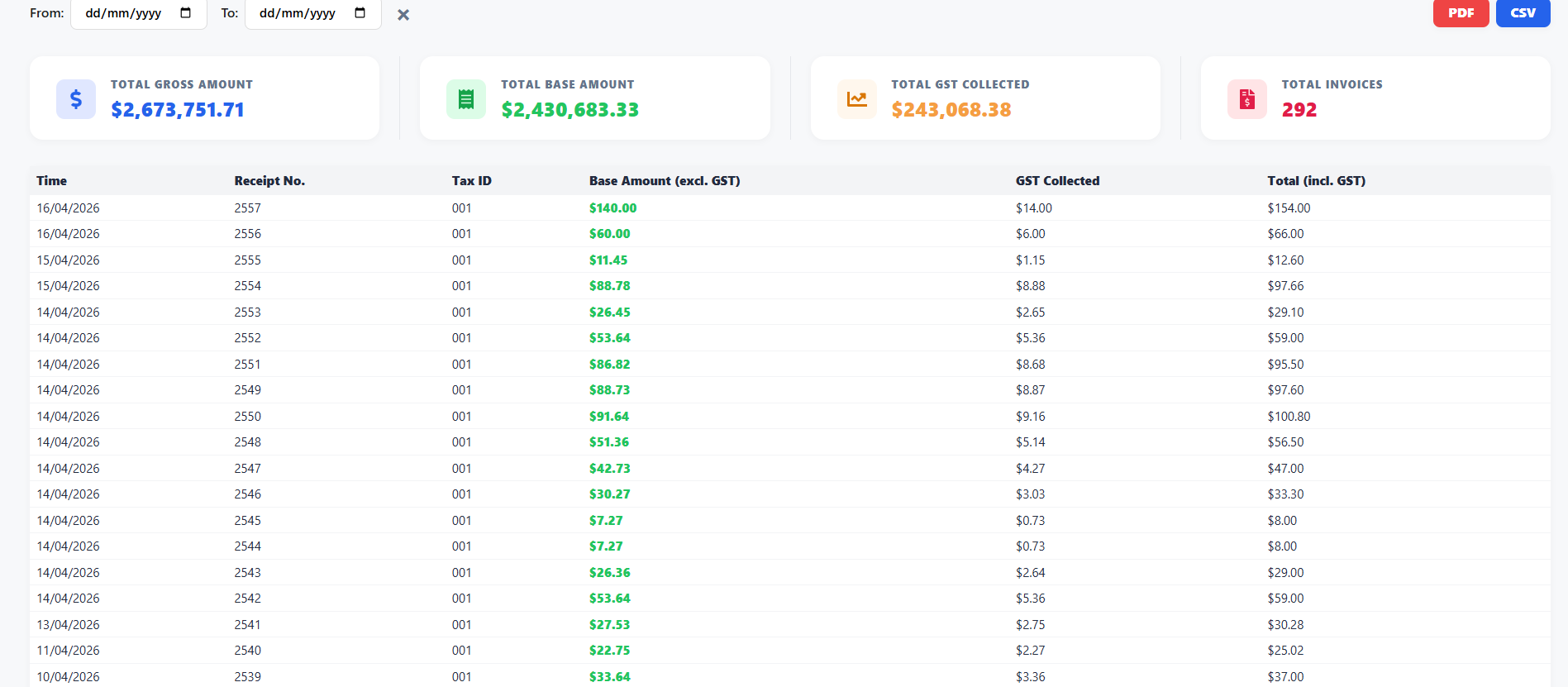
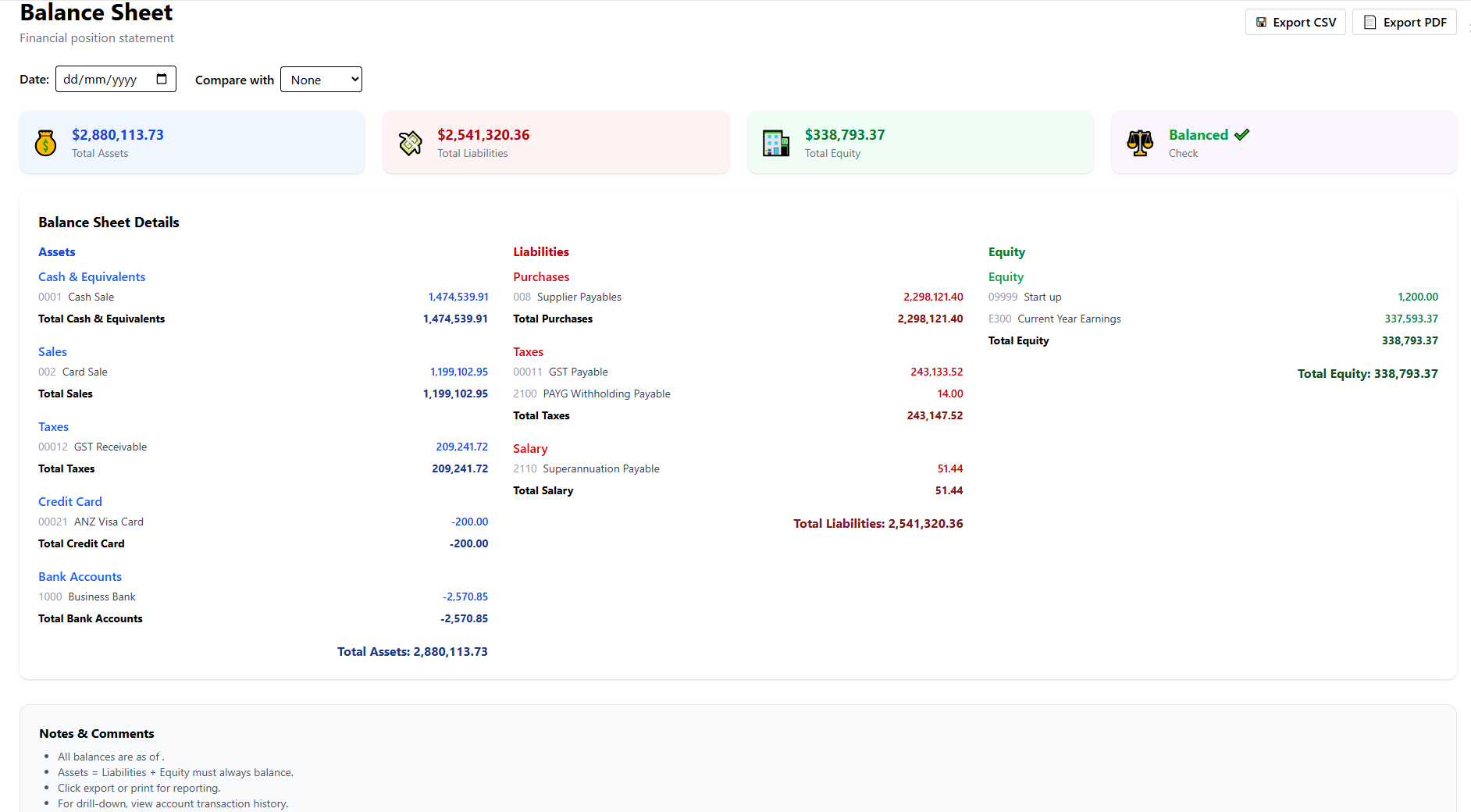
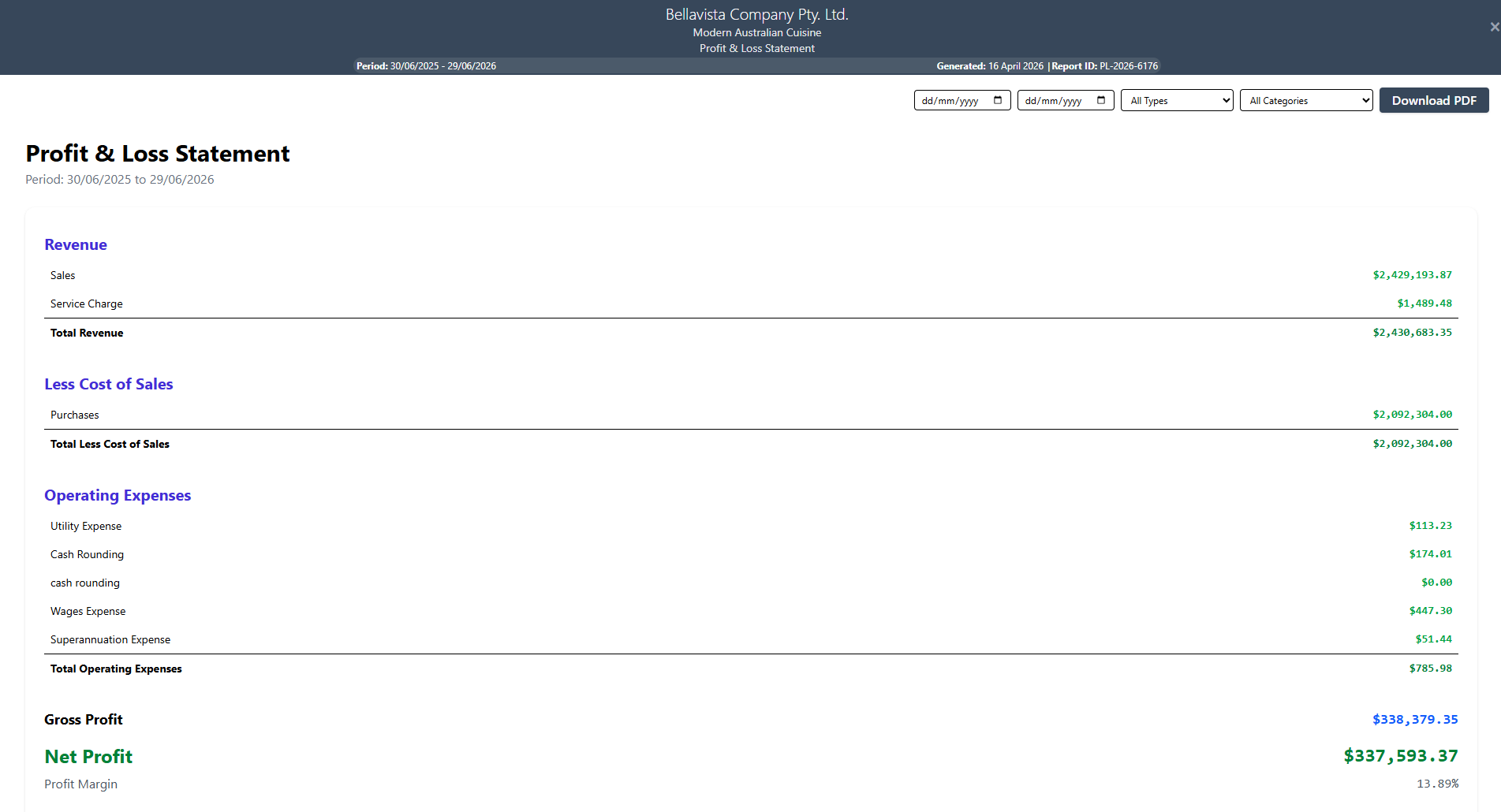
10. Financial Statements, Cash Flow, Ledger, GST, and Profitability

The finance suite extends POS data into accounting-style management views. It supports venue owners, accountants, and supervisors who need tax visibility, profitability insight, and formal financial summaries beyond simple sales totals.

Backoffice • Finance • Accounting

Screen walkthrough

Primary screens used in this workflow. Click any screenshot to enlarge and review the UI details more closely.
Financial Statements, Cash Flow, Ledger, GST, and Profitability screenshot
Account Ledger
More screens
Financial Statements, Cash Flow, Ledger, GST, and Profitability screenshot
Gst Report
Financial Statements, Cash Flow, Ledger, GST, and Profitability screenshot
Balance Sheet
Financial Statements, Cash Flow, Ledger, GST, and Profitability screenshot
Cash Flow
Financial Statements, Cash Flow, Ledger, GST, and Profitability screenshot
Pnl Report
Financial Statements, Cash Flow, Ledger, GST, and Profitability screenshot
Profit By Product

Functions and controls

Area / controlDetailed function
Account ledgerTracks journal-style account movements and supports accounting verification.
GST reportSeparates taxable values and tax amounts for compliance and BAS preparation.
Balance sheetSummarizes assets, liabilities, and equity at a point in time.
Cash flowShows movement of cash into and out of the business, highlighting liquidity pressure or strength.
Profit and lossMeasures revenue, costs, and net operating outcome over a chosen period.
Profit by productEstimates product contribution to margin so management can evaluate menu quality, not just volume.

Typical use cases

  • Accountant month-end review and BAS preparation.
  • Owner analysis of whether strong sellers are actually profitable.
  • Cash planning and financial control beyond daily POS closing.

Operational guidance

  • Reconcile GST and sales periods before using figures for compliance submissions.
  • Use product profit reports alongside sales quantity reports; high volume does not always mean good margin.
  • Treat balance sheet and cash flow as management-level screens, not cashier tools.
Backoffice · Reconciliation & close

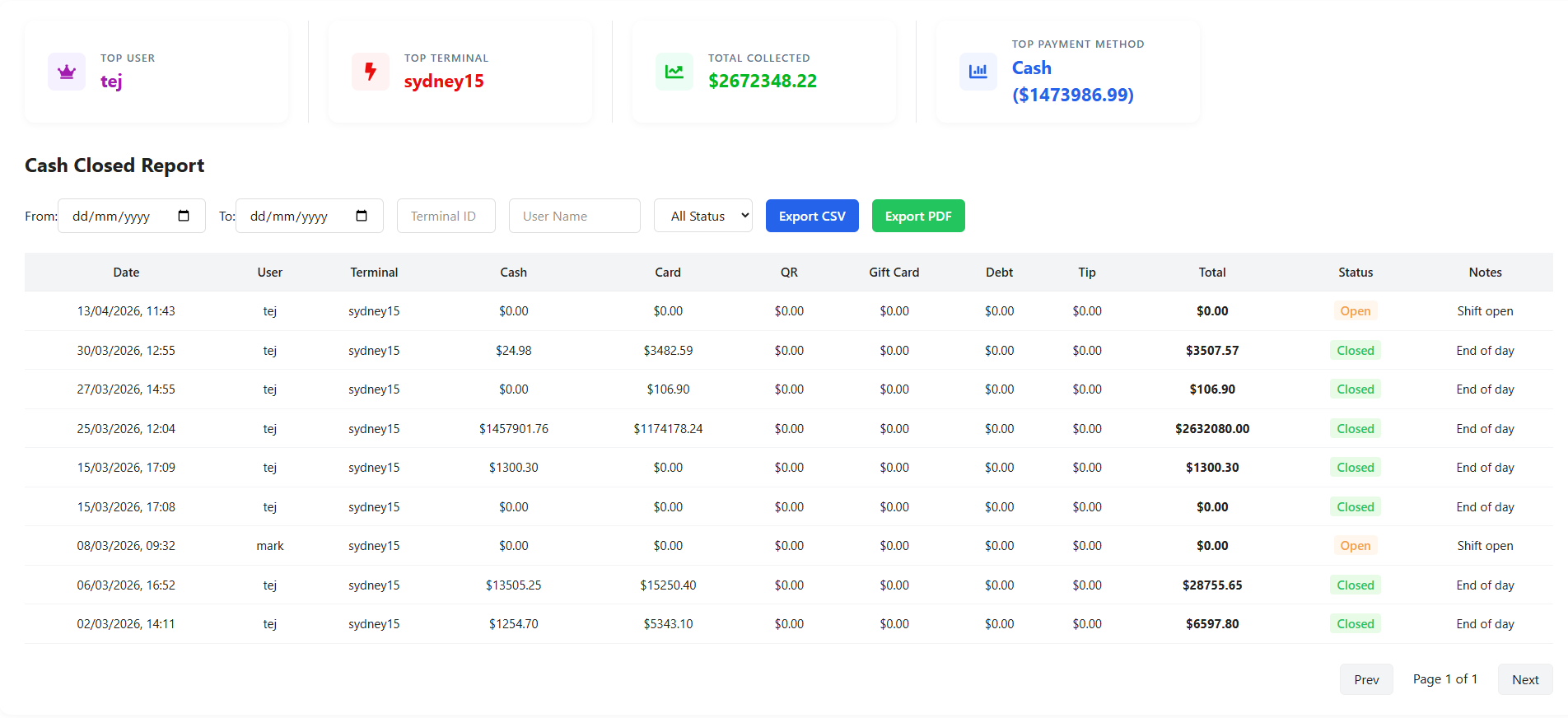
11. Day End, Sales Close, and Void Controls

Day-end and close controls formalize the end of a trading period. They help management lock in totals, review tender performance, record discrepancies, and control exceptional actions such as item voiding.

Backoffice • Closeout • Audit

Screen walkthrough

Primary screens used in this workflow. Click any screenshot to enlarge and review the UI details more closely.
Day End, Sales Close, and Void Controls screenshot
Day End
More screens
Day End, Sales Close, and Void Controls screenshot
Sales
Day End, Sales Close, and Void Controls screenshot
Void Item

Functions and controls

Area / controlDetailed function
Day end reportSummarizes the trading day with sales, payment, and operational totals ready for closure.
Sales close figuresShow the final figures expected to reconcile against cash, EFTPOS, and other tenders.
Void controlsRecord removed items or exceptional reversals that should remain visible for audit.
Filter and date toolsHelp management isolate the exact shift or day being closed.

Typical use cases

  • Shift close or full trading-day reconciliation.
  • Manager review of unexpected void volume.
  • Confirming that front-office activity ties back to reported totals.

Operational guidance

  • Always complete refunds and late adjustments before running final close reports.
  • Review void activity with staff when patterns look unusual.
  • Use close workflows consistently so reporting periods remain clean and auditable.
Backoffice · Catalog & promotions

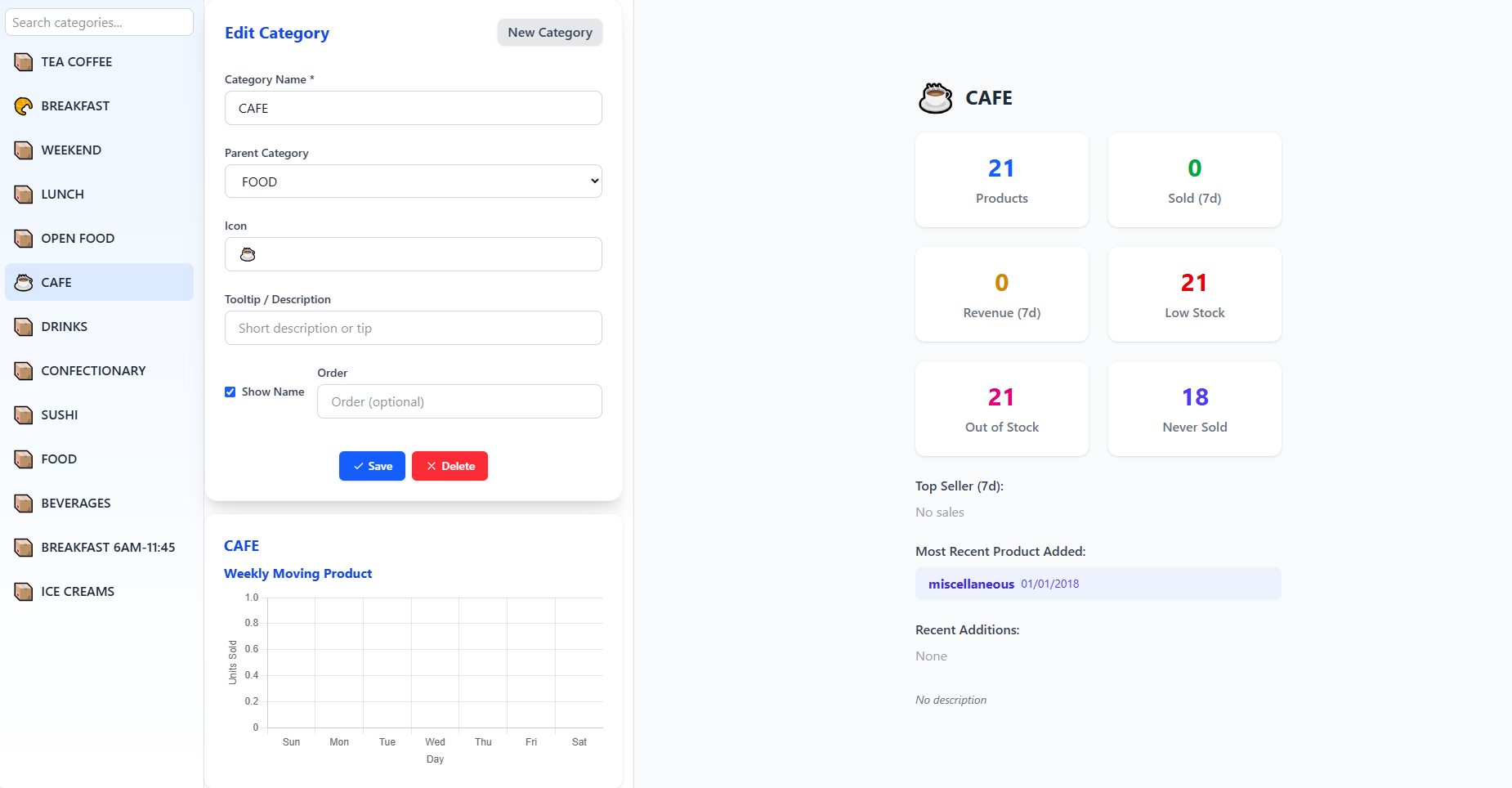
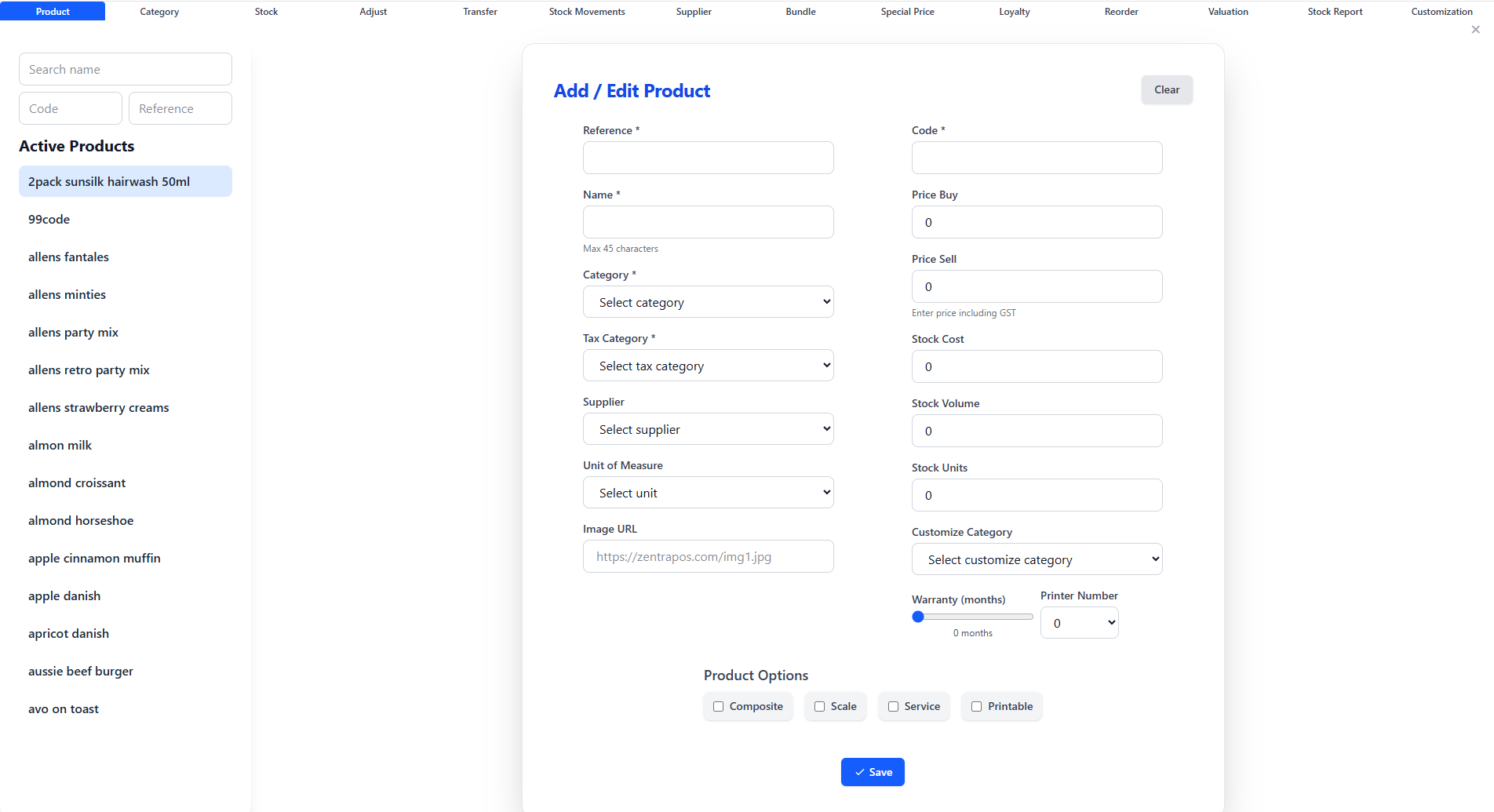
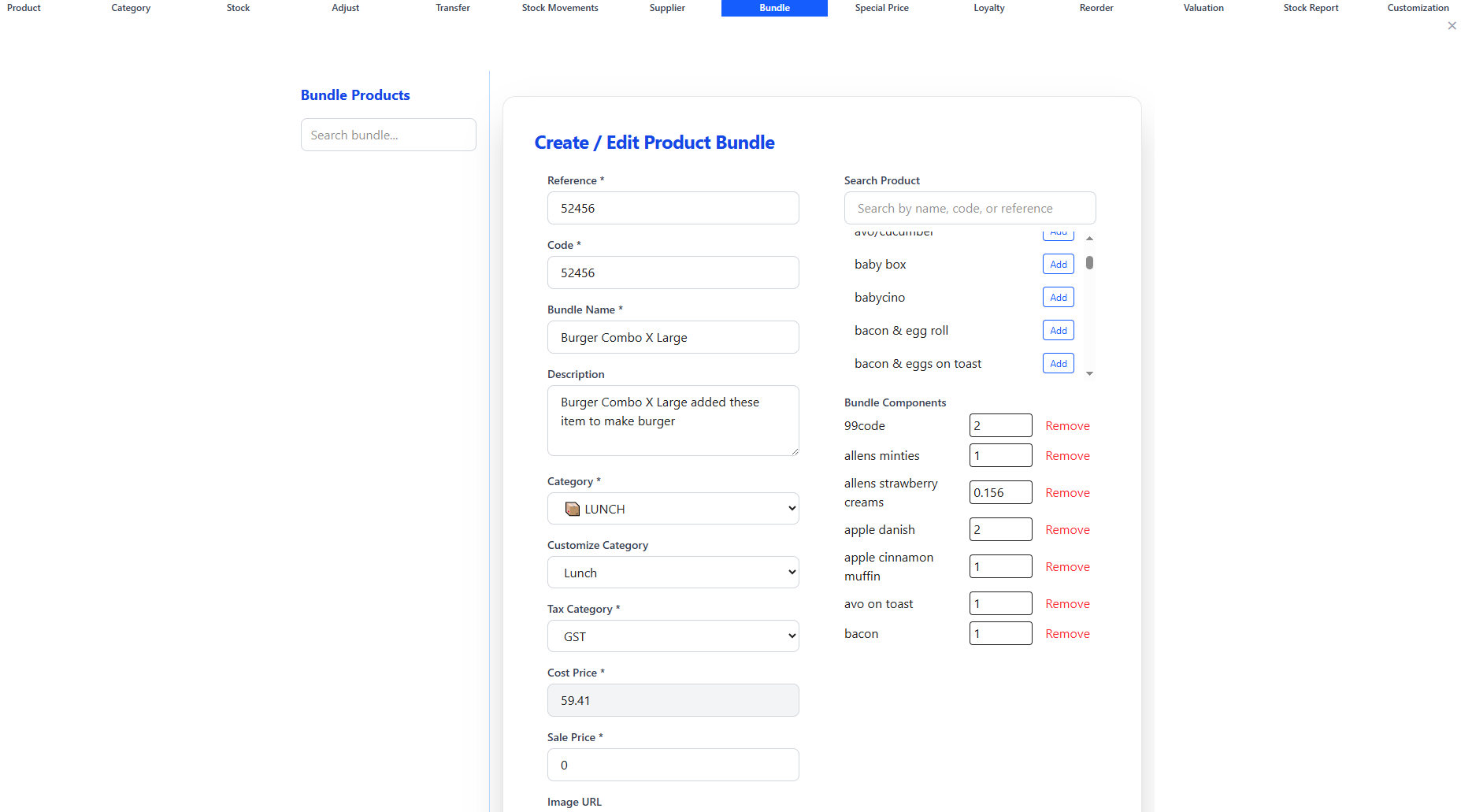
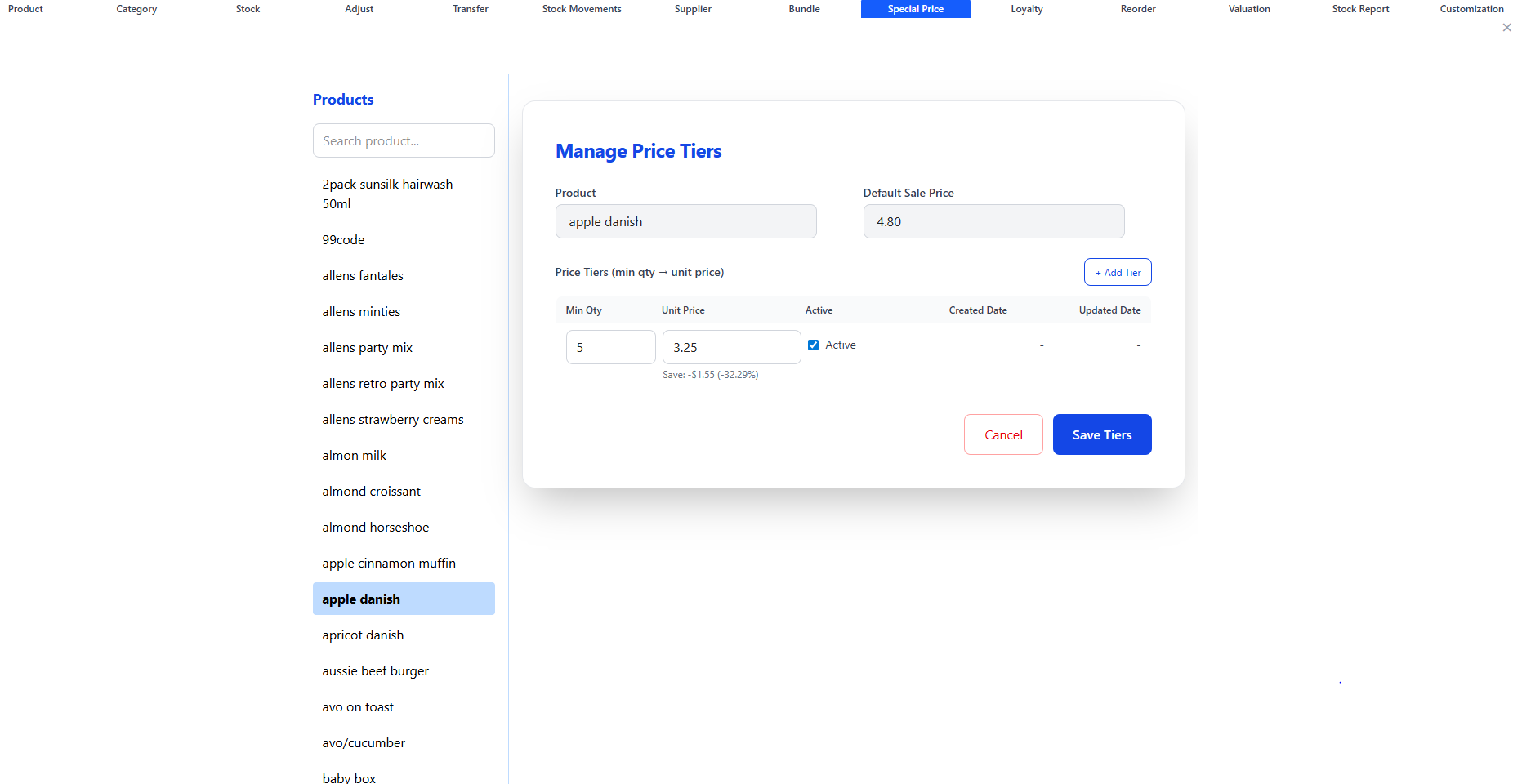
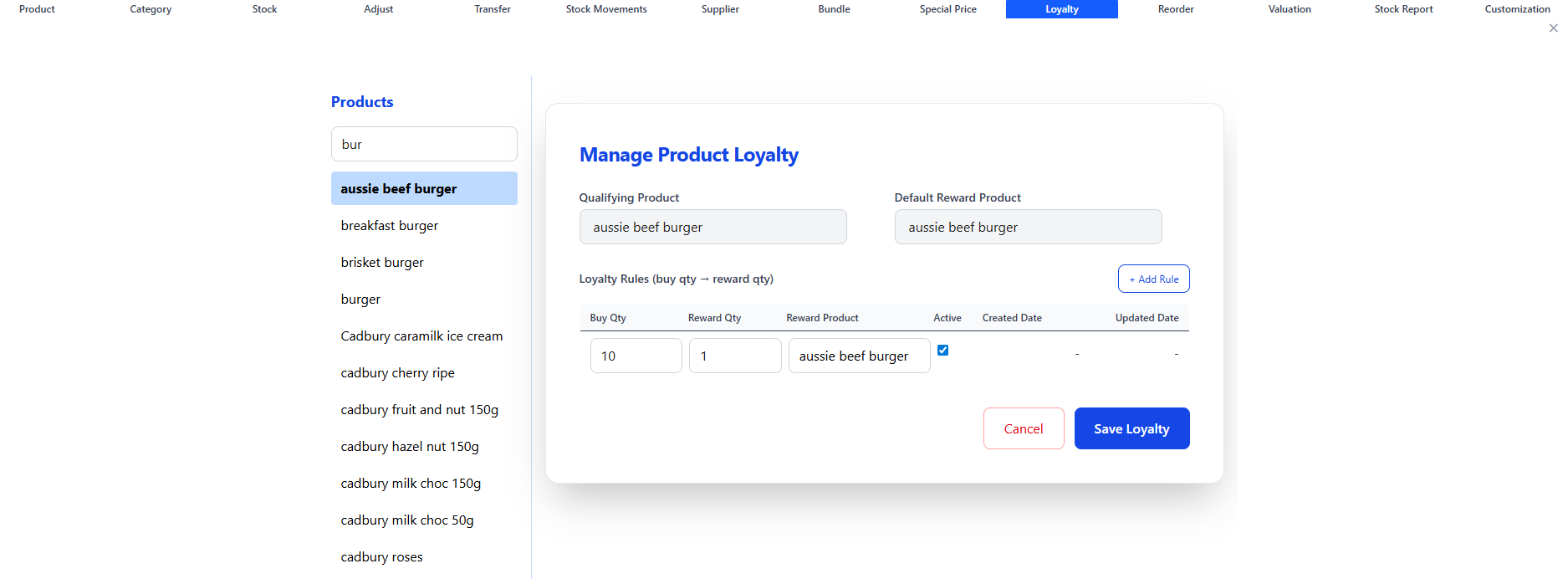
12. Category, Product, Bundles, Special Pricing, and Loyalty Promotions

These catalog-management screens define what the POS can sell and how product rules behave. They support menu creation, bundling, special pricing, and loyalty-style promotional logic such as buy-ten-get-one-free.

Backoffice • Catalog • Promotions

Screen walkthrough

Primary screens used in this workflow. Click any screenshot to enlarge and review the UI details more closely.
Category, Product, Bundles, Special Pricing, and Loyalty Promotions screenshot
Category
More screens
Category, Product, Bundles, Special Pricing, and Loyalty Promotions screenshot
Product
Category, Product, Bundles, Special Pricing, and Loyalty Promotions screenshot
Product Bundle
Category, Product, Bundles, Special Pricing, and Loyalty Promotions screenshot
Special Price
Category, Product, Bundles, Special Pricing, and Loyalty Promotions screenshot
Buy10 Get 1 Free
Category, Product, Bundles, Special Pricing, and Loyalty Promotions screenshot
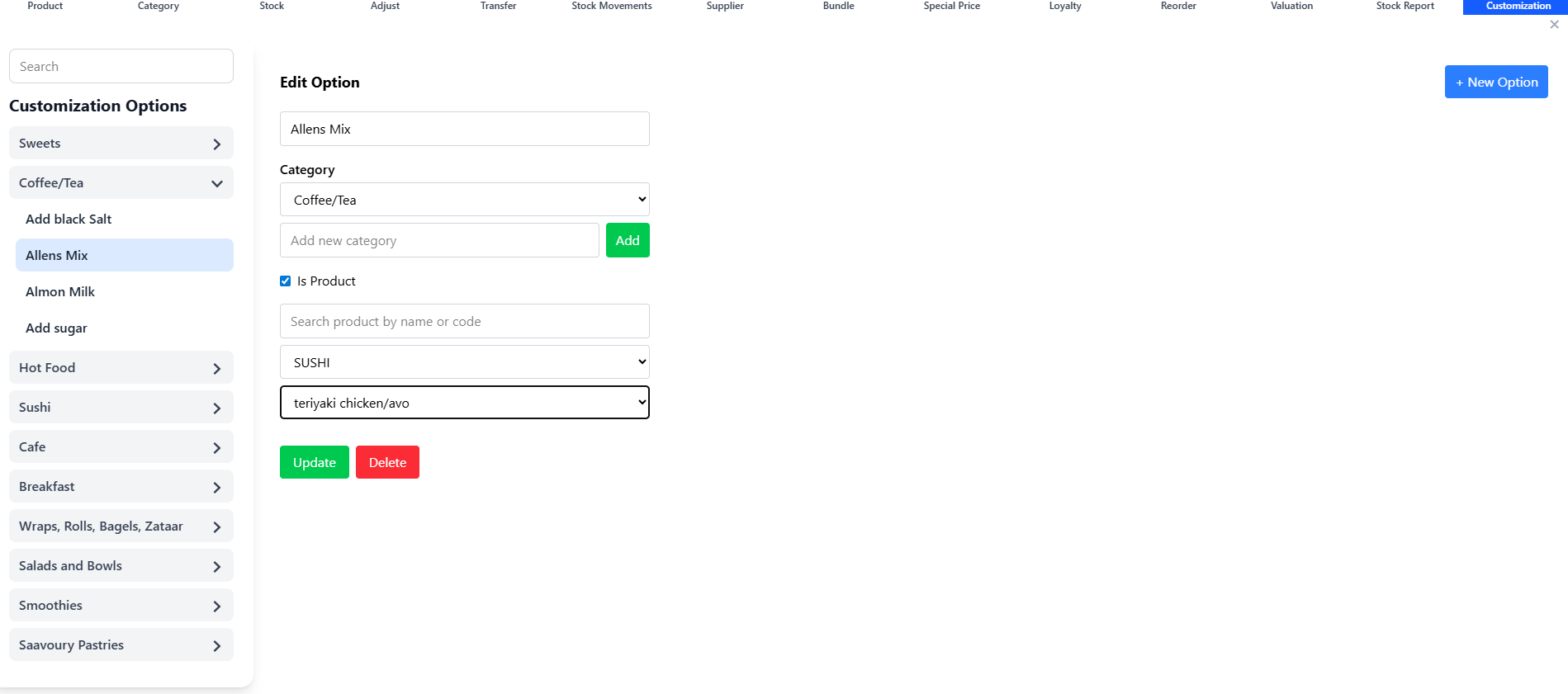
Customize Product

Functions and controls

Area / controlDetailed function
Category managementCreates and organizes the high-level and sub-level menu structure visible in POS and online ordering.
Product managementControls product naming, pricing, sell status, attributes, and linked operational behavior.
Bundle setupDefines grouped product offers or packaged sales combinations.
Special price rulesApplies override pricing for selected scenarios, periods, or product/customer contexts.
Loyalty promotion configurationSupports accumulation-style offers such as buy 10 get 1 free.
Customization definitionsDetermine which modifiers or extras can appear when products are customized at POS.

Typical use cases

  • Launching new menu items or seasonal offers.
  • Creating combo products and promotional pricing campaigns.
  • Maintaining loyalty rules that drive repeat visits.

Operational guidance

  • Keep category names simple and operationally clear for front-office staff.
  • Test special pricing and bundle behavior before activating during service.
  • Review promotional rules regularly to avoid outdated or conflicting offers.
Backoffice · Inventory control

13. Inventory Master, Stock Levels, Adjustments, Movements, Transfers, and Value

Inventory control screens manage stock quantities, valuation, and movement history across the business. They are used to maintain data accuracy, monitor shrinkage, and keep purchasing aligned with actual demand.

Backoffice • Stock • Control

Screen walkthrough

Primary screens used in this workflow. Click any screenshot to enlarge and review the UI details more closely.
Inventory Master, Stock Levels, Adjustments, Movements, Transfers, and Value screenshot
Inventory
More screens
Inventory Master, Stock Levels, Adjustments, Movements, Transfers, and Value screenshot
Stock
Inventory Master, Stock Levels, Adjustments, Movements, Transfers, and Value screenshot
Stock Adjust
Inventory Master, Stock Levels, Adjustments, Movements, Transfers, and Value screenshot
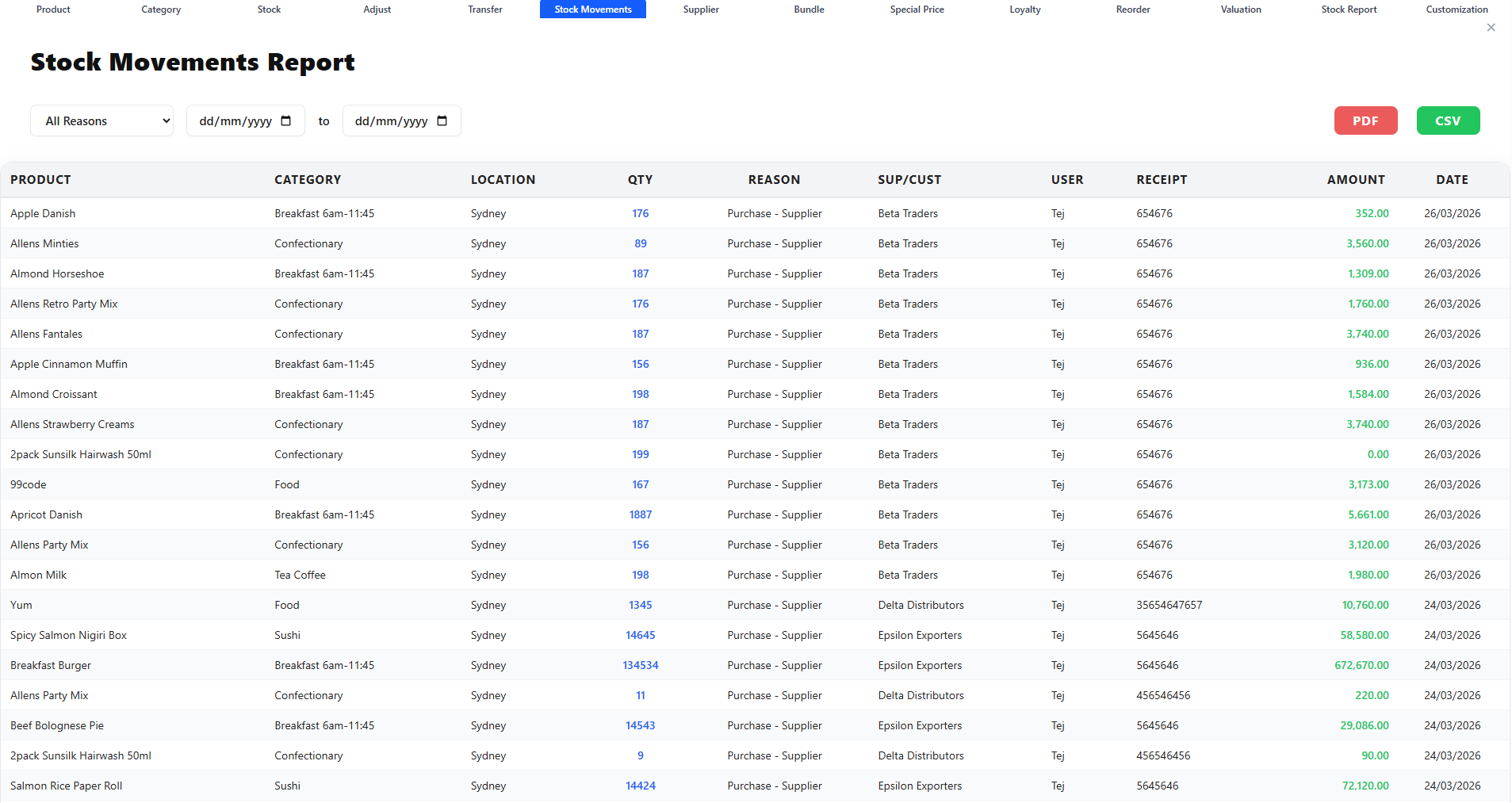
Stock Movement
Inventory Master, Stock Levels, Adjustments, Movements, Transfers, and Value screenshot
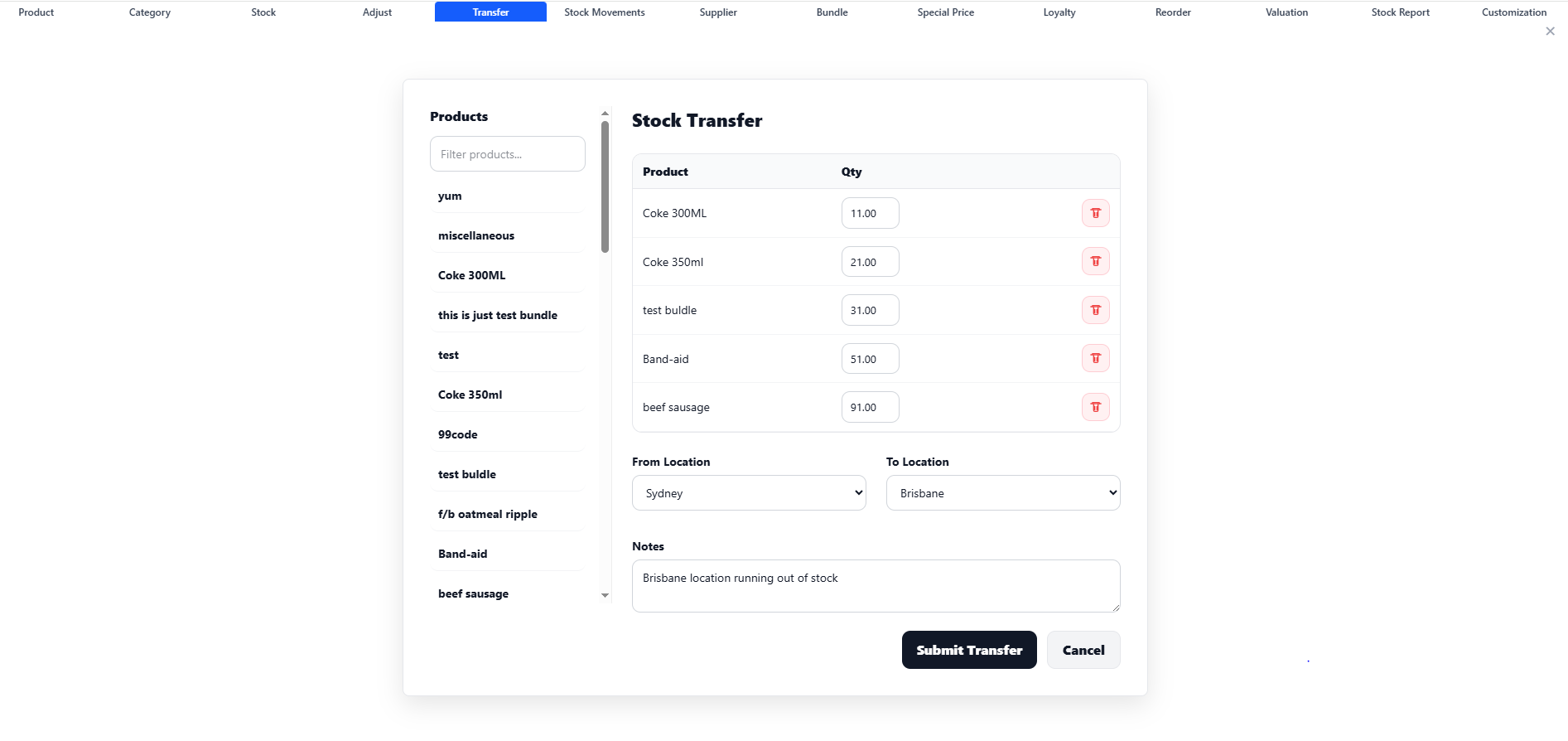
Stock Transfer
Inventory Master, Stock Levels, Adjustments, Movements, Transfers, and Value screenshot
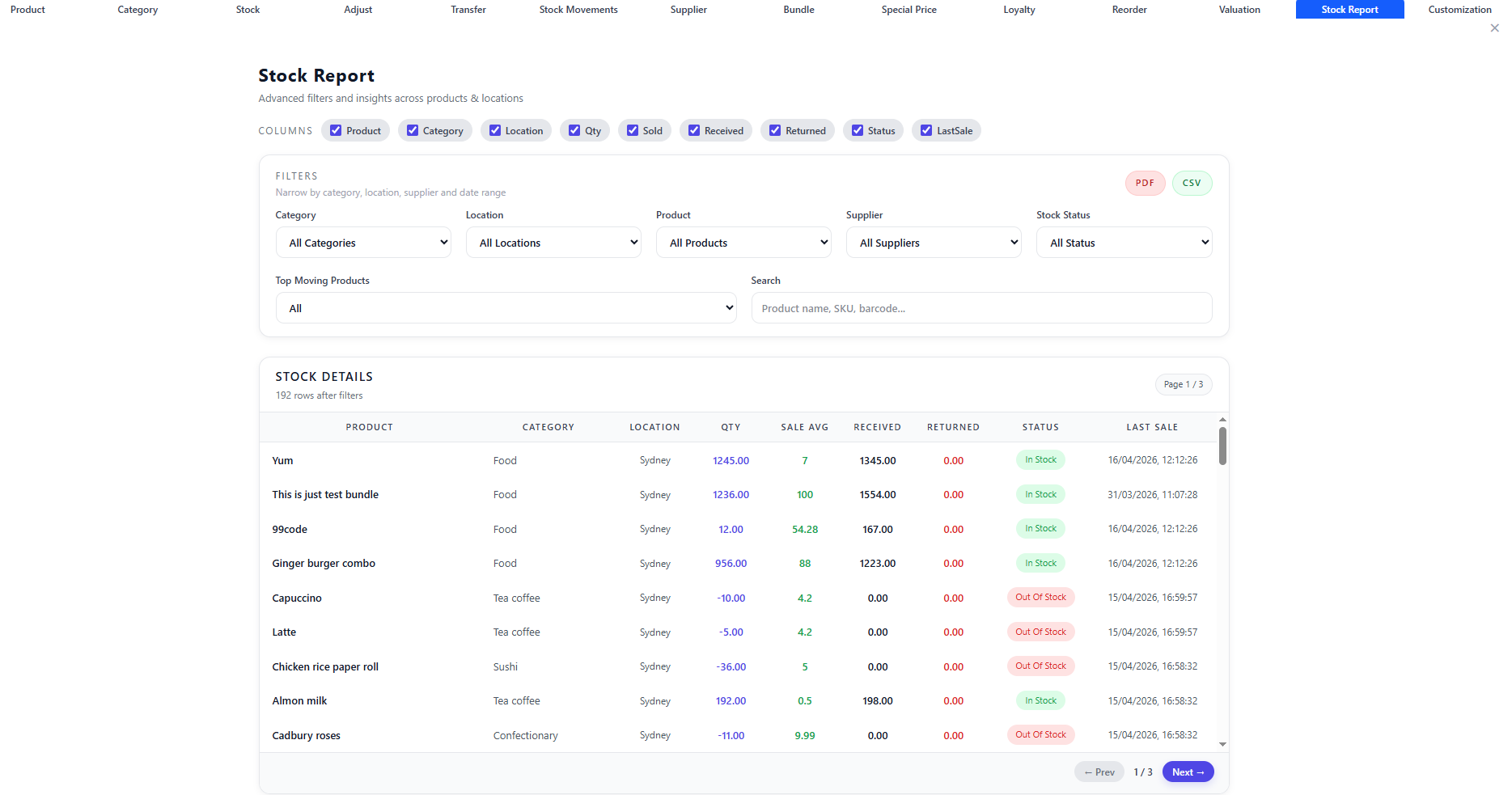
Stock Report
Inventory Master, Stock Levels, Adjustments, Movements, Transfers, and Value screenshot
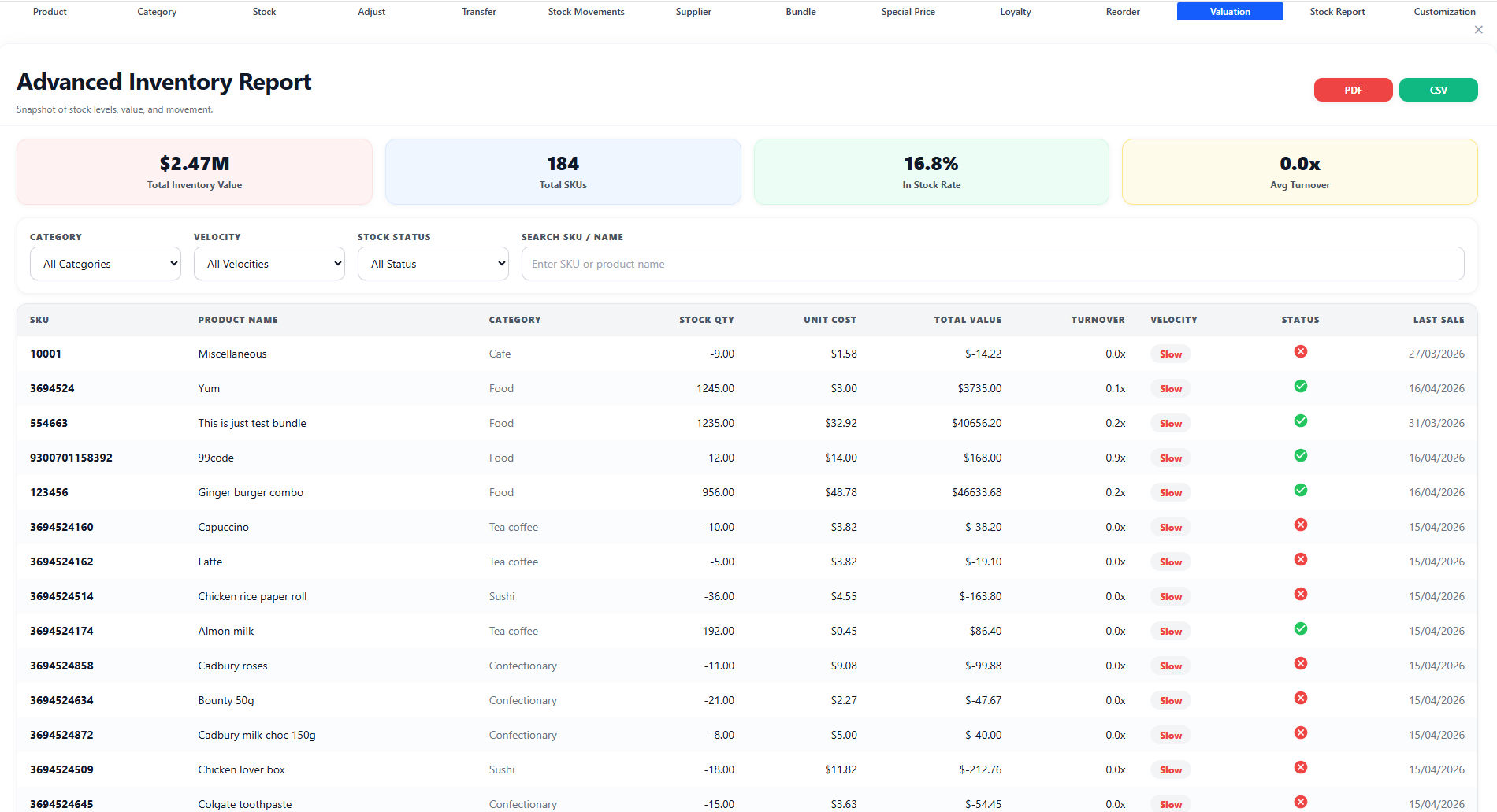
Inventory Value

Functions and controls

Area / controlDetailed function
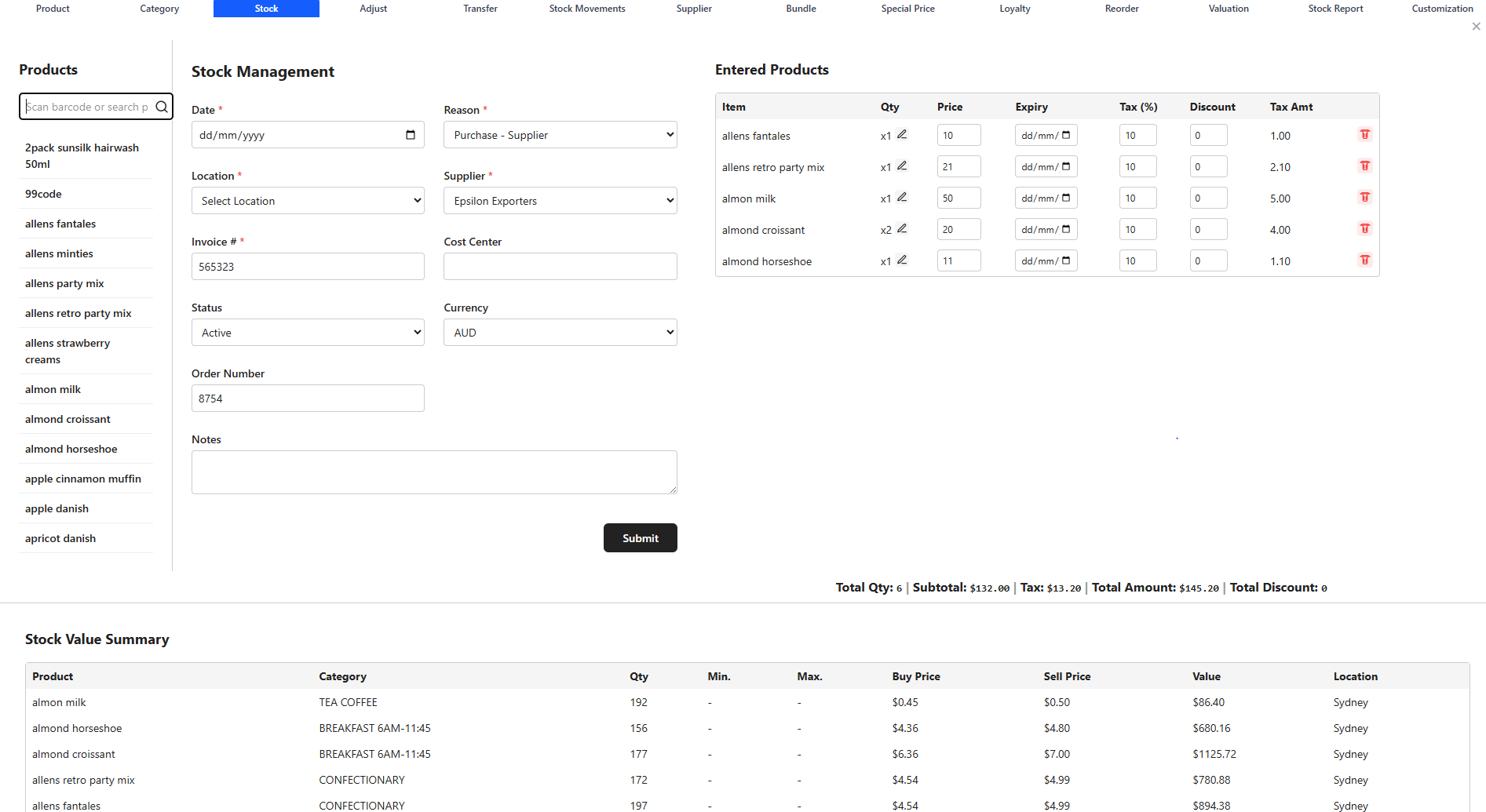
Inventory masterStores product-level stock definitions and configuration that drive stock-aware behavior.
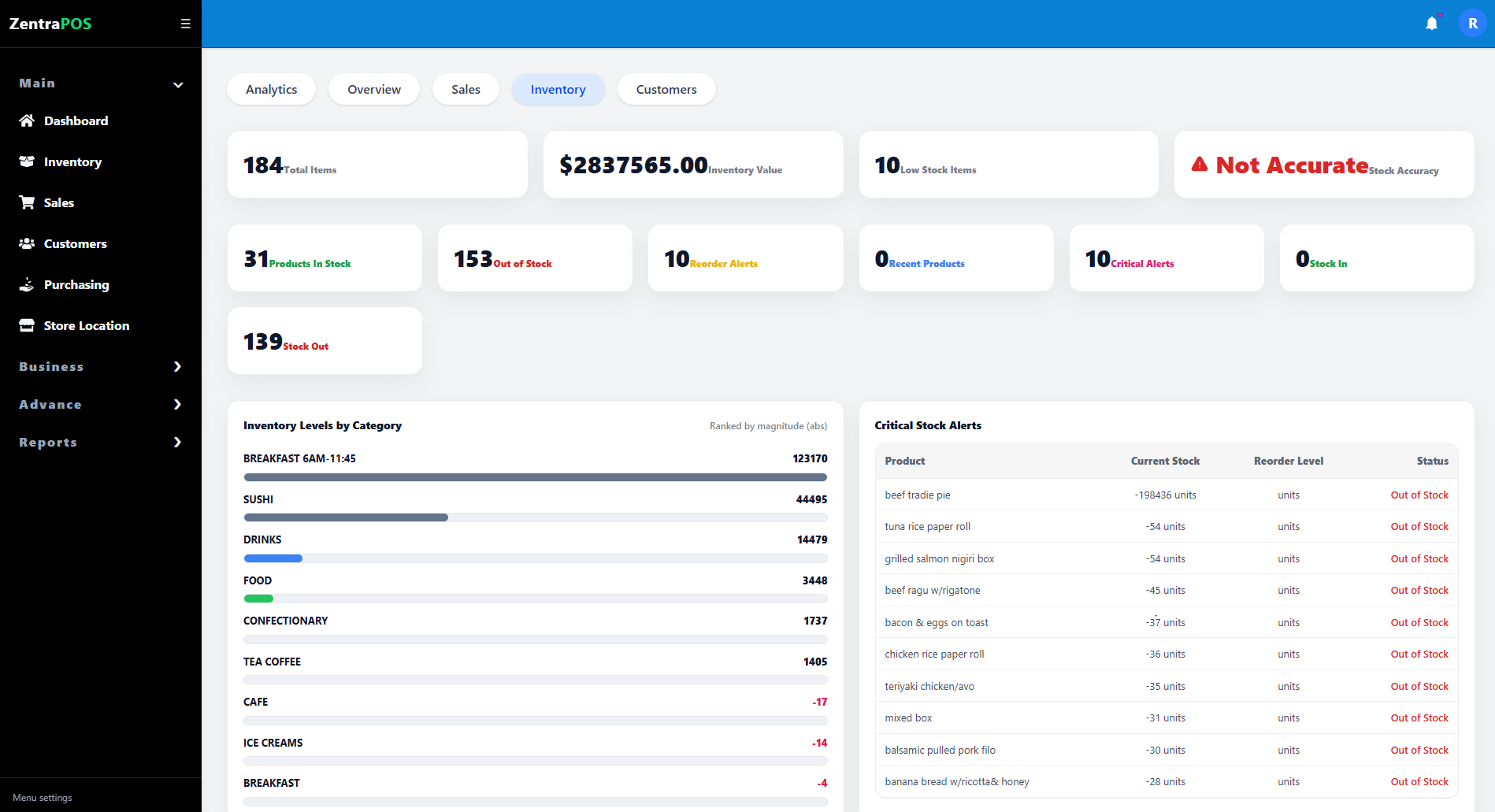
Current stock viewShows on-hand quantities and can surface low-stock or out-of-balance conditions.
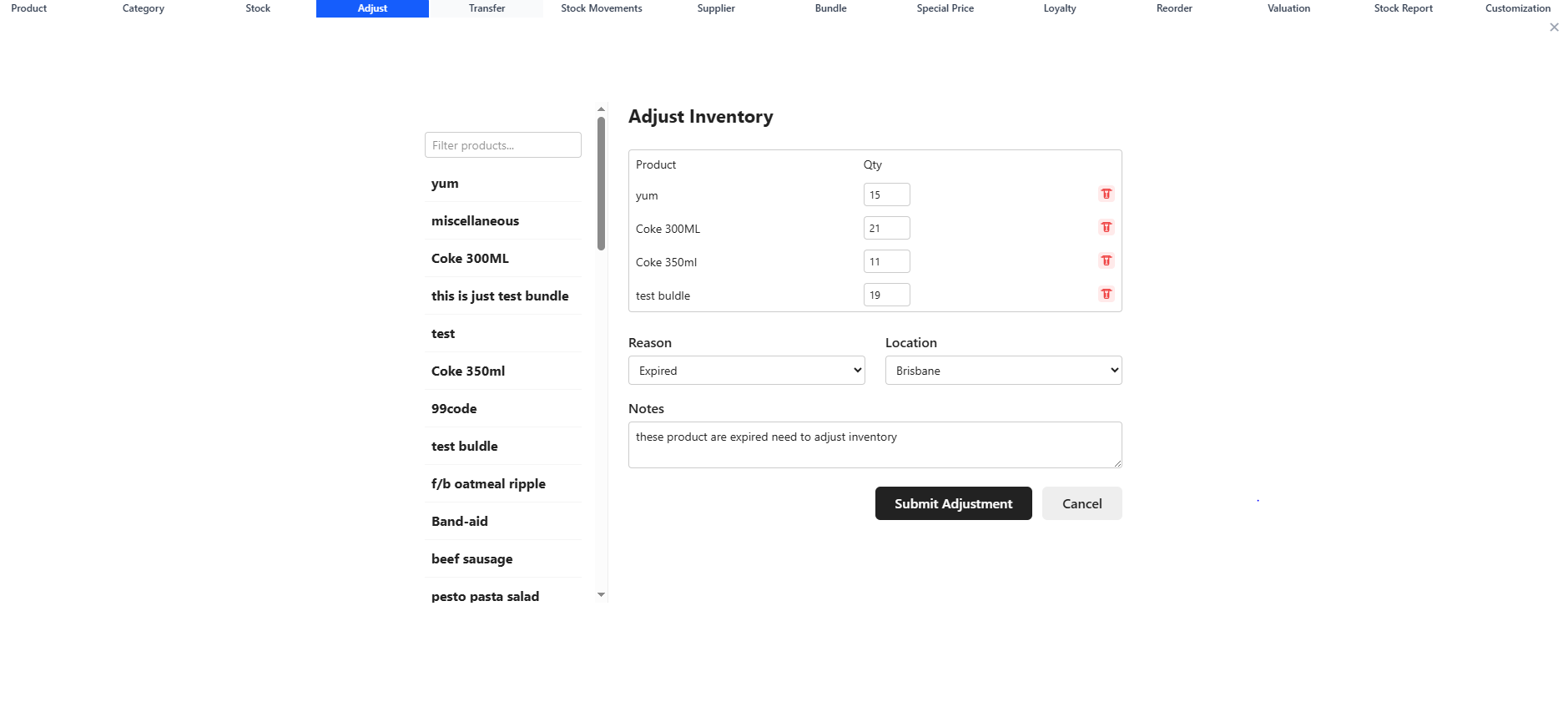
Stock adjustmentRecords manual corrections for wastage, breakage, counts, or discovered discrepancies.
Stock movement historyTracks inbound, outbound, and adjustment events for audit and troubleshooting.
Stock transferMoves quantity between locations or stores while maintaining traceability.
Stock reportSummarizes stock positions across items or locations.
Inventory valueEstimates the monetary value tied up in current stock holdings.

Typical use cases

  • Periodic stock counts and discrepancy correction.
  • Tracking why stock changed without a sale.
  • Monitoring inventory value and inter-store movement.

Operational guidance

  • Use adjustments sparingly and document the reason.
  • Review movement history before assuming theft or data error.
  • Verify source and destination locations carefully when transferring stock.
Backoffice · Purchasing & suppliers

14. Purchase Orders, Suppliers, Supplier Payments, and Store Locations

Purchasing and supplier screens connect inventory replenishment with procurement and settlement. They support ordering stock, tracking supplier relationships, managing multi-location behavior, and controlling payables.

Backoffice • Purchasing • Suppliers

Screen walkthrough

Primary screens used in this workflow. Click any screenshot to enlarge and review the UI details more closely.
Purchase Orders, Suppliers, Supplier Payments, and Store Locations screenshot
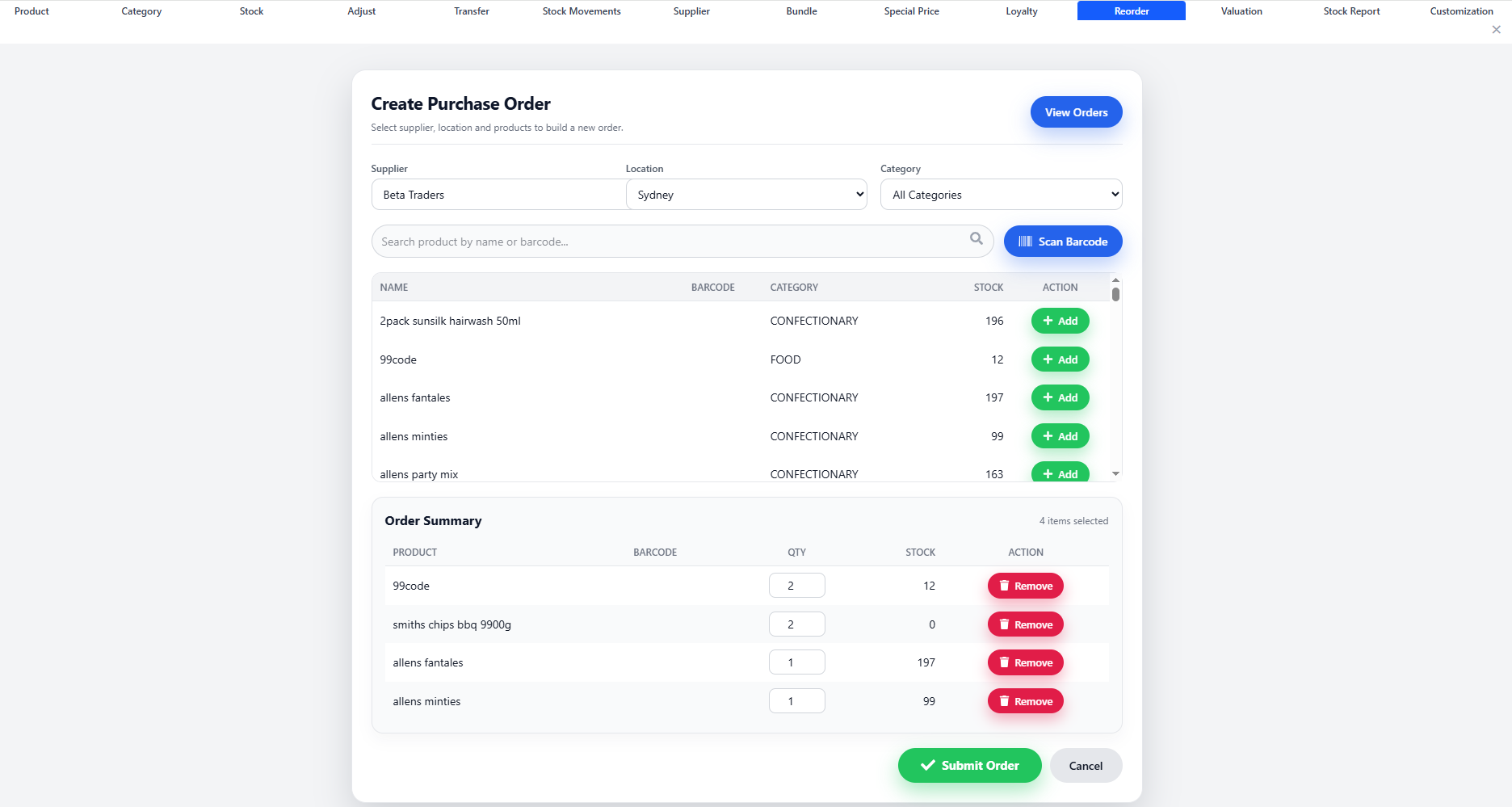
Purchase Order
More screens
Purchase Orders, Suppliers, Supplier Payments, and Store Locations screenshot
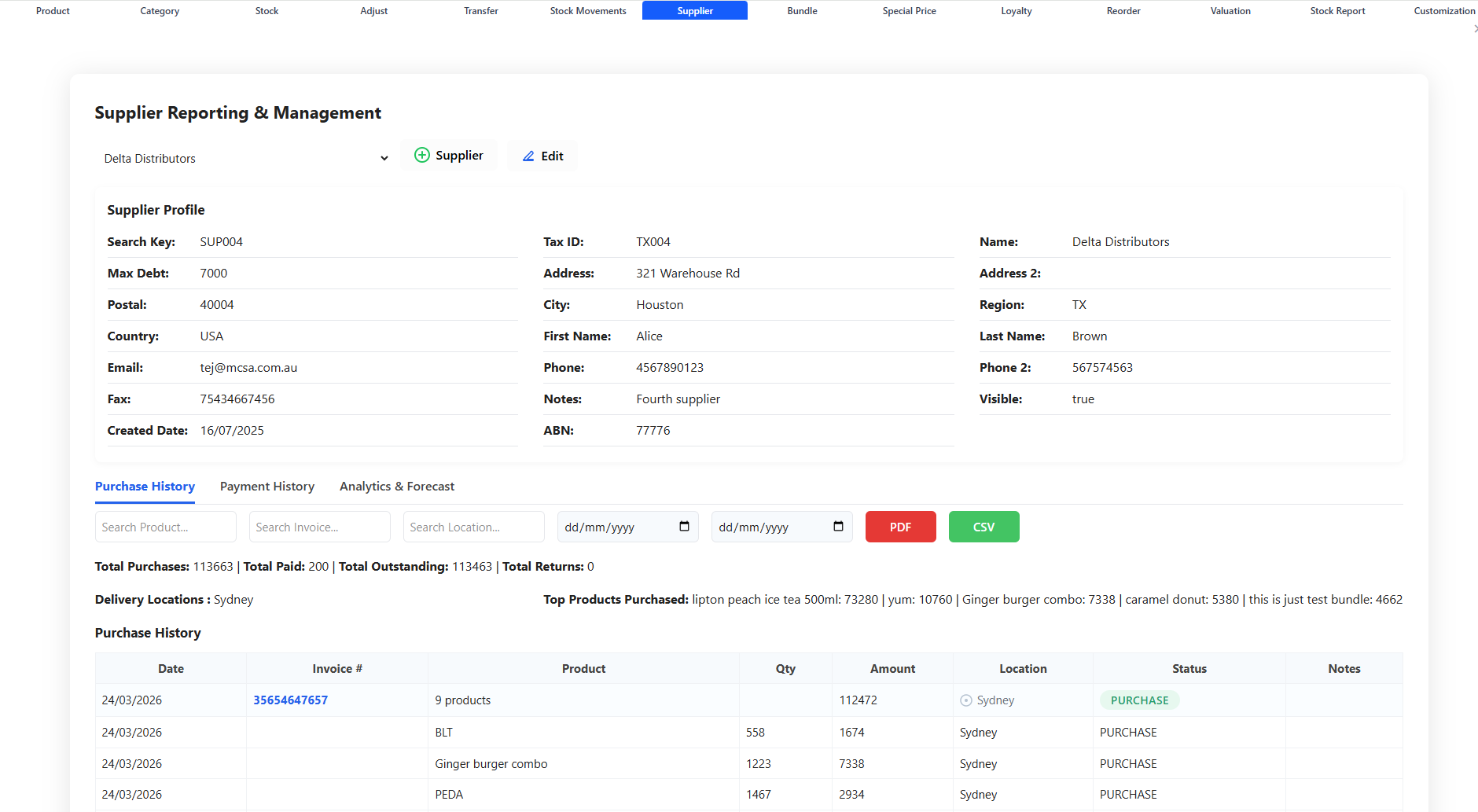
Supplier Manage
Purchase Orders, Suppliers, Supplier Payments, and Store Locations screenshot
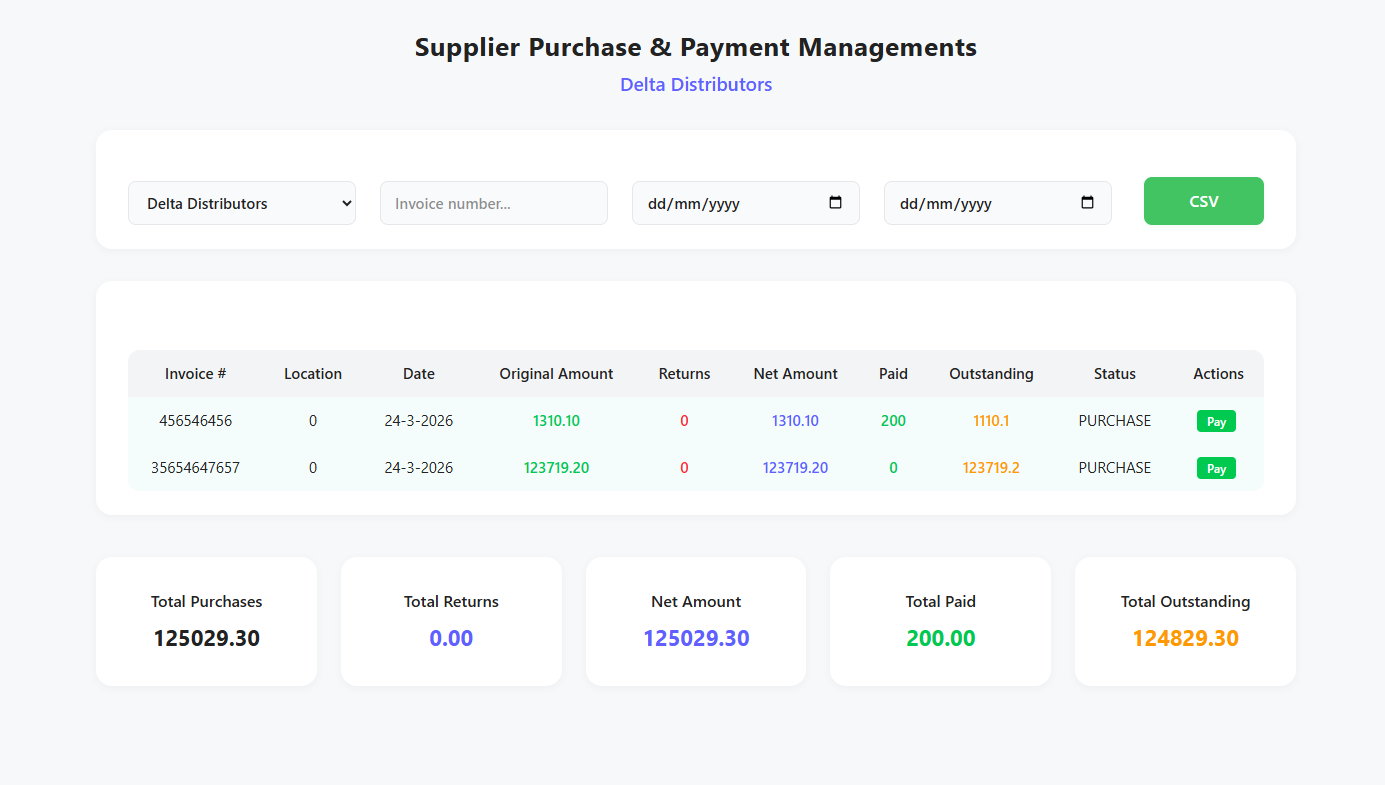
Supplier Payment
Purchase Orders, Suppliers, Supplier Payments, and Store Locations screenshot
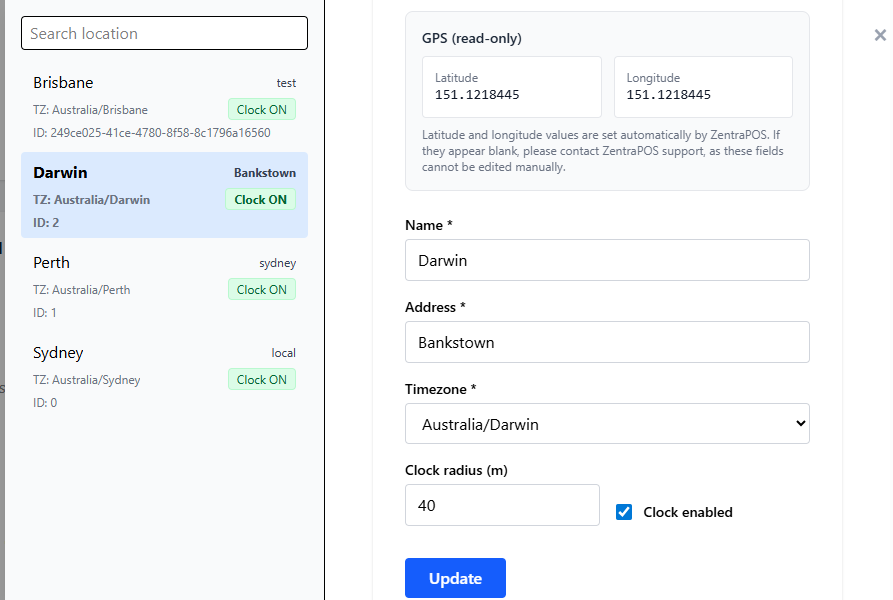
Store Location

Functions and controls

Area / controlDetailed function
Purchase ordersCreate and track incoming replenishment requests for stock items.
Supplier managementStore vendor details, contacts, terms, and supplier-specific records.
Supplier paymentsTrack amounts owed and paid against supplier obligations.
Store locationsDefine physical sites or branches used by stock, purchasing, and reporting workflows.

Typical use cases

  • Reordering stock based on low levels or forecast demand.
  • Tracking vendor relationships and purchase history.
  • Managing inventory and payments across multiple venues or locations.

Operational guidance

  • Standardize supplier names to keep purchasing history searchable.
  • Review purchase orders against actual received stock before marking complete.
  • Keep store-location settings accurate because many stock and report flows depend on them.
Backoffice · Workforce & payroll

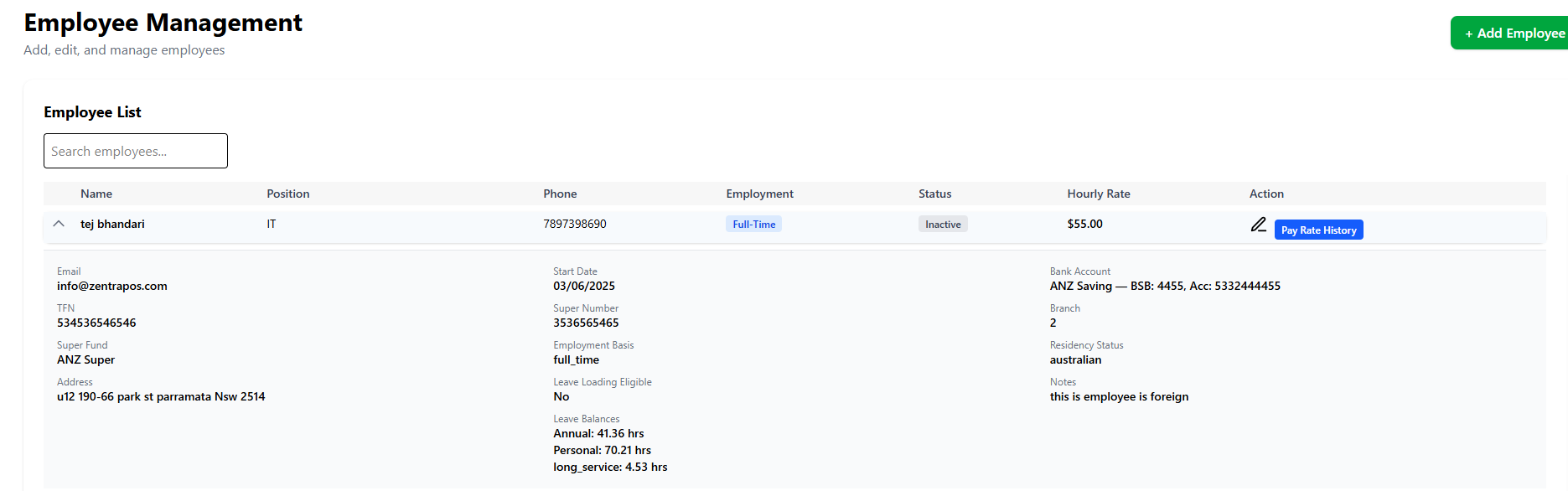
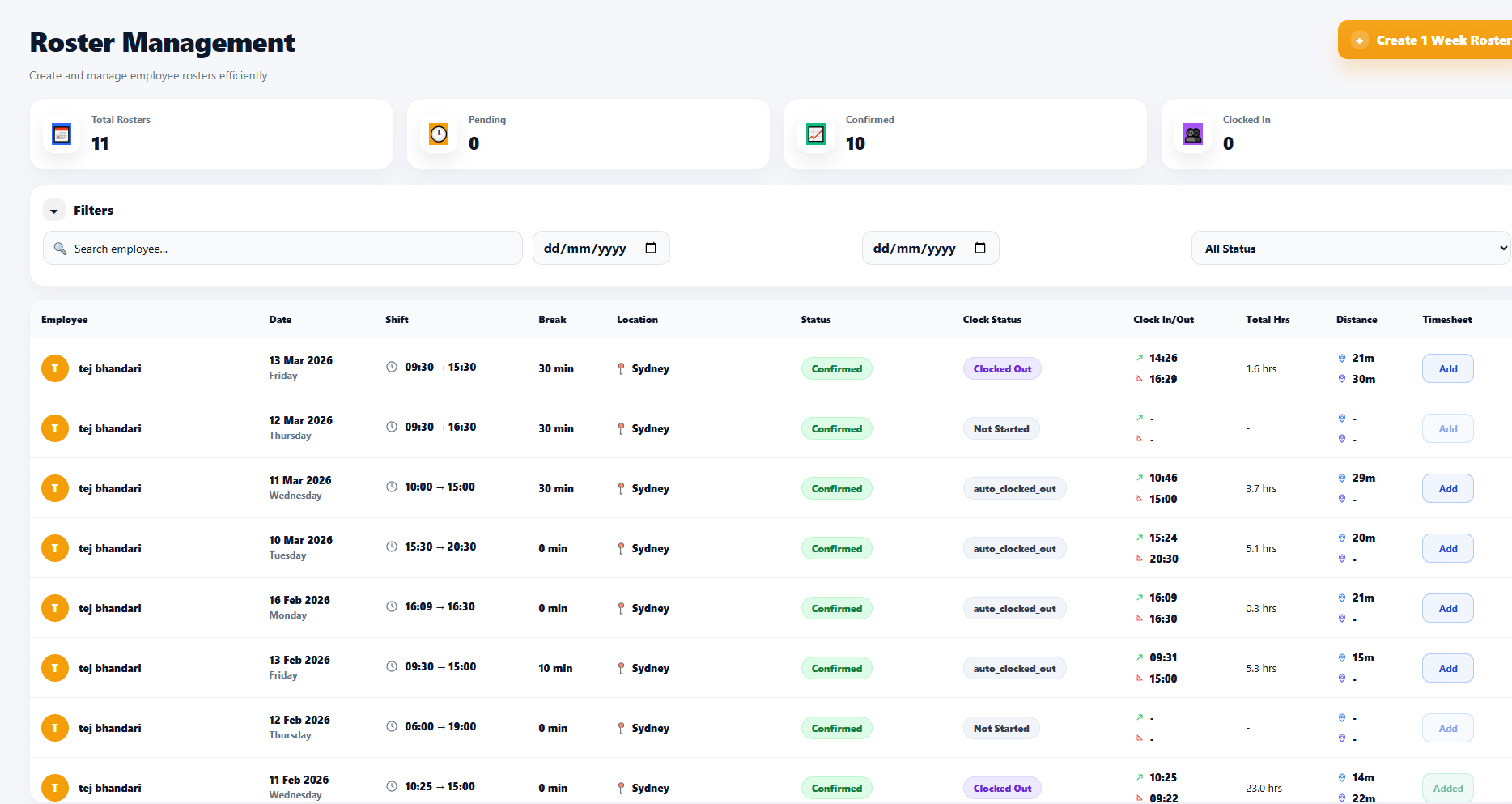
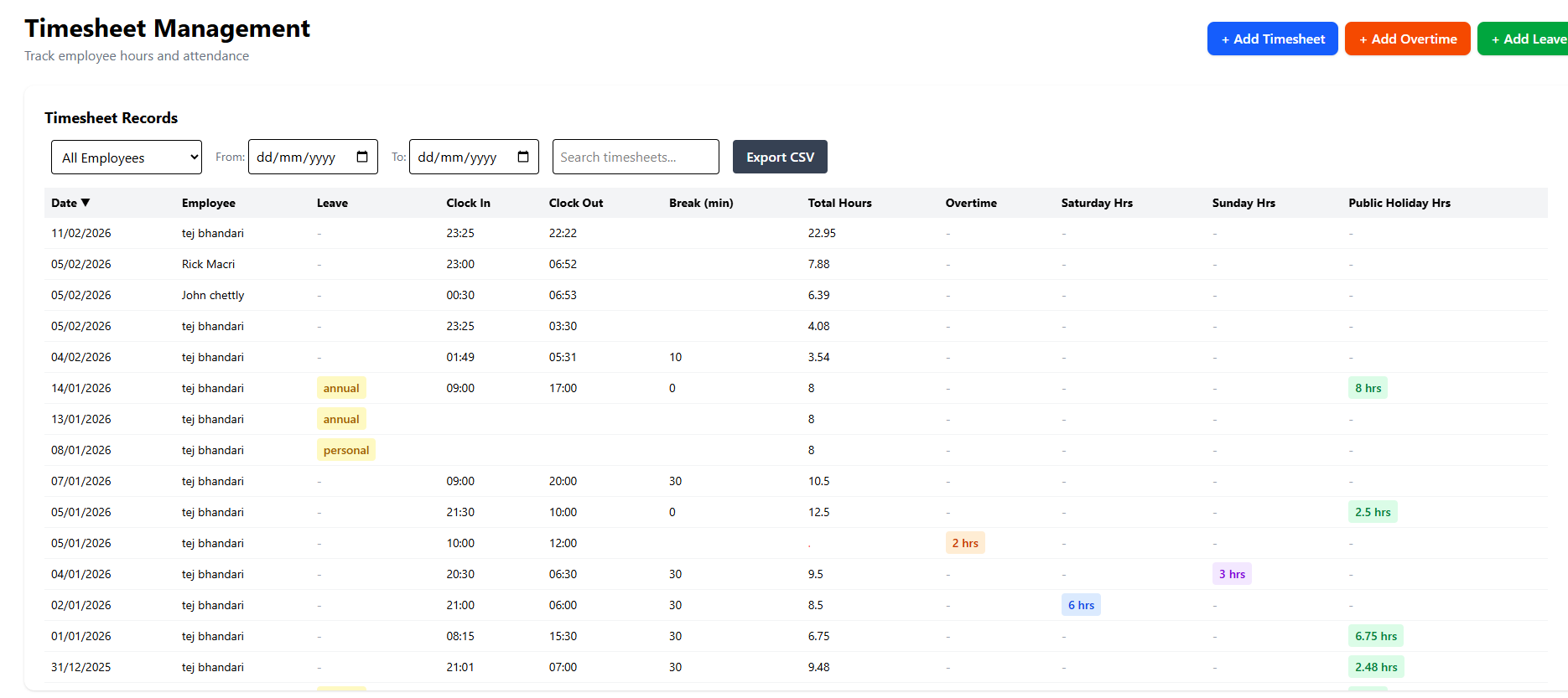
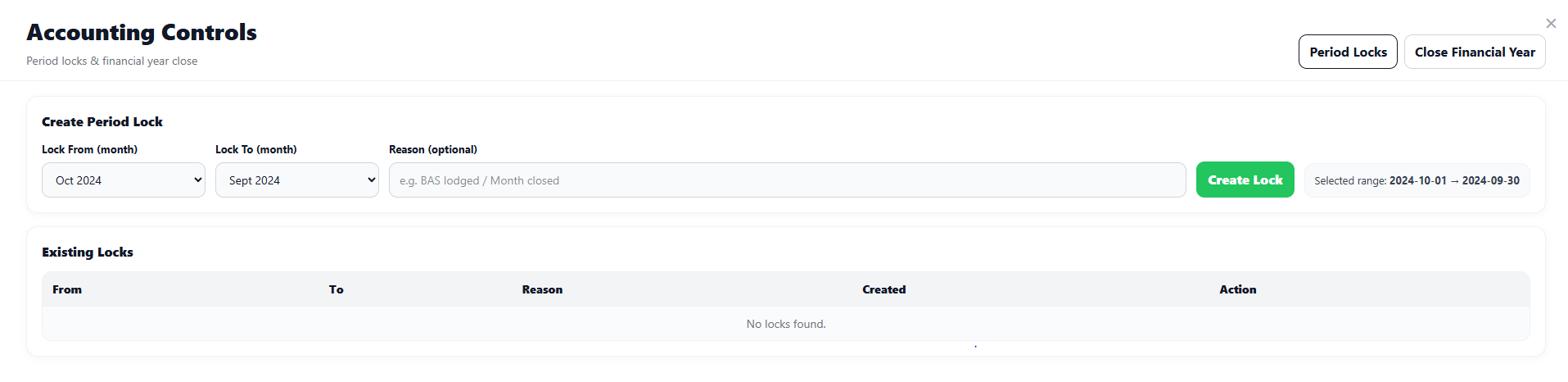
15. Employee Management, Rosters, Timesheets, Payroll Year, PAYG, and Payslips

These HR and payroll screens manage staff identity, work scheduling, attendance, and payroll-related compliance. They support operators who need to coordinate labor, track hours, and prepare pay runs or statutory records.

Backoffice • Workforce • Payroll

Screen walkthrough

Primary screens used in this workflow. Click any screenshot to enlarge and review the UI details more closely.
Employee Management, Rosters, Timesheets, Payroll Year, PAYG, and Payslips screenshot
Employe Manage
More screens
Employee Management, Rosters, Timesheets, Payroll Year, PAYG, and Payslips screenshot
Roster
Employee Management, Rosters, Timesheets, Payroll Year, PAYG, and Payslips screenshot
Timesheet
Employee Management, Rosters, Timesheets, Payroll Year, PAYG, and Payslips screenshot
Finacil Yeay
Employee Management, Rosters, Timesheets, Payroll Year, PAYG, and Payslips screenshot
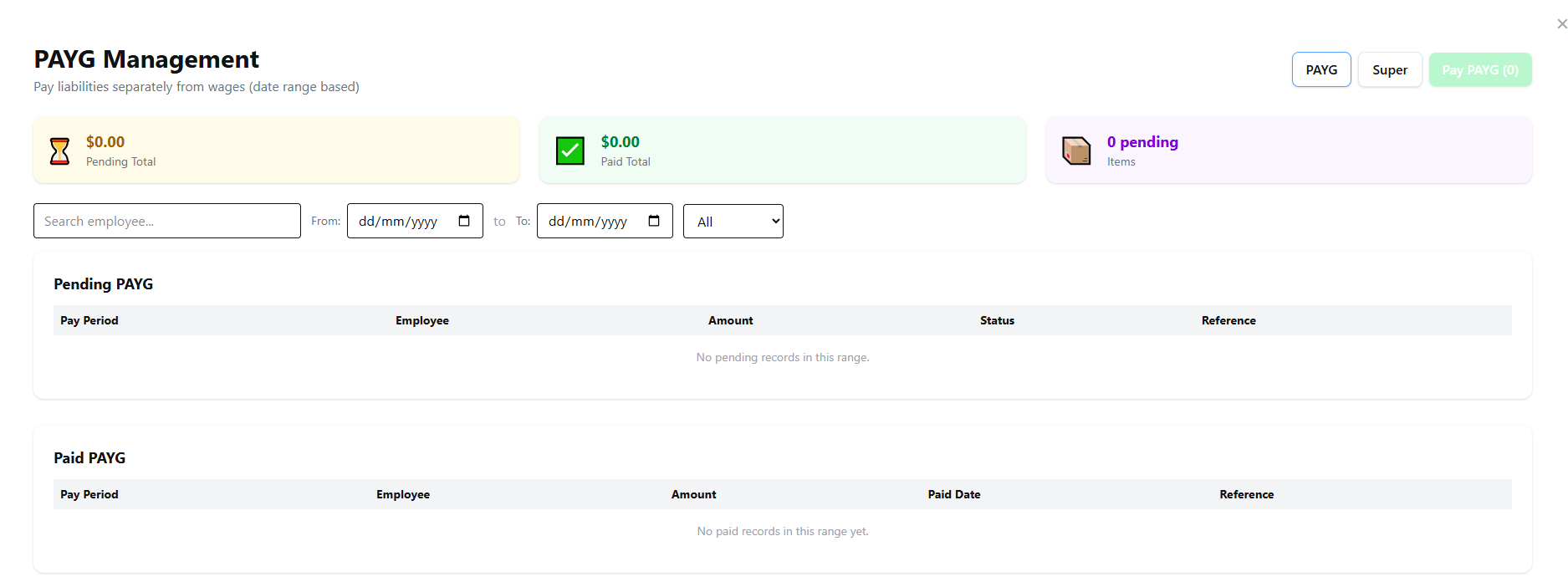
Payg Manage
Employee Management, Rosters, Timesheets, Payroll Year, PAYG, and Payslips screenshot
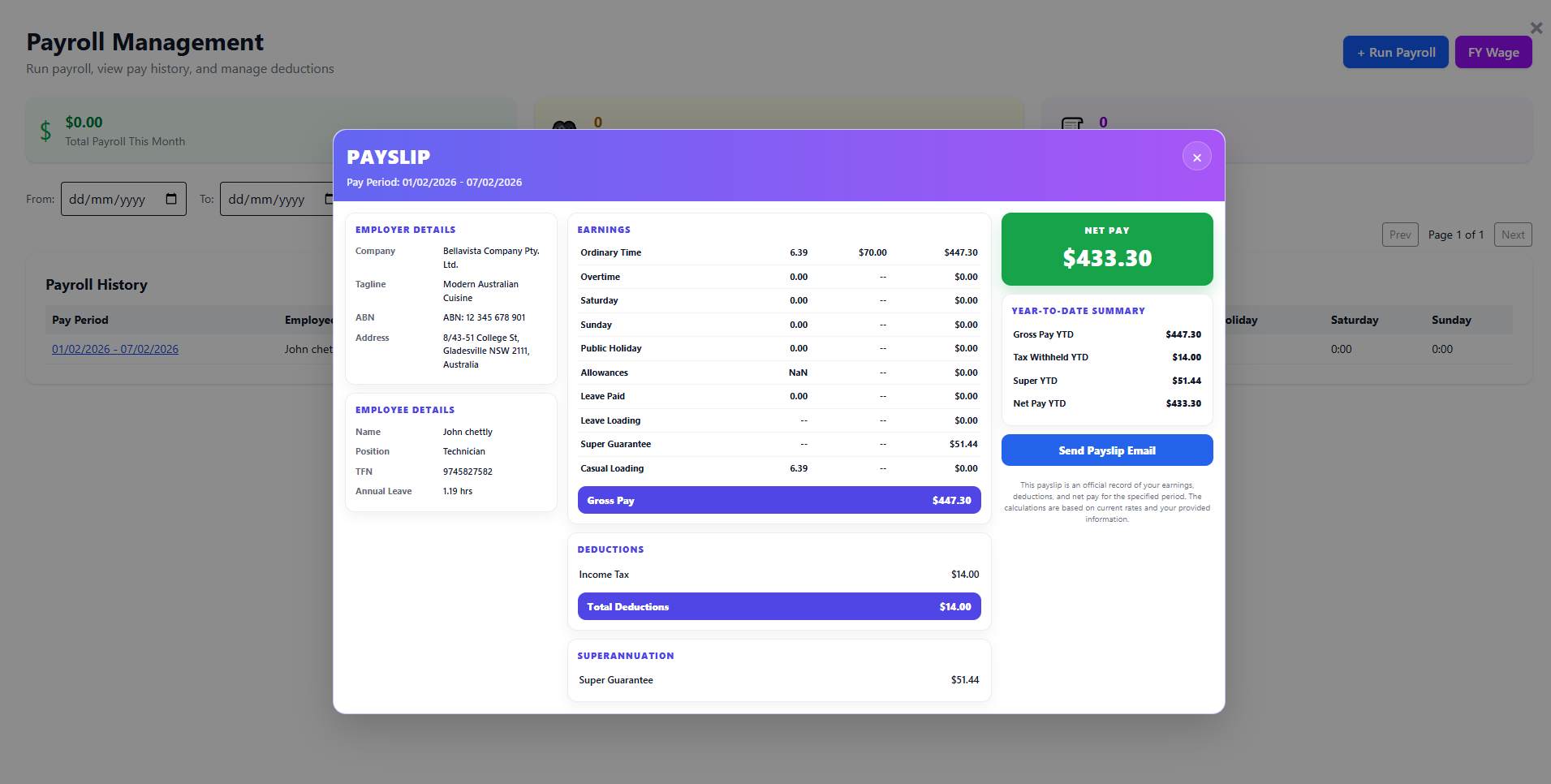
Payslip

Functions and controls

Area / controlDetailed function
Employee managementStores staff records, roles, and employment details relevant to payroll and operations.
Roster managementSchedules who works when, helping labor planning align with forecast demand.
TimesheetsRecord actual hours worked for payroll and performance review.
Financial / payroll year settingsControl the year context used by payroll and statutory reporting.
PAYG managementSupports withholding and payroll-related tax management.
Payslip viewRepresents the employee-facing output of payroll processing.

Typical use cases

  • Creating or updating employee records.
  • Planning labor for busy and quiet periods.
  • Processing payroll and validating hours worked.

Operational guidance

  • Restrict payroll and tax settings to authorized roles only.
  • Compare rostered versus actual timesheet hours to identify exceptions.
  • Keep payroll-year settings accurate before generating tax-sensitive outputs.
Backoffice · Expenses & operational finance

16. Expenses and Operational Cost Tracking

Expense management complements sales reporting by capturing non-stock or non-payroll costs that affect profitability. It helps managers understand where money is going outside direct sales activity.

Backoffice • Expenses • Cost control

Screen walkthrough

Primary screens used in this workflow. Click any screenshot to enlarge and review the UI details more closely.
Expenses and Operational Cost Tracking screenshot
Expense

Functions and controls

Area / controlDetailed function
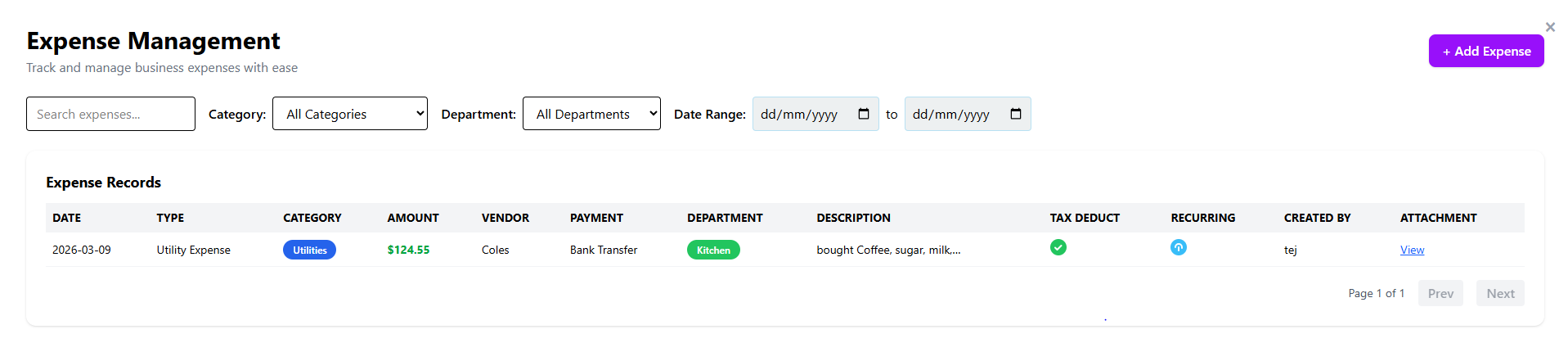
Expense recordsCapture cost entries such as utilities, petty cash, repairs, or administrative expenses.
Filters and status controlsHelp isolate paid, unpaid, approved, or category-specific expense lines.
Linked financial impactFeeds broader financial visibility when expense data is included in management reporting.

Typical use cases

  • Recording ad hoc business costs.
  • Reviewing expense patterns before producing P&L.
  • Tracking operational spending outside purchasing and payroll.

Operational guidance

  • Use consistent categories so expenses can be analyzed properly.
  • Review expense approval status before using totals in management decisions.
  • Enter expenses promptly to avoid month-end backlogs.
Backoffice · Customer & CRM

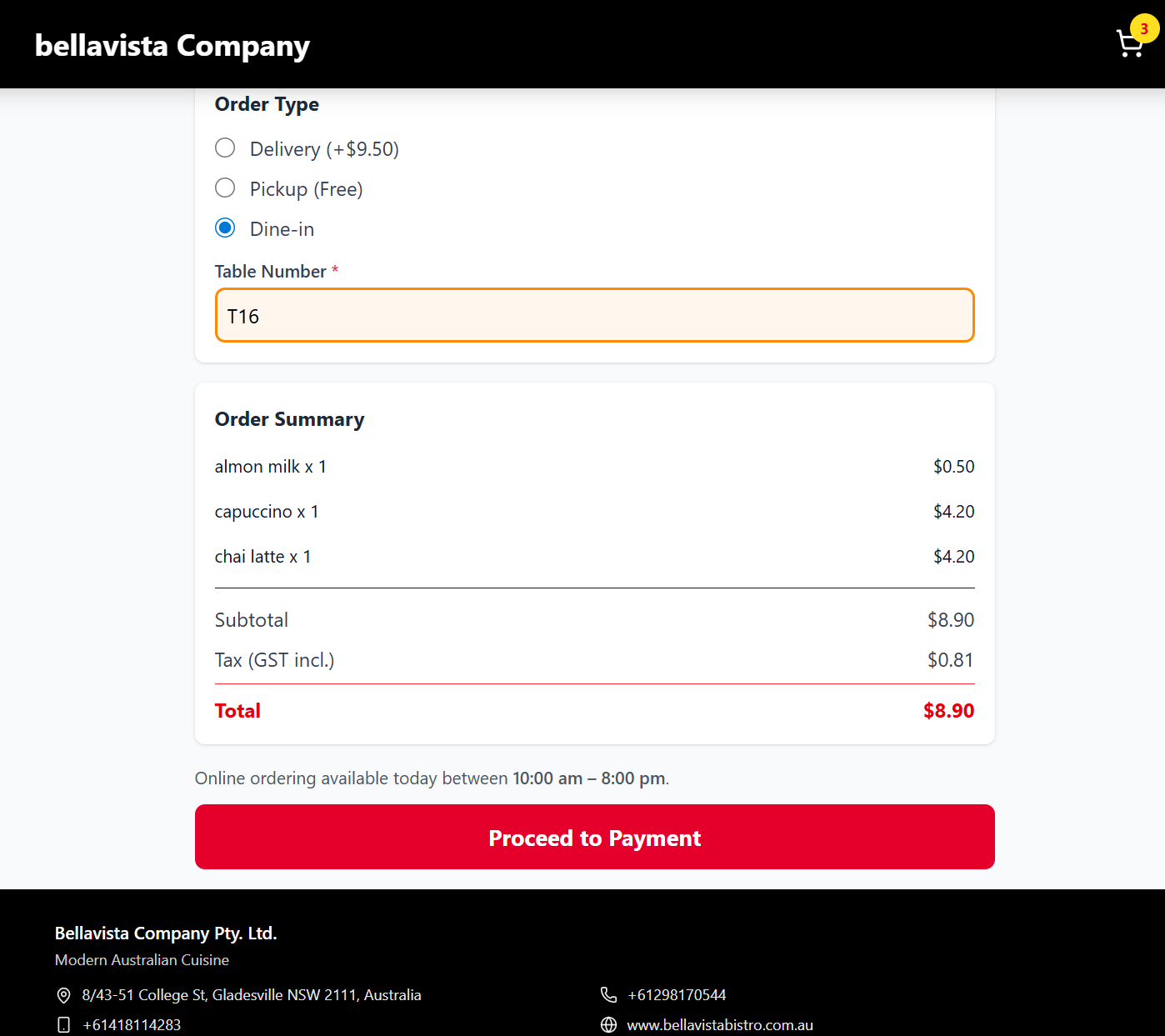
17. Customer Records, Segmentation, and Backoffice Customer Review

The backoffice customer screen complements front-office customer assignment by allowing supervisors and managers to search customer records, review spend and status, and maintain CRM-style information outside the live sale workflow.

Backoffice • CRM • Segmentation

Screen walkthrough

Primary screens used in this workflow. Click any screenshot to enlarge and review the UI details more closely.
Customer Records, Segmentation, and Backoffice Customer Review screenshot
Customer

Functions and controls

Area / controlDetailed function
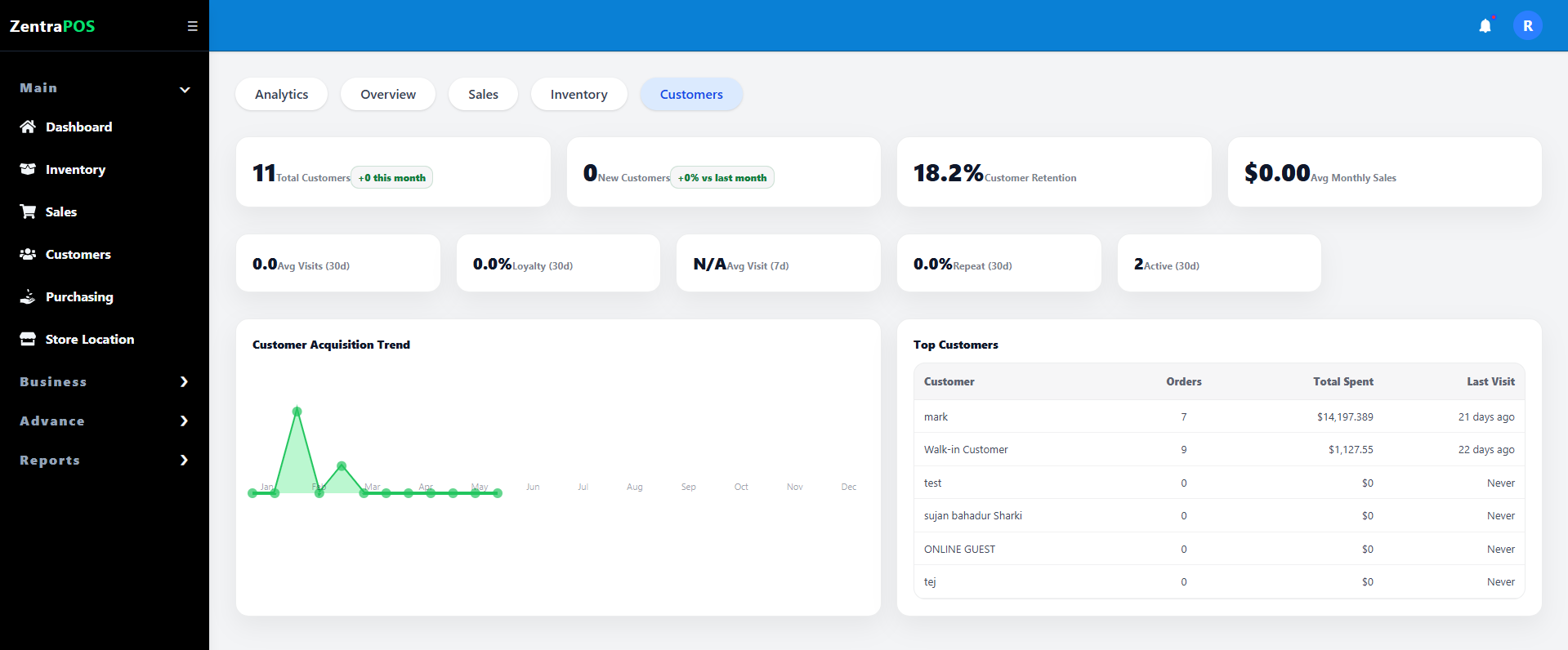
Customer list viewDisplays customer records in an administrative layout with searchable attributes.
Filters and lookup toolsSupport customer retrieval by identity or profile criteria.
Performance indicatorsMay expose spend, visit frequency, or loyalty-oriented metadata used for service planning.

Typical use cases

  • Manager review of customer base quality.
  • Backoffice cleanup of duplicate or incomplete customer records.
  • Identifying high-value guests and loyalty opportunities.

Operational guidance

  • Standardize phone and email formats to improve deduplication.
  • Use backoffice review to correct records rather than changing customer identity ad hoc at POS.
  • Keep CRM data aligned with loyalty and reporting policies.
Backoffice · Integrations & sync

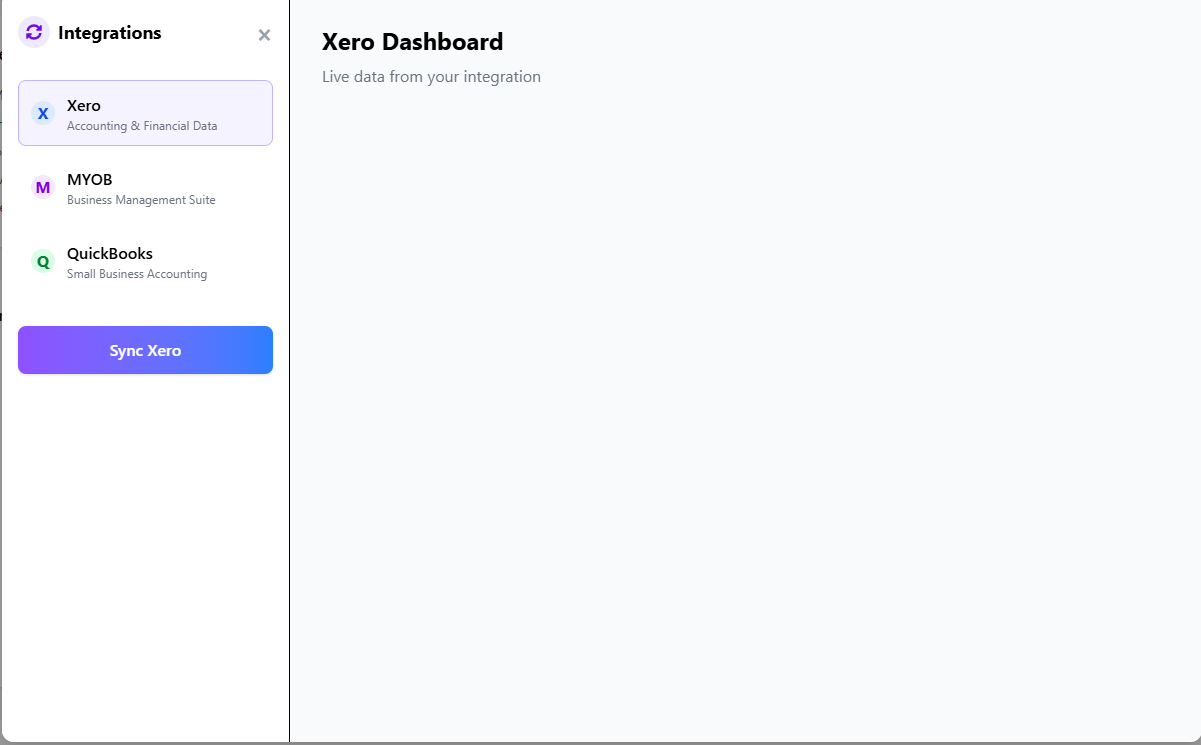
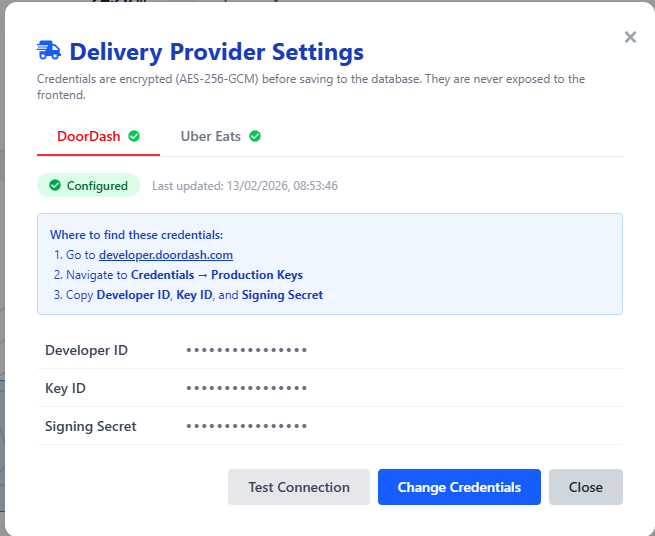
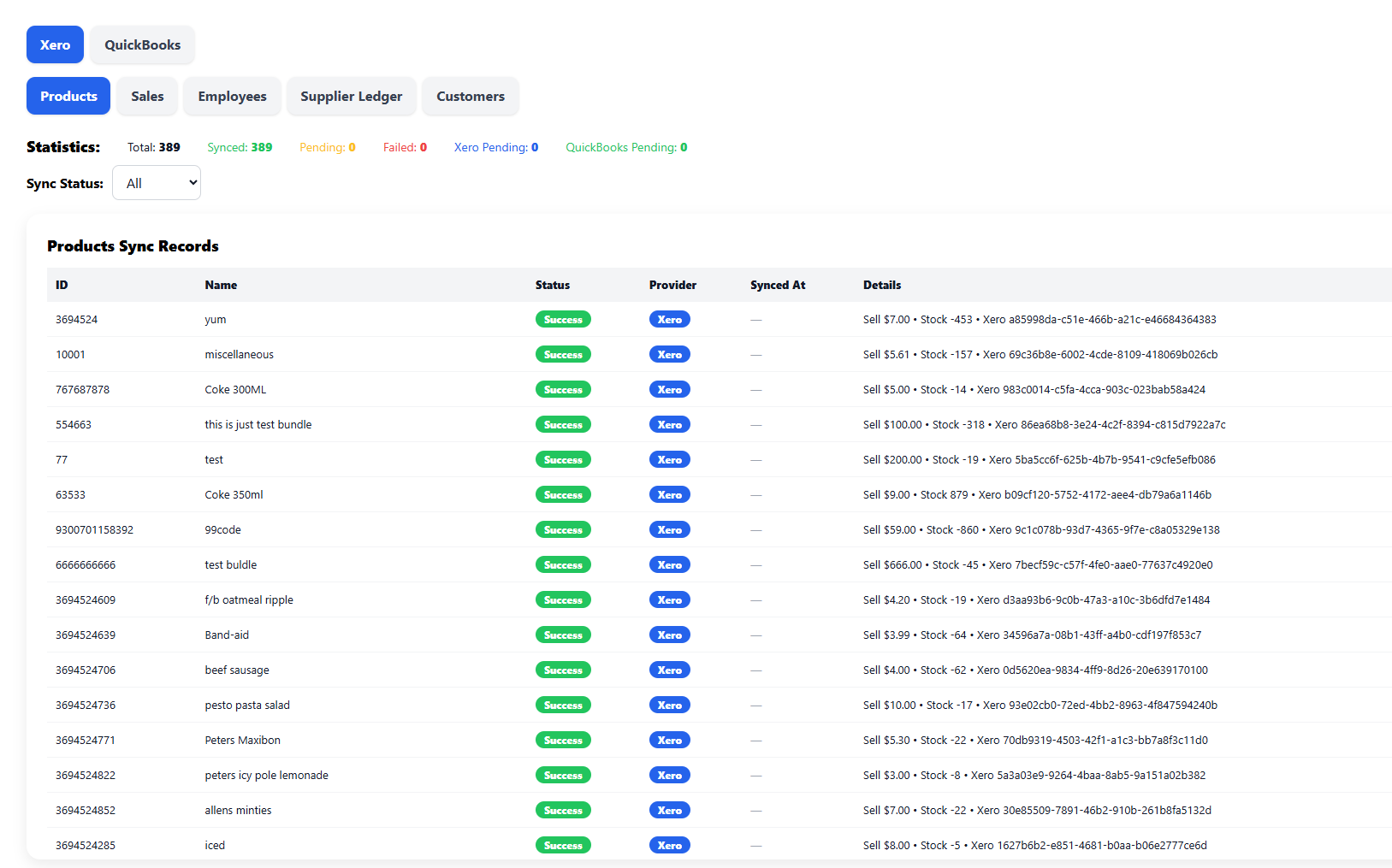
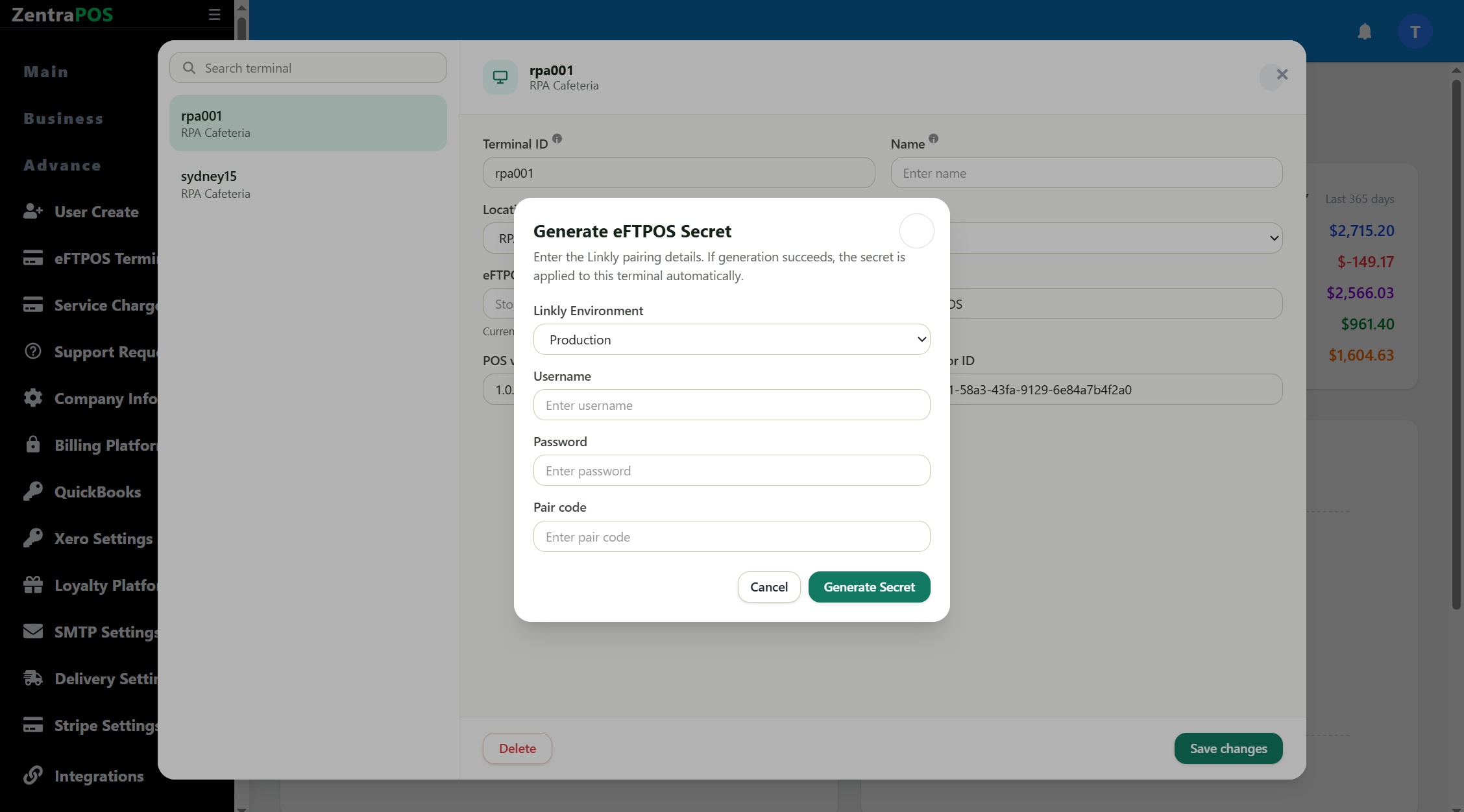
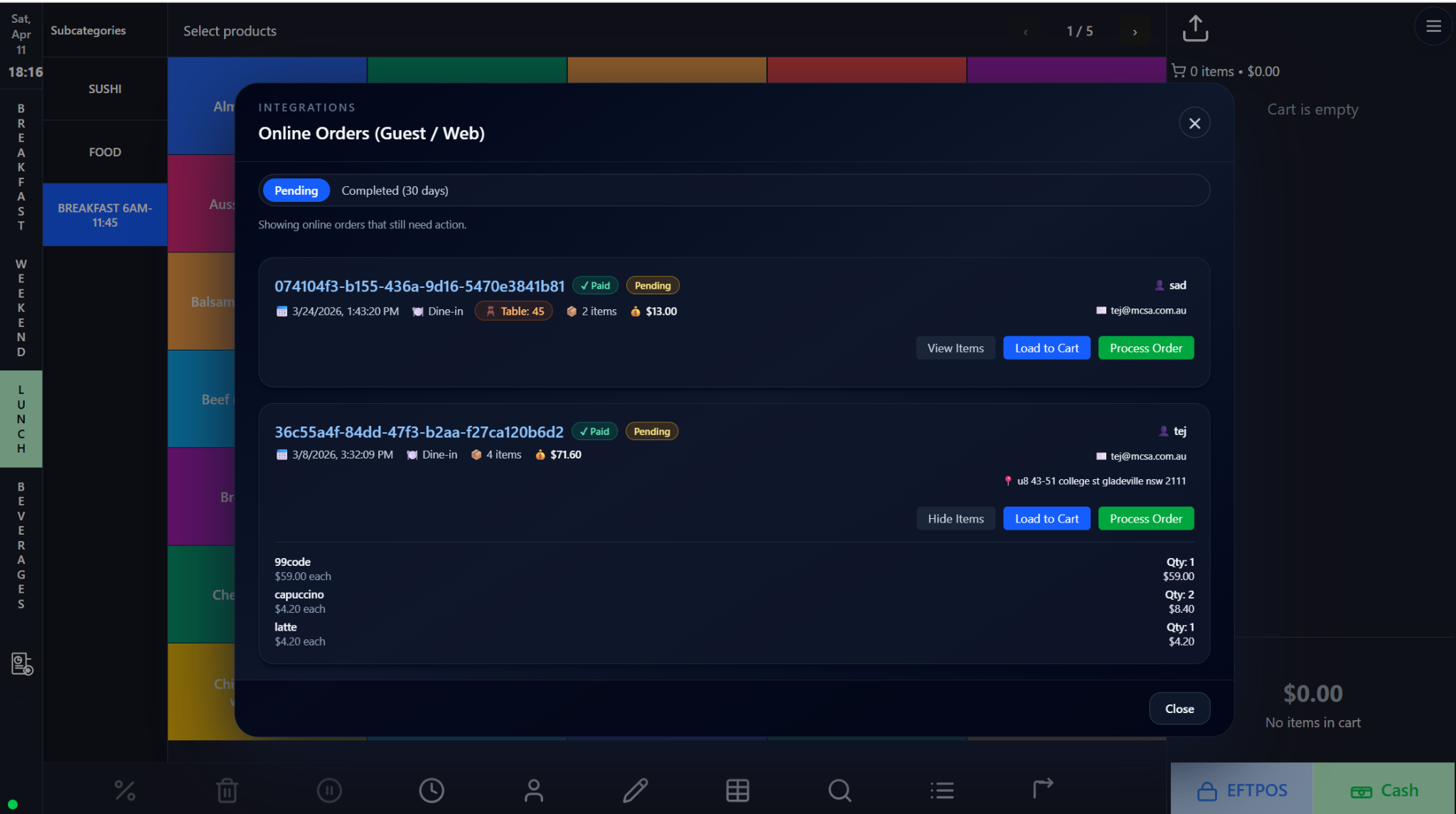
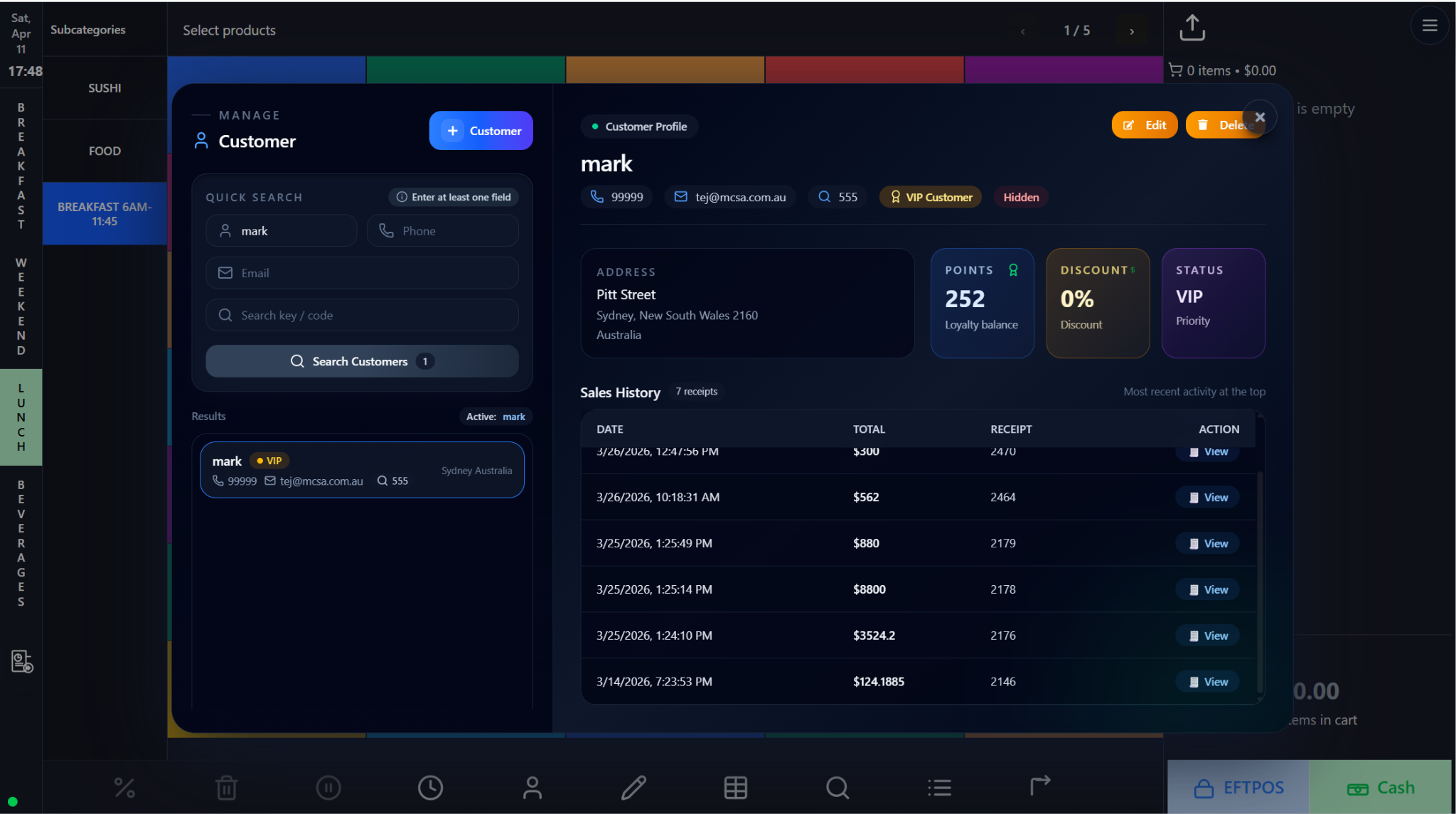
18. Integrations, Delivery Provider Settings, and Data Sync Reporting

Integration management screens control how external services connect to ZentraPOS and how synchronization health is monitored. These are essential for multi-system operations where orders, accounting, payroll, or delivery data must move reliably between platforms.

Backoffice • Integrations • Sync

Screen walkthrough

Primary screens used in this workflow. Click any screenshot to enlarge and review the UI details more closely.
Integrations, Delivery Provider Settings, and Data Sync Reporting screenshot
Integration
More screens
Integrations, Delivery Provider Settings, and Data Sync Reporting screenshot
Doordash And Uber Eats Delivery
Integrations, Delivery Provider Settings, and Data Sync Reporting screenshot
Data Sync Report

Functions and controls

Area / controlDetailed function
Integration directoryLists connected or available external systems and acts as the entry point for configuration.
Delivery provider settingsManage DoorDash and Uber Eats connection behavior, credentials, or operational options.
Data sync reportShows synchronization status, history, or errors so administrators can investigate failures.
Operational flagsHelp determine whether external dependencies are healthy before staff rely on them.

Typical use cases

  • Setting up or reviewing third-party connections.
  • Troubleshooting missing synced data.
  • Validating delivery-provider configuration before live use.

Operational guidance

  • Make configuration changes during quiet periods whenever possible.
  • Review sync reports after credential or mapping changes.
  • Document integration ownership so staff know who to contact when sync errors appear.

Configuration note

Site-specific configuration, permissions, integrations, tax rules, naming, and role access can vary between locations or tenants. Pair this manual with venue-specific policy for refunds, promotions, stock counting, payroll, service charges, reservations, and cash handling.

Recommended maintenance practice

  • Update screenshots after major UI changes.
  • Review permissions quarterly to confirm the right teams control the right tools.
  • Keep report naming and operational terminology consistent between training and the live system.